Plans and limits
See which plan you're on, what each tier includes, how per-seat usage plans work, and how to upgrade or add seats.
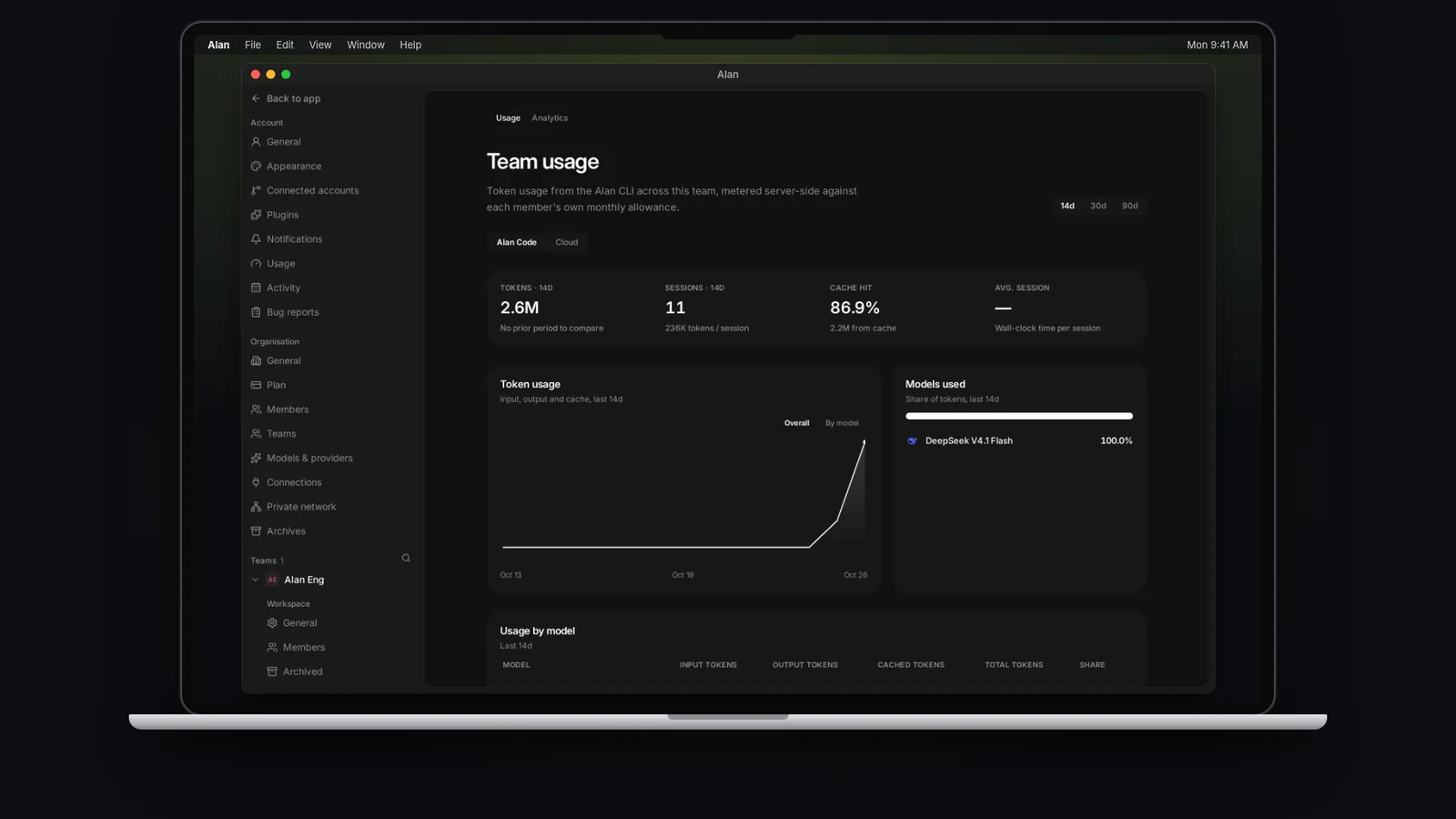
Your plan controls which features you can use and how much usage is included. A seat is a place for one member in the organization:
- A feature tier that decides which features everyone in the organization can use: Free, Individual, Team, or Enterprise.
- A usage plan for each seat that decides how much model and cloud usage that member gets each month: Pro, Pro+, or Max.
Open Settings → Organisation → Plan to check them. Only organization admins can change plans, seats, or billing.
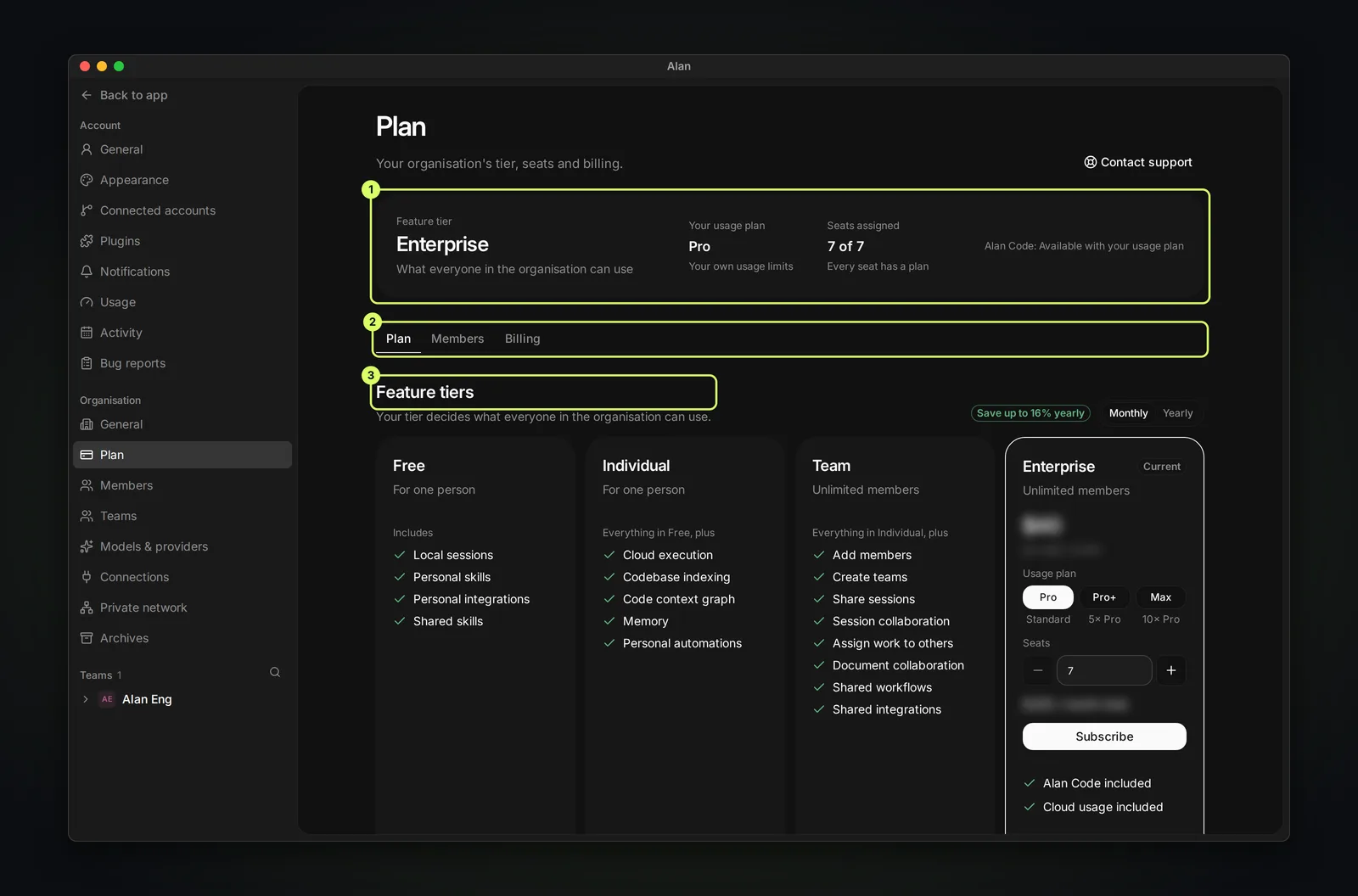
Check Settings → Organisation → Plan for your account's available plans, prices, and billing terms. Feature tiers and per-seat usage plans are separate; confirm both before subscribing.
See which plan you're on
Open Settings → Organisation → Plan. The card at the top shows:
| Field | What it tells you |
|---|---|
| Feature tier | "What everyone in the organisation can use" |
| Your usage plan | Your own monthly limits, for example Pro |
| Seats assigned | For example 7 of 7, and whether every seat has a usage plan |
The line Alan Code: Available with your usage plan confirms you can use Alan Code with your seat.
Below it are three tabs:
| Tab | What it's for |
|---|---|
| Plan | Feature tiers: compare tiers, change usage plan and seats, and subscribe. |
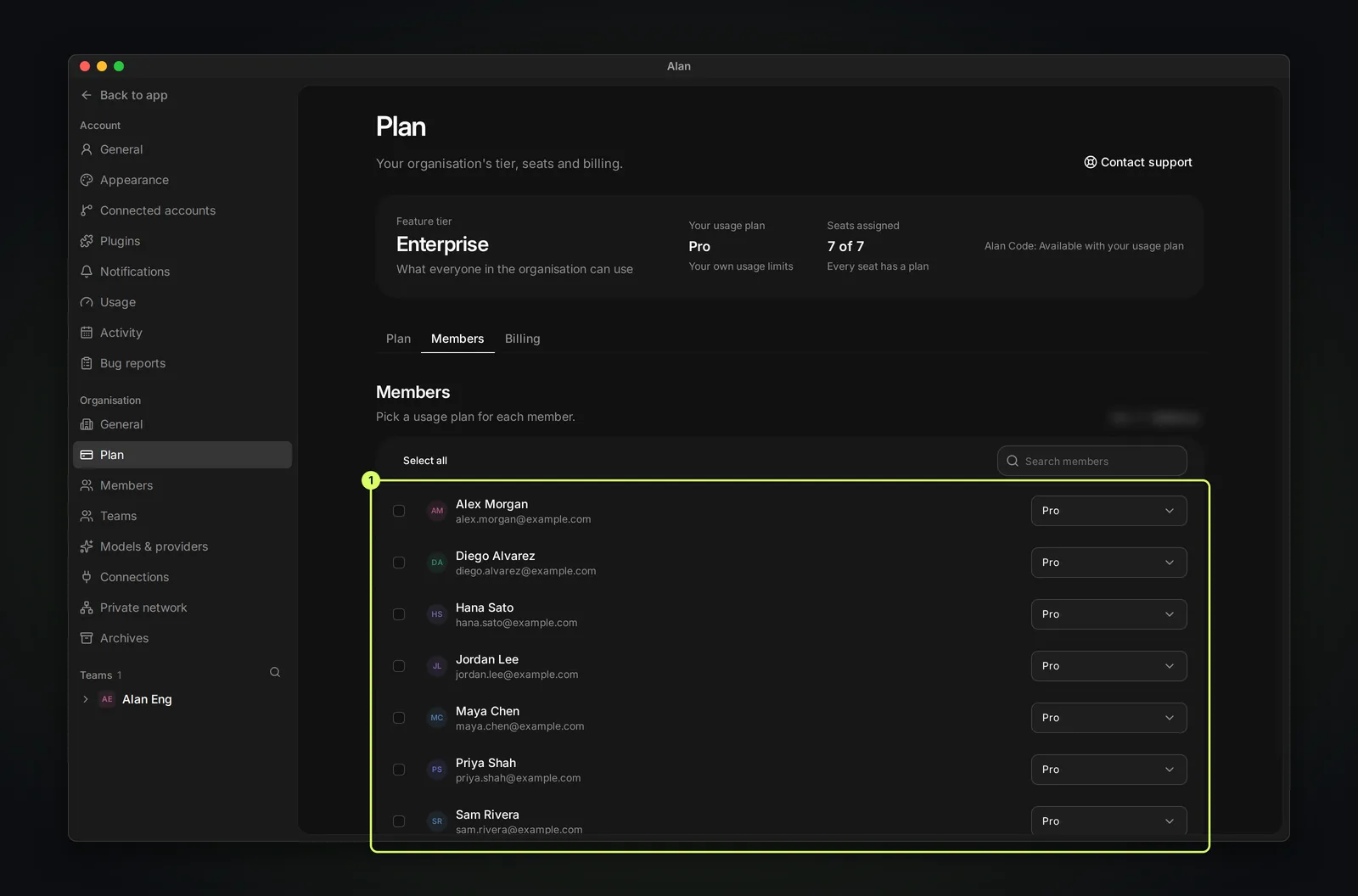
| Members | Pick a usage plan for each member. |
| Billing | Usage credits and Billing history. See Usage and credits. |
If you aren't an admin, the page reads "Your usage plan in this organisation." and shows only your own plan, with "Ask an organisation admin to change plans, seats or billing."
Features by tier
| Feature | Free | Individual | Team | Enterprise |
|---|---|---|---|---|
| Members | For one person | For one person | Unlimited members | Unlimited members |
| Sessions on your own computer | ✅ | ✅ | ✅ | ✅ |
| Sessions in the cloud | — | ✅ | ✅ | ✅ |
| Connect integrations | ✅ | ✅ | ✅ | ✅ |
| Personal skills | ✅ | ✅ | ✅ | ✅ |
| Share skills with the team | ✅ | ✅ | ✅ | ✅ |
| Personal automations | — | ✅ | ✅ | ✅ |
| Codebase indexing | — | ✅ | ✅ | ✅ |
| Context graph and memory | — | ✅ | ✅ | ✅ |
| Invite members and create teams | — | — | ✅ | ✅ |
| Share sessions and work on them together | — | — | ✅ | ✅ |
| Share automations, integrations, and resources with the team | — | — | ✅ | ✅ |
| Assign tasks to others; collaborate on documents | — | — | ✅ | ✅ |
| Workspace Docs (organization-wide docs) | — | — | — | ✅ |
When a feature isn't in your tier, Alan says so where you'd use it. For example, the session composer's Team option shows "Team sharing is not included in this plan", and a cloud session on Free reads "Cloud isn't included in the Free plan. Upgrade to run work in the cloud." Choose Compare all features on the Plan tab for the full list.
Usage plans
Each seat has a usage plan with a monthly allowance in US dollars. The allowance covers Alan Code model usage and the organization's cloud computers:
| Usage plan | Shown in the picker as | Monthly allowance per seat | Always yours for Alan Code (75%) | Shared with cloud (25%) |
|---|---|---|---|---|
| Pro | Standard | $10 | $7.50 | $2.50 |
| Pro+ | 5× Pro | $50 | $37.50 | $12.50 |
| Max | 10× Pro | $100 | $75 | $25 |
The allowance amounts come from Alan's plan catalog and can change; the picker shows the current ones.
You keep 75% for your own Alan Code usage. The remaining 25% can cover either your Alan Code usage or your team's cloud usage, whichever uses it first.
- Alan Code limits are per member. One member's usage never uses up another member's 75%.
- The cloud budget is pooled across the organization: it adds up the 25% share of every purchased seat. For example, 7 Pro seats give a $17.50 cloud budget for a full month. A seat added mid-month adds a prorated share. Purchased usage credits add budget for both cloud and Alan Code.
- Admins assign usage plans on the Members tab ("Pick a usage plan for each member."). Select members to set a plan for several at once. If your account allows it, a seat can stay Unassigned.
Upgrade, change seats, or subscribe
Open the Plan tab
In Settings → Organisation → Plan, stay on the Plan tab. Under Feature tiers, your tier is marked Current.
Choose the billing period
Switch between Monthly and Yearly. The toggle shows the yearly saving, for example Save up to 16% yearly.
Pick a tier, usage plan, and seats
On the tier you want, pick a Usage plan (Pro, Pro+, or Max) and set Seats. Free and Individual are for one person, so they have no seat count. You need a seat for every member; with too few, Alan asks for more ("Every one of your N members needs a seat.").
Subscribe
Choose Subscribe and complete checkout. Back in Alan, the page checks for the new plan for about half a minute. If the payment still isn't reflected, choose Refresh plan details.
Tiers you can't buy online show Talk to sales. Use Contact support at the top of the page for invoices, trial or contract terms, or the timing and cost of subscription changes.
What happens at a limit
| Limit | What you see | What to do |
|---|---|---|
| A member's Alan Code allowance is used up | Monthly limit reached, with the reset date | Check usage credits or ask an admin about a larger usage plan. |
| The organization's cloud budget is used up | A budget warning; task and machine sandboxes pause after a grace period | Add usage credits, or run on your own computer. Automation runs already in progress can finish. |
| A team reached its cloud cap | A message that the team has reached its monthly cloud limit | Ask an admin to raise the team's cap. |
| Free tier and cloud | Cloud isn't included in the Free plan | Upgrade to Individual, Team, or Enterprise. |
See Usage and credits for how the cloud grace period works.