Usage and credits
Check team usage, understand limits, and add credits for cloud and Alan Code.
Check usage before starting more work, or when Alan says you have reached a limit. This page explains where to find the numbers and how an organization admin can add credits.
Team usage
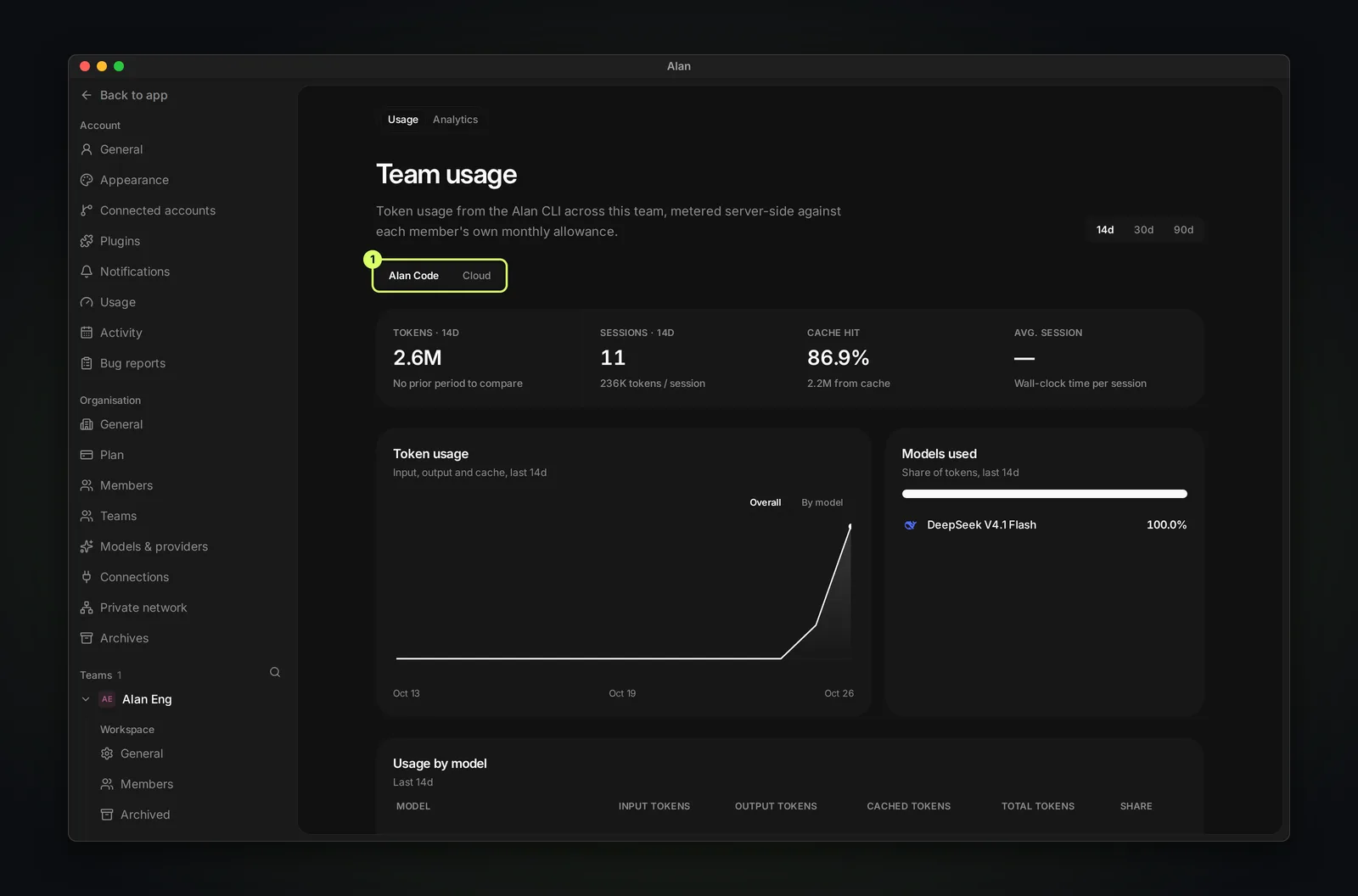
Open Settings → your team → Usage. The Team usage page shows Alan Code and cloud usage for that team.
- Switch between Alan Code and Cloud usage, and between the last 14d, 30d, or 90d.
- See totals (tokens, sessions, cache hit rate), a Token usage chart (Overall or By model), Models used, Usage by model, and Usage by member.
- Alan Code limits are per member ("Each member is capped individually."). The cloud budget, by contrast, is shared across the organization; see Usage plans.
Team members can also open the Analytics tab here. The organization-wide Org Dashboard is for organization admins. Your own usage is in Settings → Account → Usage.
Usage credits
Purchased Usage credits add budget for both cloud computers and Alan Code. Unused purchased credits carry over; the seats' monthly cloud share does not. Organization admins manage purchases, and buying credits requires a paid plan.
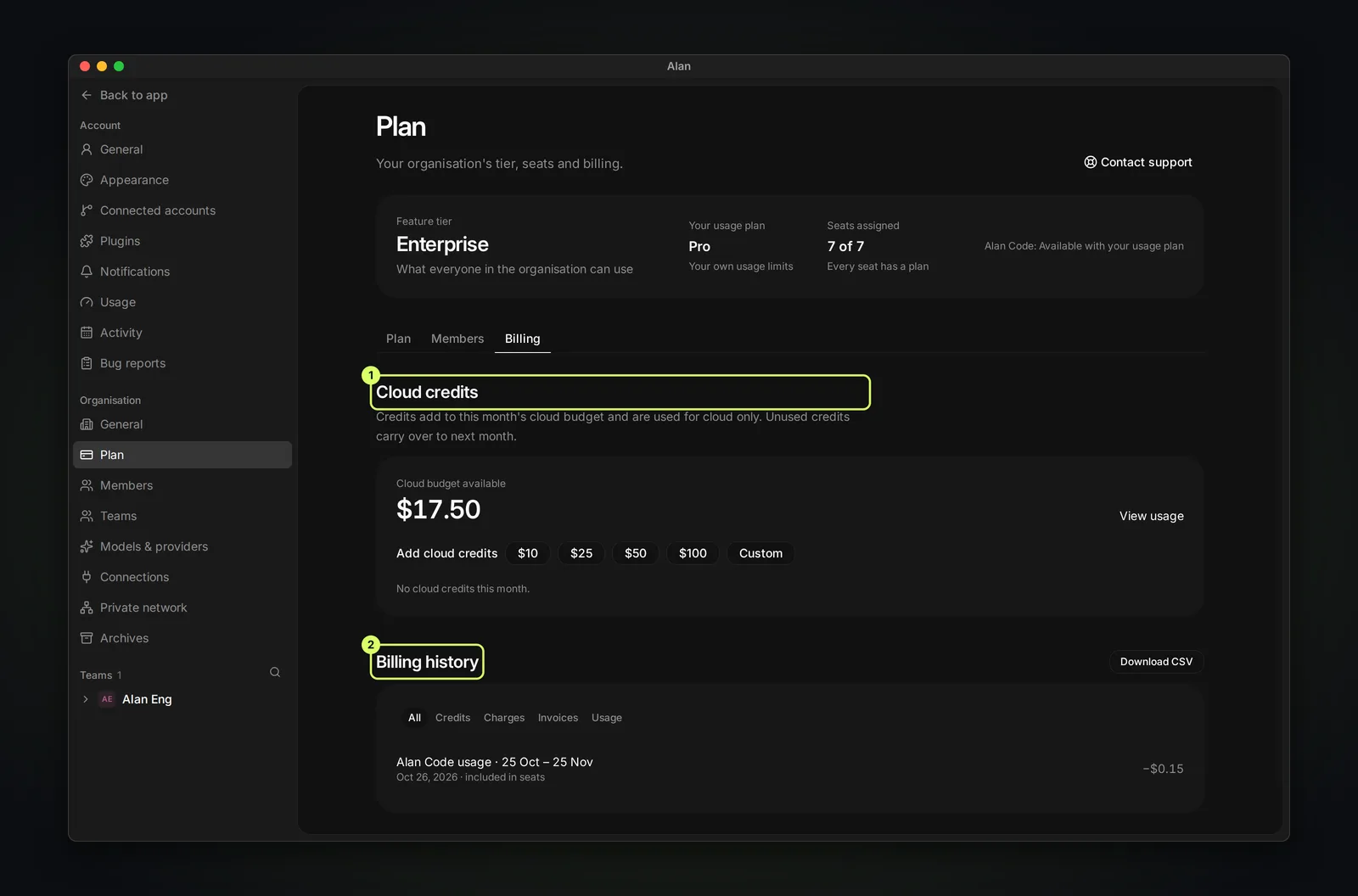
- Open Settings → Organisation → Plan and choose the Billing tab.
- Under Usage credits, choose an available pack, or Custom for another whole-dollar amount from $5 to $1,000.
- Choose a pack or Add usage credits for a custom amount, then complete checkout. Your credits should appear within a minute.
The page shows Usage budget available with the amount and a View usage link.
Billing history
Below the credits, Billing history lists every transaction. Filter by All, Credits, Charges, Invoices, or Usage, and choose Download CSV to export it.
When you reach a limit
- Starting a cloud session needs enough cloud budget for about 15 minutes of running. If there isn't enough, add credits or run on your own computer.
- When the cloud budget runs out, task and machine sandboxes normally pause after a 10-minute grace period, or 20 minutes if an agent is working. Automation runs already in progress are allowed to finish. Add credits to continue cloud work.
- When a member's Alan Code allowance is used up, check the available usage credits or ask an admin about a larger usage plan. The monthly allowance resets in the next billing period.
- When the budget runs low, Alan shows how many minutes of cloud are left. Organization admins receive a notification when the budget is used up.
These are the default timing limits; your deployment may use different settings. If a cloud session cannot start, check the budget and the reason shown before retrying.