Members and teams
Invite people, set their roles, and organize them into teams.
People belong to the organization, and work happens in teams. Each person has a role in the organization and a role in every team they join: Admin or Member.
Invite members
Only organization admins can invite people to the organization. Members see the list but not Invite.
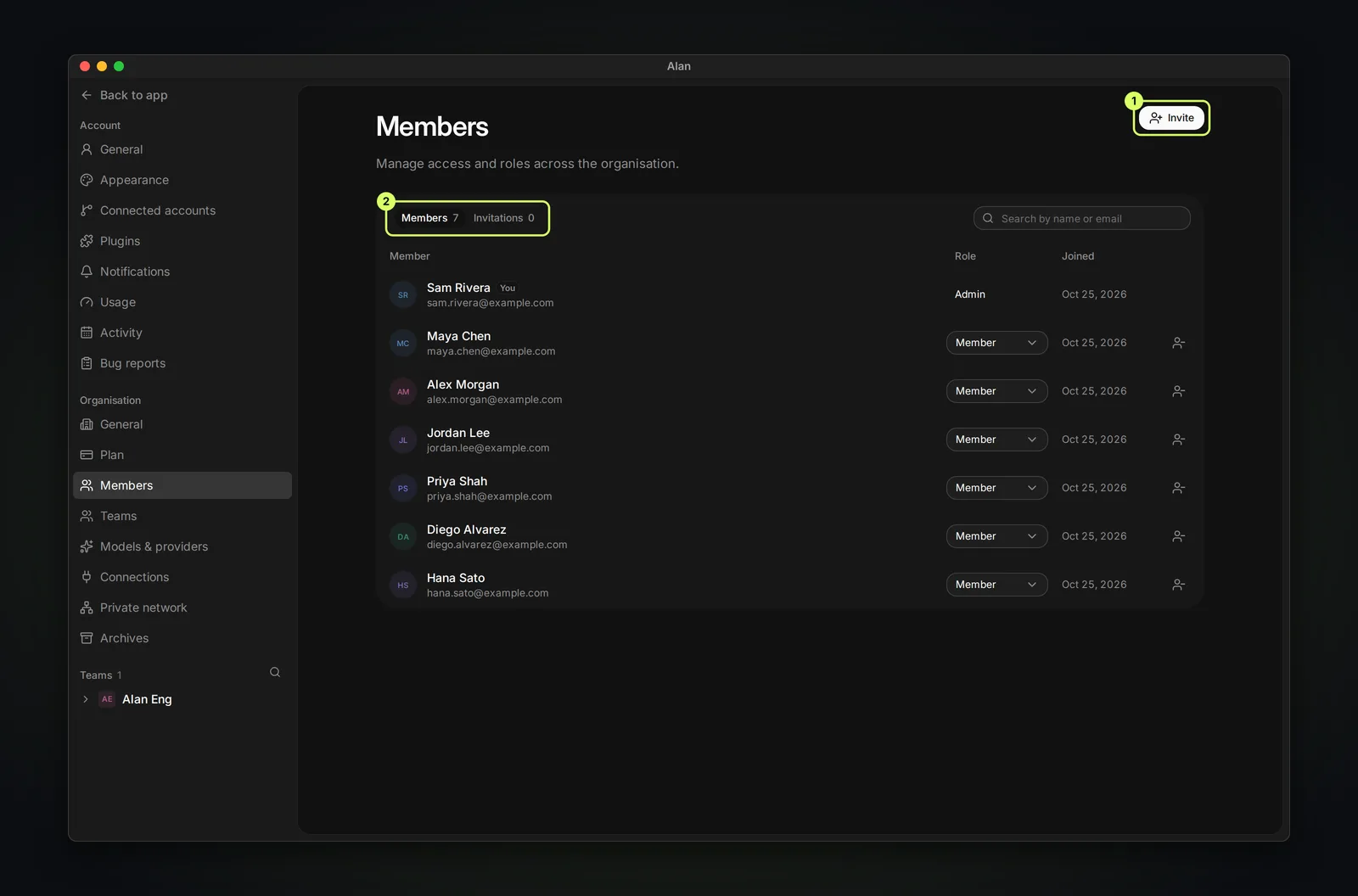
- Open Settings → Organisation → Members.
- Choose Invite and enter email addresses.
- Track pending invites on the Invitations tab.
Invitees open the email link and sign in with the invited address. Each member needs a seat, so add seats on the Plan page first. Inviting members requires the Team or Enterprise tier.
To invite someone to a specific team, open Settings → that team → Members. Team admins can manage team membership there; organization membership and team membership are separate.
Organization admins change a member's role from the role menu next to their name, or remove them with the remove button.
Removing a member also removes their team memberships and ends their seat assignment. It does not delete the tasks or conversations they created. Review their assigned work and shared connections before removing them.
Teams
Settings → Organisation → Teams lists every team ("Manage each team's settings, or open its workspace"). Choose New team to create one, or use Create team in the team switcher in the sidebar. On the Team or Enterprise tier any member can create a team, and the person who creates it becomes its admin.
Open Settings → the team to manage its members, planning, computers, connections, and usage. Team admins manage access on the team's Members page.
What each role can do
| Action | Org admin | Team admin | Member |
|---|---|---|---|
| Edit the organization's name and icon; manage plan, seats, and billing | ✅ | — | — |
| Invite people to the organization, change their roles, or remove them | ✅ | — | — |
| Delete the organization | ✅ | — | — |
| Create teams (Team or Enterprise tier) | ✅ | ✅ | ✅ |
| Add or remove team members, change their team role, delete the team | ✅ | ✅ | — |
| Change a team's settings (Tasks, Cycles, Epics, agents and models, CLI connections, Alan Agent, indexing) | ✅ | ✅ | ✅ |
| Work in the team: sessions, tasks, docs | ✅ | ✅ | ✅ |
Organization admins can do everything a team admin can in every team. Repository access also depends on the connection's owner, who it is shared with, and the organization's policy. Follow Connect GitHub for setup, or Roles and permissions for the full role rules.