Connect GitHub
Connect your team's GitHub projects, choose which repositories Alan can use, and link each teammate's account.
Connect GitHub so Alan can work on your team's projects and open pull requests. A repository holds a project's files and change history. Your team connects the repositories once; teammates can then use them in Alan.
There are two parts:
- Repository access: connect the Alan GitHub App, which gives Alan permission to use selected repositories, then add those repositories to your Alan team. You can reuse an existing installation.
- Your GitHub account: each person links their own account for actions in their name and their personal review queue. This alone does not connect the team's repositories.
Before you start
Use your own GitHub account. If your company provides one, use that account. Otherwise, create a GitHub account and verify your email first.
For company projects, use the GitHub organization that owns the repositories: your company's shared account on GitHub. This is separate from your organization in Alan.
Ask a GitHub organization owner to make its first connection to Alan. For an organization-wide connection, that person also needs to be an organization admin in Alan. A team member can set up a connection for Only this team when the organization allows it, but still needs the required GitHub access. For repositories on a personal GitHub account, the account owner must connect it.
If your team already has a working GitHub connection, skip to Add repositories to the team.
1. Open the team's settings
Choose Settings in the sidebar. Under the team you want to connect, choose Integrations, then Add connection under Source control.
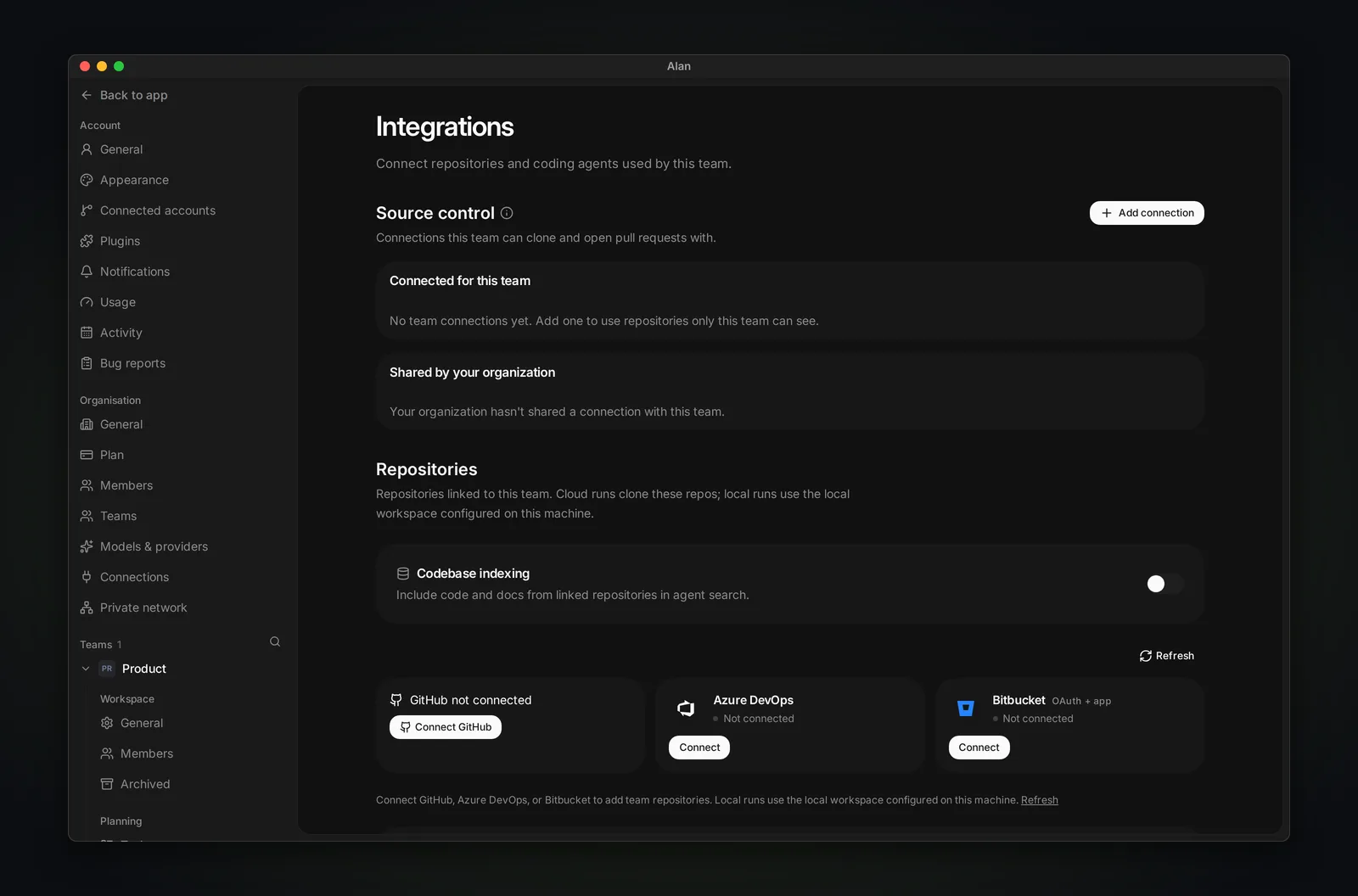
2. Choose who can use the connection
In Who should use this?, choose:
- Only this team to make the connection available to this Alan team. This option is disabled if your organization requires shared connections.
- Whole organization to make it available to every Alan team. You can narrow access to selected teams later.
Choose Continue.
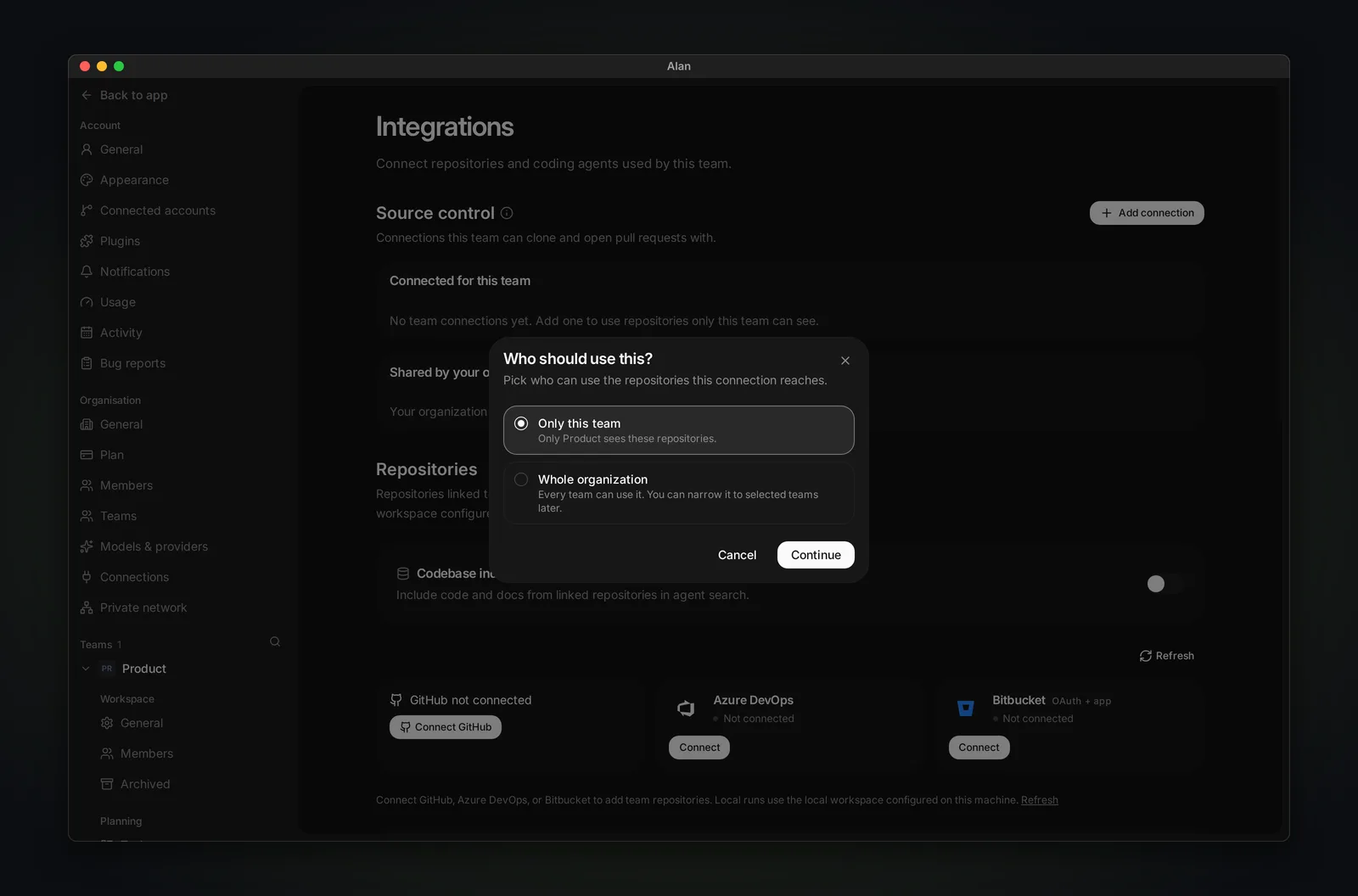
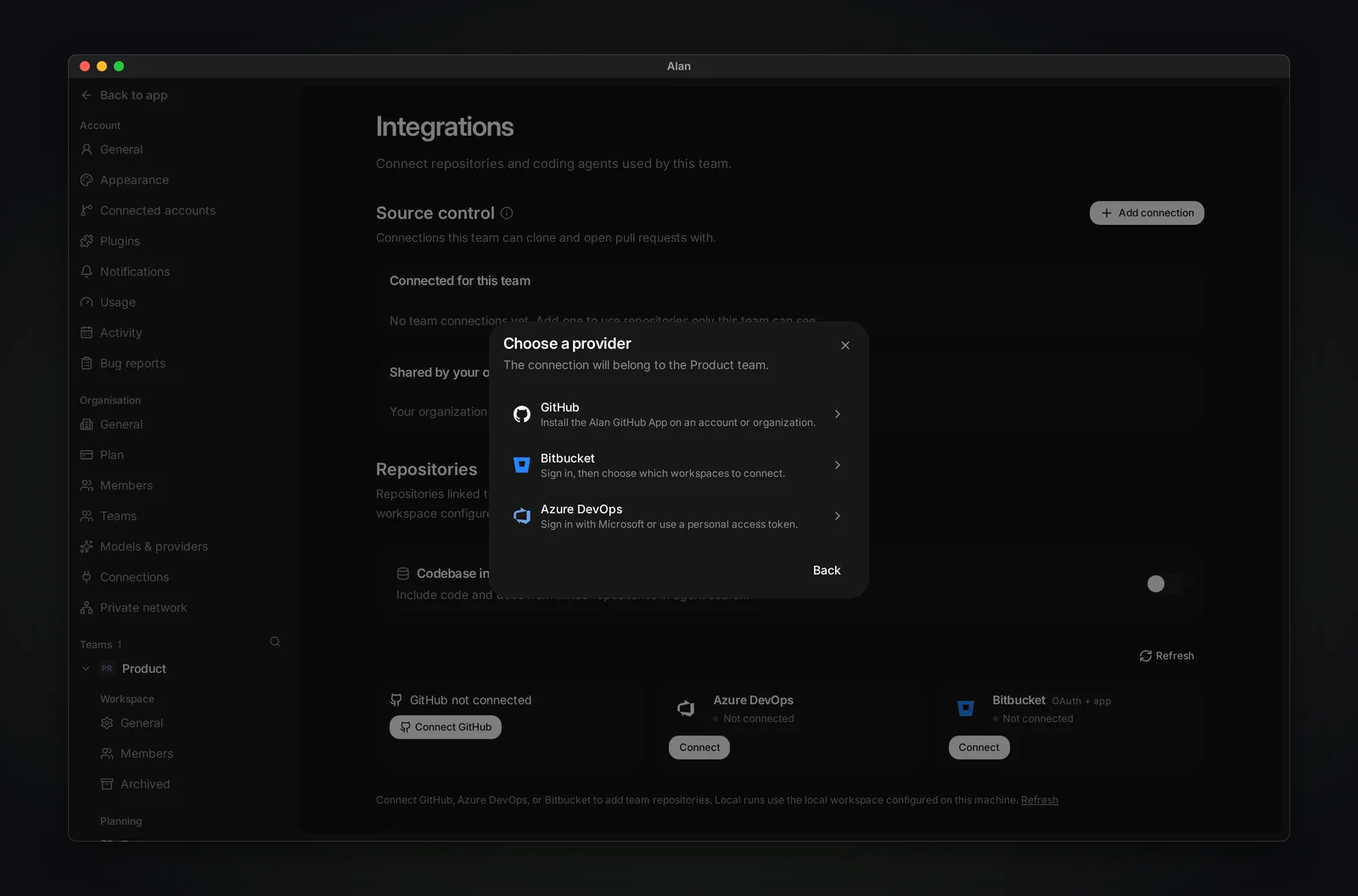
3. Choose GitHub and grant access
Choose GitHub on Choose a provider. Alan opens GitHub. On the desktop app, it opens in your browser.
On GitHub:
- Sign in as the person authorized to connect the repositories.
- Choose the account that owns the repositories: your GitHub organization for team projects, or your personal account for solo projects.
- Choose Only select repositories, then use Select repositories to pick the projects Alan should access. Choose All repositories if you want to include every repository in that account.
- Review the app name and requested permissions, then choose Install. GitHub may show Install and request or Request when an owner must approve access.
The example below uses GitHub's sample app, Octo App. Your page should name Alan and show its actual permissions.
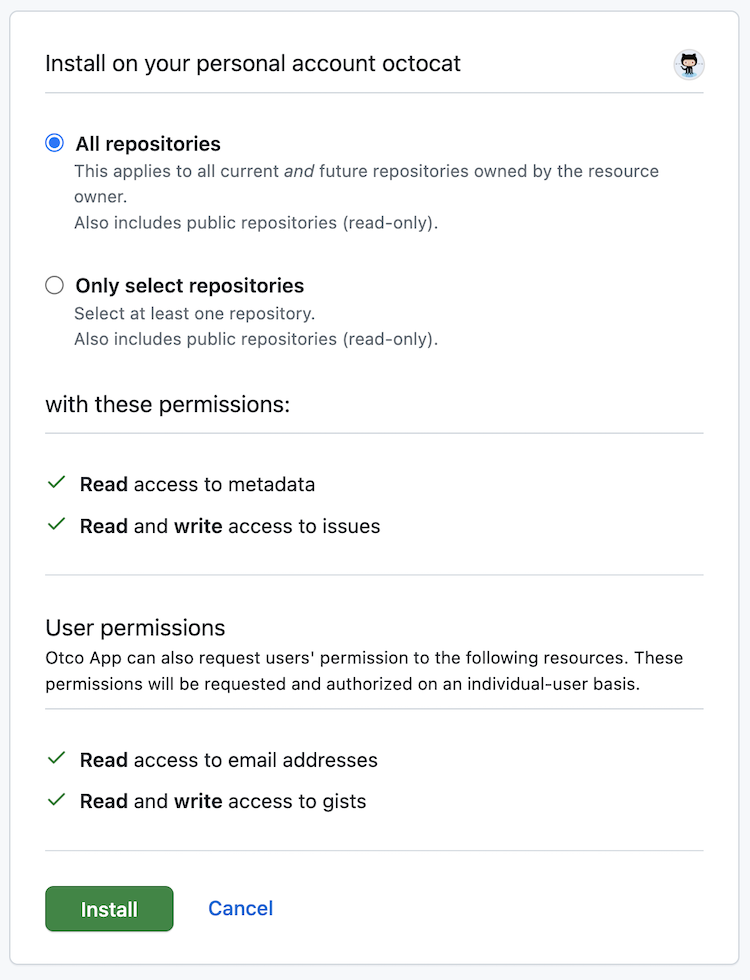
GitHub may also ask you to authorize your own account before or after installation.
If GitHub sends an approval request to an organization owner, setup is not finished. After the owner approves it, start the connection again from Alan.
GitHub returns you to Alan. On desktop, use Open Alan Desktop if the app does not reopen automatically. If Alan asks, choose Authorize GitHub and connect to verify your account, or Connect installation to confirm the app connection you just configured.
4. Add repositories to the team
Back in Integrations, check that the connection appears under Connected for this team or Shared by your organization.
In Repositories, find GitHub and choose Add repo. In Add repository, select the projects your team will work on, check their default branches, then choose Add 1 repository or Add N repositories.
- Repository missing? Choose Manage access, include it in the GitHub App's access, return to Alan, and choose Refresh.
- Add repo disabled? All available repositories may already be linked. Check the team's repository list first.
- Access stopped working? Choose Check connection from the connection's menu and follow the result.
Codebase indexing is optional. Turning it on lets agents search code and docs from linked repositories; availability depends on your plan.
Another place to start
You may also see Connect GitHub on the GitHub card or in a cloud repository picker. It starts the same setup: Alan may first ask you to authorize your account, link an existing app connection, or install the app. If Choose a GitHub account appears, select the account that owns your projects. If Alan says Ask an organization admin to connect GitHub, ask an Alan organization admin to finish setup.
Manage access across teams
In Settings, an Alan organization admin can open their organization's Connections page, then GitHub, to manage shared connections. Open a connection's menu and choose Choose teams. Choose All teams, or Selected teams and the teams that should have access, then Save access. For selected teams, you can also list which repositories each team may use.
Removing a team's access can disconnect its linked repositories. Review Alan's confirmation before saving that change.
5. Let teammates connect their own accounts
Each teammate opens Settings → Account → Connected accounts and connects GitHub, or does this during onboarding. Use your own GitHub login, not a shared company login.
This lets Alan act in your name where supported and fill My PRs and For me (requests for your review). Teammates do not each need to install the app again for the same team repositories.
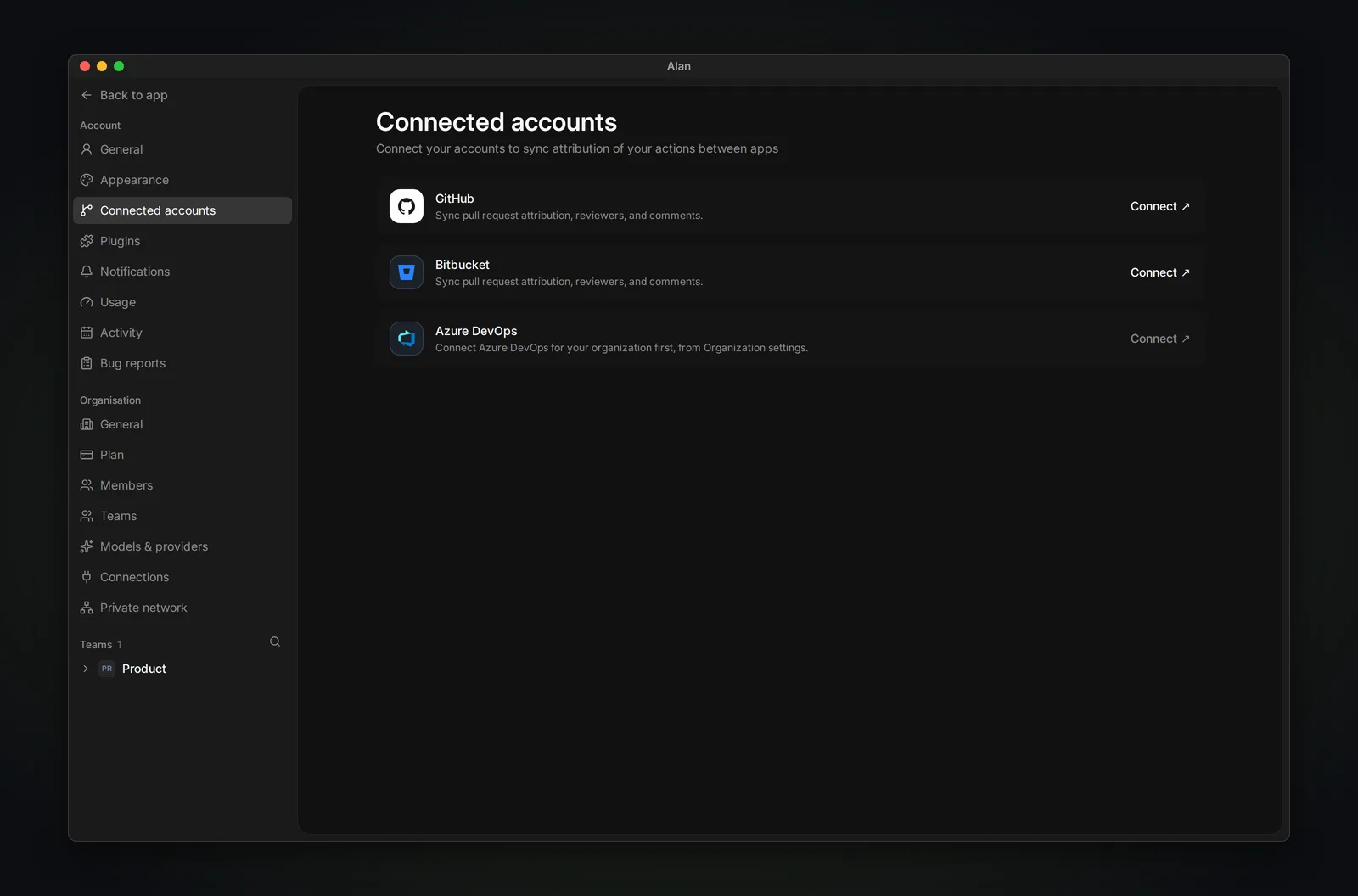
On GitHub's authorization page, check that you are signed in to your own account, review the requested access, then choose Authorize for the Alan app. GitHub sends you back to Alan. This identifies you; repository access is still set up separately in steps 1–4.
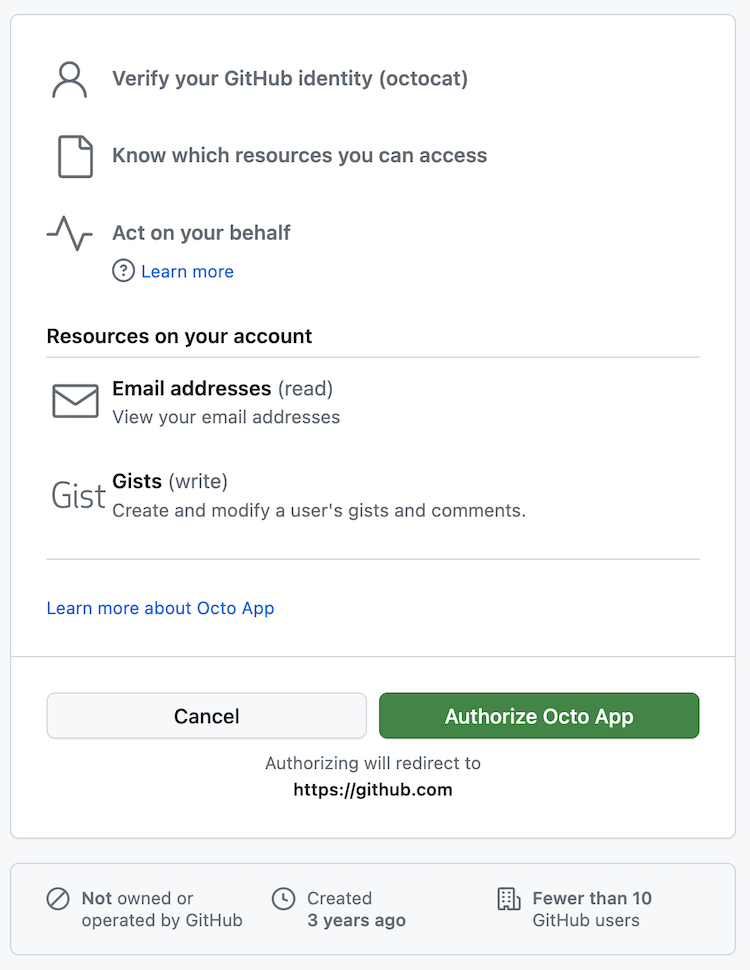
GitHub screenshots © GitHub, Inc., from GitHub Docs, licensed under CC BY 4.0. Converted to WebP; screen content unchanged.
Alan setup tour
This tour shows the steps inside Alan up to the GitHub handoff. Complete the GitHub authorization and repository selection using the instructions above.
Start work
For team cloud sessions, continue with Cloud setup, then Complete a task with an agent. Connecting GitHub does not create a cloud environment or start a session.
For solo local work, open New Session, choose This computer, and select your local project folder. Clone the repository first if you do not have a local copy. Local agents use that folder; adding a repository in Alan does not download it to your computer. See Local execution.
When an agent opens a pull request from a task session, Alan links it to the task. Pull requests with a task ID, such as ENG-42, in their title or branch name can also link to that task. Continue with Pull requests to review changes and checks.