Automation runs
Find an automation's runs, read what each one did, and decide whether to retry or edit.
Open an automation's run history to see when it ran, whether it finished, and what it produced. Each run has its own session conversation.
Find runs
| Where | What you see |
|---|---|
| The automation's row in Automations | When it last ran ("Never run" until the first run) and when it runs next |
| The side panel (select a row) | Last run, success rate, and Recent runs as status marks you can open |
| The automation's page, Runs tab | Every run, newest first, with a count on the tab |
| The automation's page, Artifacts tab | Plans, reports, and other artifacts its runs created |
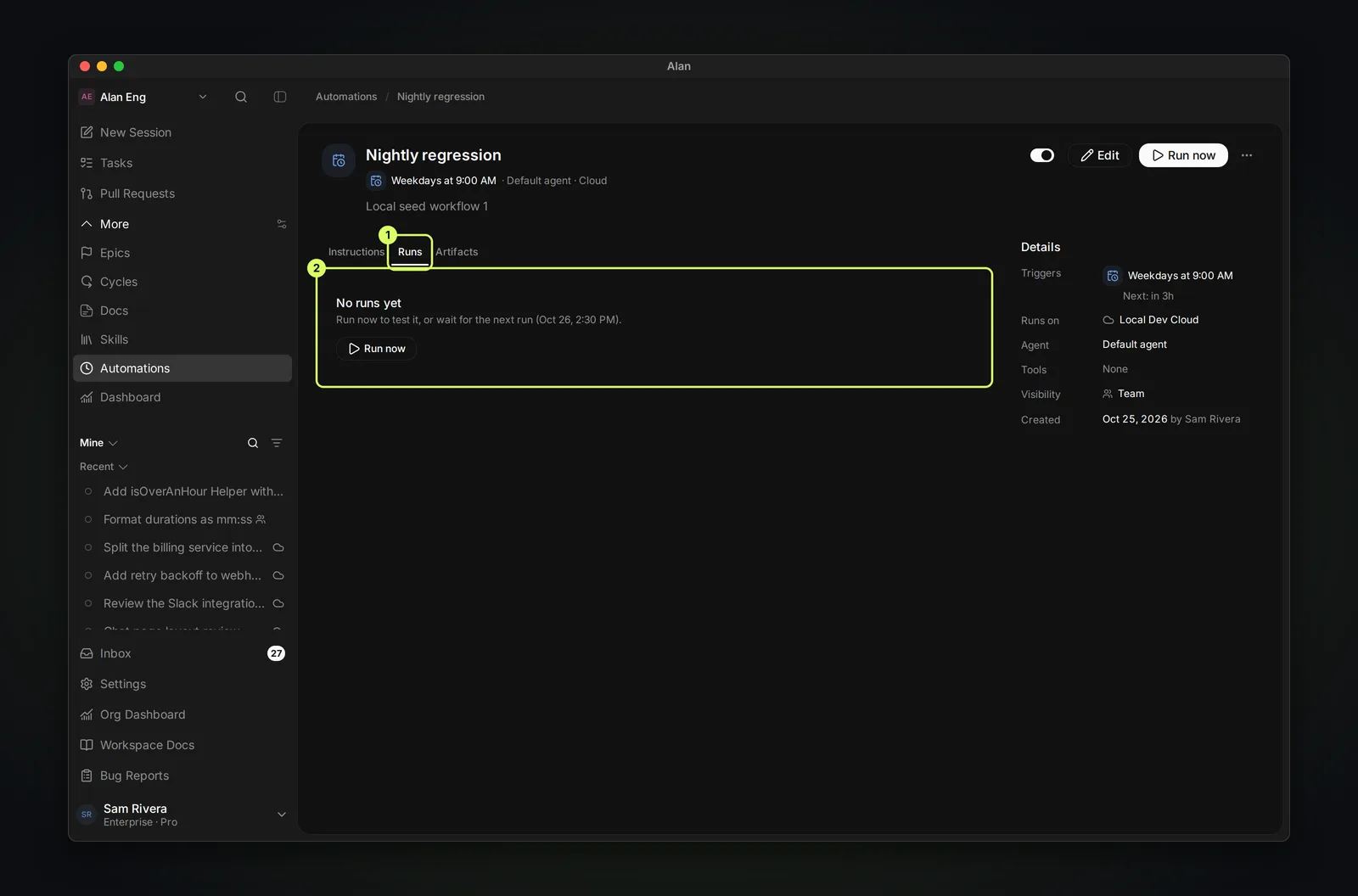
Once there are runs, the page also shows Last run, Success, Avg duration, and a strip of Recent runs above the tabs. The Runs table lists each run's Started, Status, Visibility, Agent, Trigger, Duration, and Target. Each row's menu has Copy link and Copy session ID. When the latest run came from an event, a Payload tab shows the data the trigger sent.
Run statuses
| Status | Meaning |
|---|---|
| Pending | Queued and about to start |
| Running | The agent is working |
| Awaiting local | An older local automation is waiting for its computer to come online |
| Completed | Finished |
| Failed | Ended with an error |
| Interrupted | Stopped before finishing, for example because someone stopped it |
| Cancelled | Cancelled before finishing |
| Timed out | Ran past its time limit |
| Skipped | The trigger fired but Alan didn't start a run |
A run is usually Skipped because the previous run was still going, the team had reached its limit on cloud runs, or the organisation couldn't start cloud work. If a plan change or an invalid schedule stops an automation altogether, Alan turns it off and records why.
The automation itself shows Failed in the list when its latest run failed, was interrupted, or timed out. Open the run to see why.
Read a run
Open a run from the Runs tab or the side panel. It opens as a session with the conversation on the left and the Desktop, Git, Terminal, Files, and Artifacts panels for the run's sandbox. Read the conversation to see how the agent worked; read its artifacts and pull requests to judge what it produced.
If you stop a run, the session says This run was stopped and keeps the transcript; choose Restart run to run it again with the same setup.
When a run fails
A failed run shows what went wrong and, when it makes sense, a button to try again:
| Message | What to do |
|---|---|
| You stopped this run | Resume it if you stopped it by mistake. |
| Cloud session ended | The sandbox went away. Retry starts a fresh one. |
| Execution timed out | Retry, or narrow the instructions so the work fits. |
| Agent disconnected or Agent process failed | Usually temporary. Retry. |
| No cloud environment configured or Cloud environment not found | Edit the automation so it runs on your team's cloud environment. Retrying won't help. |
| No repositories configured | Add a repository to the team's cloud environment. |
If the agent finished but did the wrong thing, retrying won't fix it. Read the conversation, then edit the instructions before you run it again.
Evidence
For an automation that reviews pull requests, changes code, or checks behaviour, ask for a written result in the instructions, such as a review, a test report, or a summary artifact. A green status only says the run ended; the artifact is what teammates read to trust it.