Create an automation
Write instructions, choose triggers and tools, test with Run now, then turn it on.
Create an automation to repeat a clear task without starting a session each time. Write the goal, required context, and expected result in the instructions, then test a run before turning it on.
You need a team cloud environment and a plan that includes automations. Free does not include automations.
Build it
Open New automation
In Automations, choose New automation. If the team has no automations yet, the page instead offers a box labelled Describe what Alan should do… and a set of templates; describing it there opens the same editor with your text filled in.
Start from a template, or from scratch
Pick one of the templates under Start from a template (for example PR Code Review, Daily Standup Summary, or Bug Triage), or Browse all templates. From the full list you can also choose Start blank, or Create with Alan to describe what you want in a chat.
Name it and write the instructions
Give it a name (Name this automation) that says what it produces, such as "Review newly opened PRs" rather than "PR helper". Then write what Alan should do on every run in the What should Alan do? box.
Add triggers
Next to When, choose Add trigger and pick what starts a run. Select a trigger chip to set its details under When this happens. See Choose triggers.
Add tools and pick the agent
Add Tool lets Alan take extra actions on each run, such as posting a Slack or Microsoft Teams message or reading a pull request. The agent menu sets the coding agent and model; the effort menu controls how much reasoning it uses.
Choose who can see it
At the top right, choose Team (all teammates can see and run it) or Personal (only you). If your plan doesn't include shared automations, new automations are personal.
Create it
Leave Turn on after creating off for now and choose Create automation. Then test it (below) before turning it on.
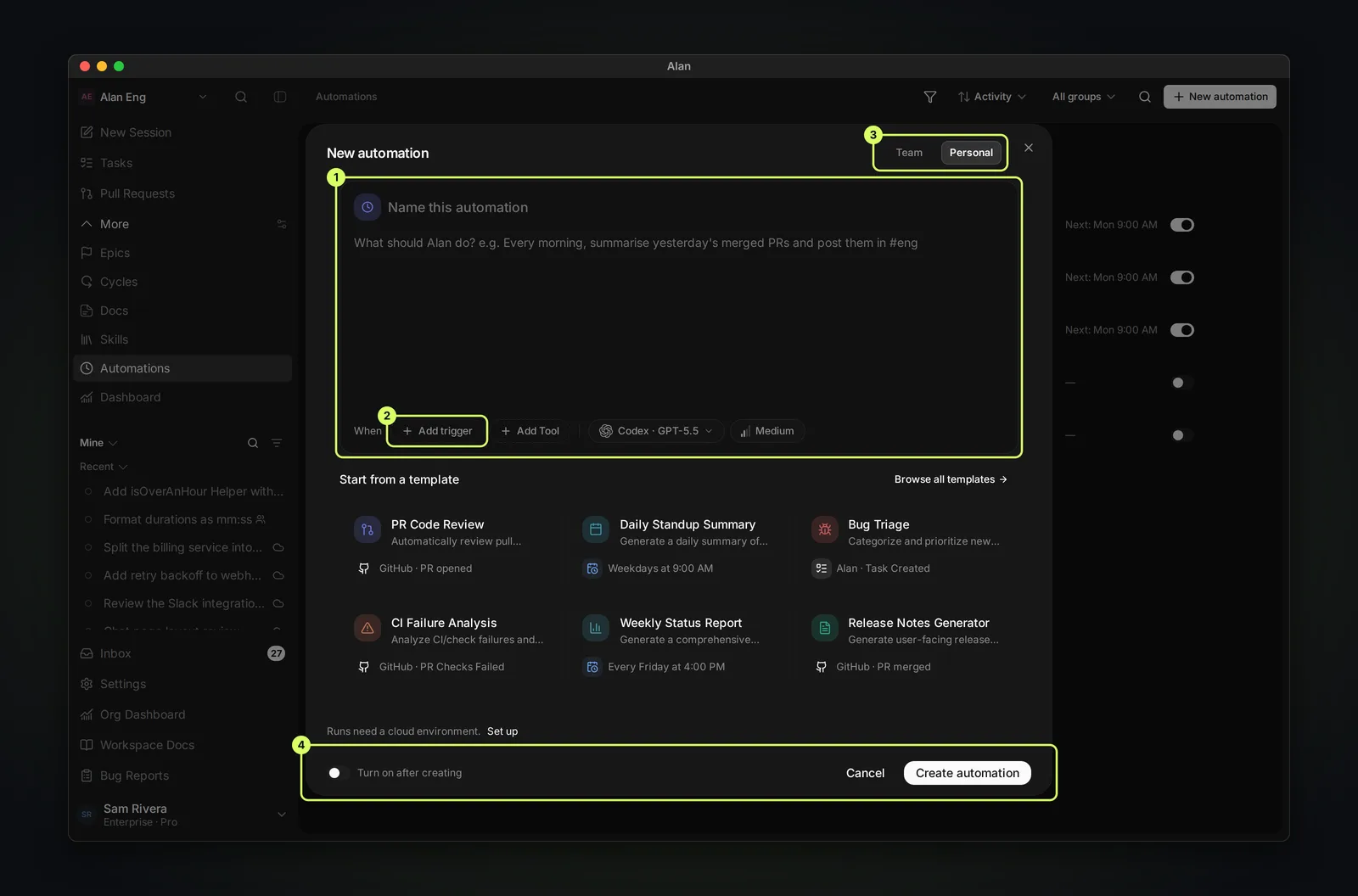
If any part is missing when you save, the editor says what to fix: Give the automation a name., Add at least one trigger., Tell Alan what to do., or Finish setting up the trigger before saving.
Every run needs your team's cloud environment. If the team doesn't have one, the editor shows Runs need a cloud environment. with a Set up link. See Cloud sessions and execution.
Choose triggers
An automation needs at least one trigger, and can have several; any of them starts a run.
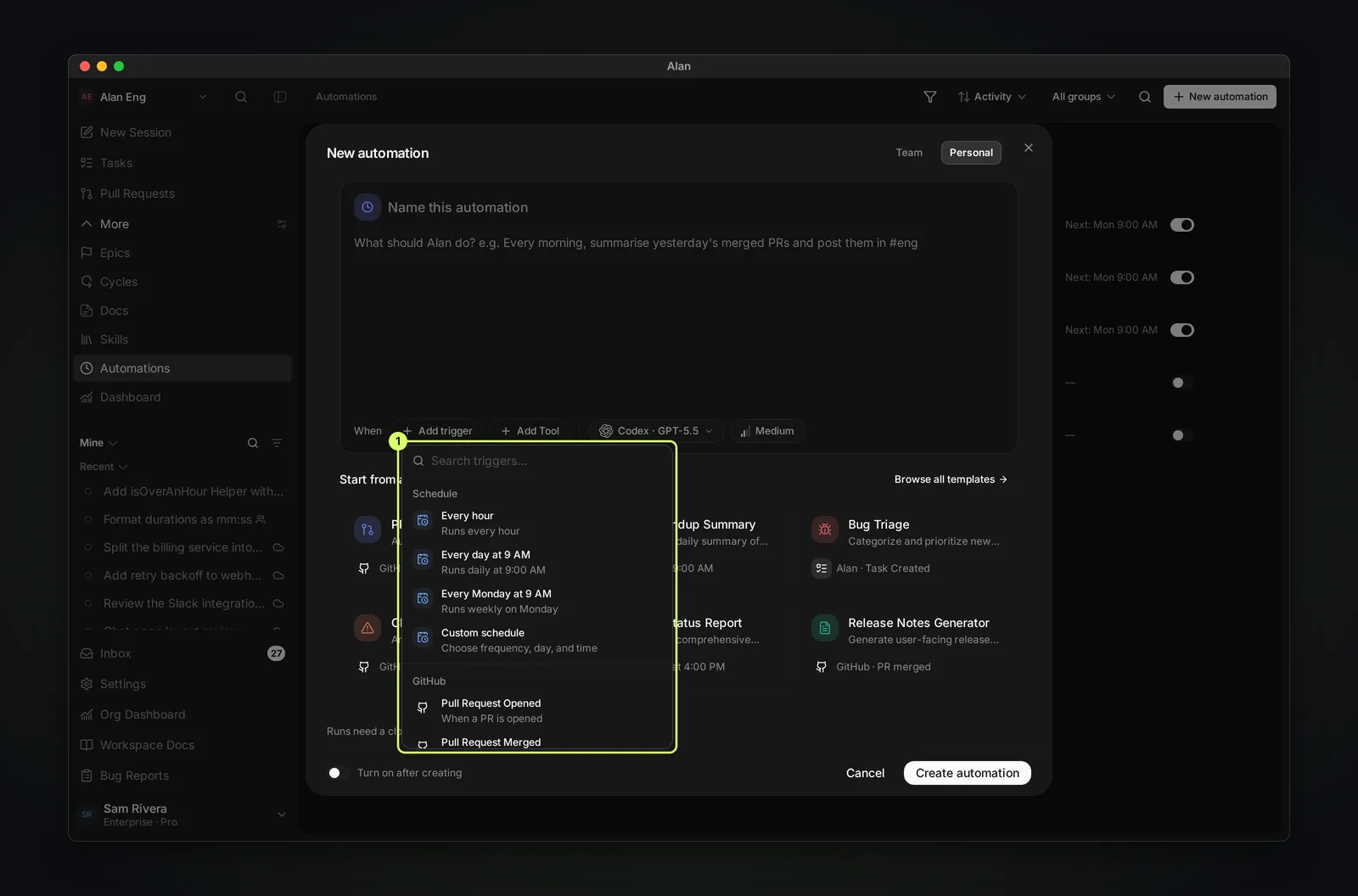
Schedules
Pick a ready-made schedule, or Custom schedule to choose the Frequency (Every hour, Every day, Every week, or Every month), the days, and the Time. The line under the form reads the schedule back in words, such as "Weekdays at 9:00 AM".
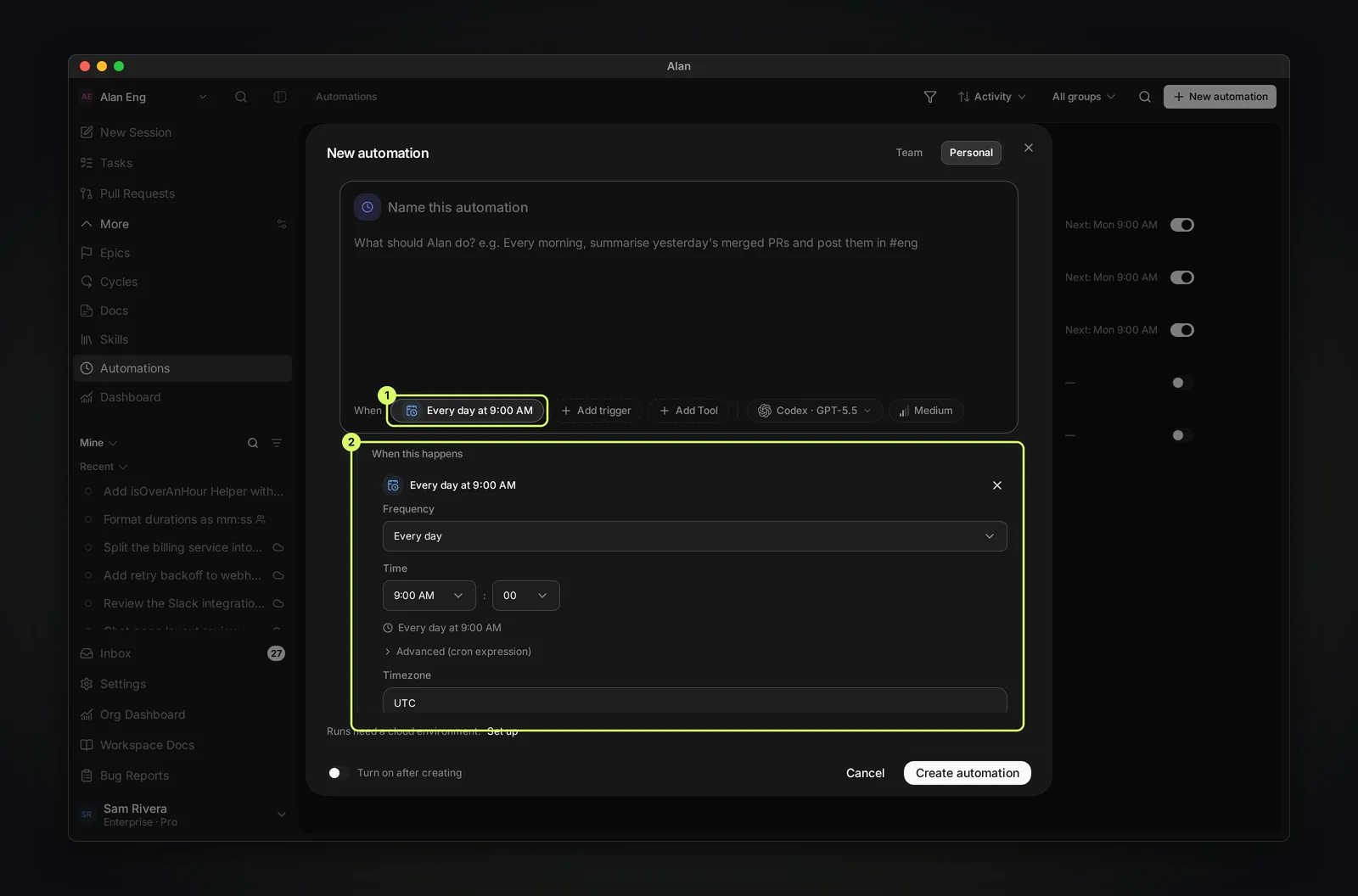
- Timezone starts as your browser's timezone. Use a timezone name such as
UTCorAmerica/New_York. - Advanced (cron expression) takes a standard 5-field cron expression: minute, hour, day of month, month, day of week. Seconds and year fields are not supported.
- A cloud automation can run at most once every 5 minutes. Alan rejects a schedule that fires more often.
- If Alan can't register a schedule, it still saves the automation but turns it off and tells you why.
GitHub and Bitbucket events
Pick an event, such as Pull Request Opened or Push to Branch, then optionally narrow it to one Repository and Branch. Leave them empty to match all repositories and all branches. The repository must be connected to Alan; see Connect GitHub.
Alan activity
Pick an event such as Task Created, Task Status Changed, Document Created, or Mentioned @alan. Task Status Changed can be narrowed to a New status; leave it at Any status to match every change.
Limits on event triggers
So that automations can't set each other off forever, Alan skips an event when:
- the automation's own run caused it,
- it comes from a long chain of automations triggering each other (Alan allows only a few hops), or
- the same automation has already been triggered 10 times in the last minute.
Use trigger details in the instructions
When a trigger carries data (for example the pull request that was opened), Insert variable adds a placeholder such as {{trigger.<field>}} to the instructions. Typing {{ also suggests the available fields. Each run fills in the real value.
Write instructions that run unattended
Make the instructions narrow and checkable, and say what Alan must not do:
Review the newly opened pull request for regressions, missing tests, and
risky data changes. Post a review summarising what you found. Do not merge
or push.
Avoid instructions that rely on someone filling in the gaps:
Handle PRs.State limits such as "do not merge", "do not push", or "report only" in the instructions. Check the test run before turning the automation on.
Test it, then turn it on
Run it once
Open the automation and choose Run now. For a schedule, the run starts straight away. For a pull request event, Alan first asks you to Choose a pull request to run against; for other events it may ask you to Fill missing trigger fields. Running it this way doesn't turn the automation on.
Read the run
The run opens as a session. Check that the result is what you expected and that Alan stayed within the limits you set. See Automation runs.
Turn it on
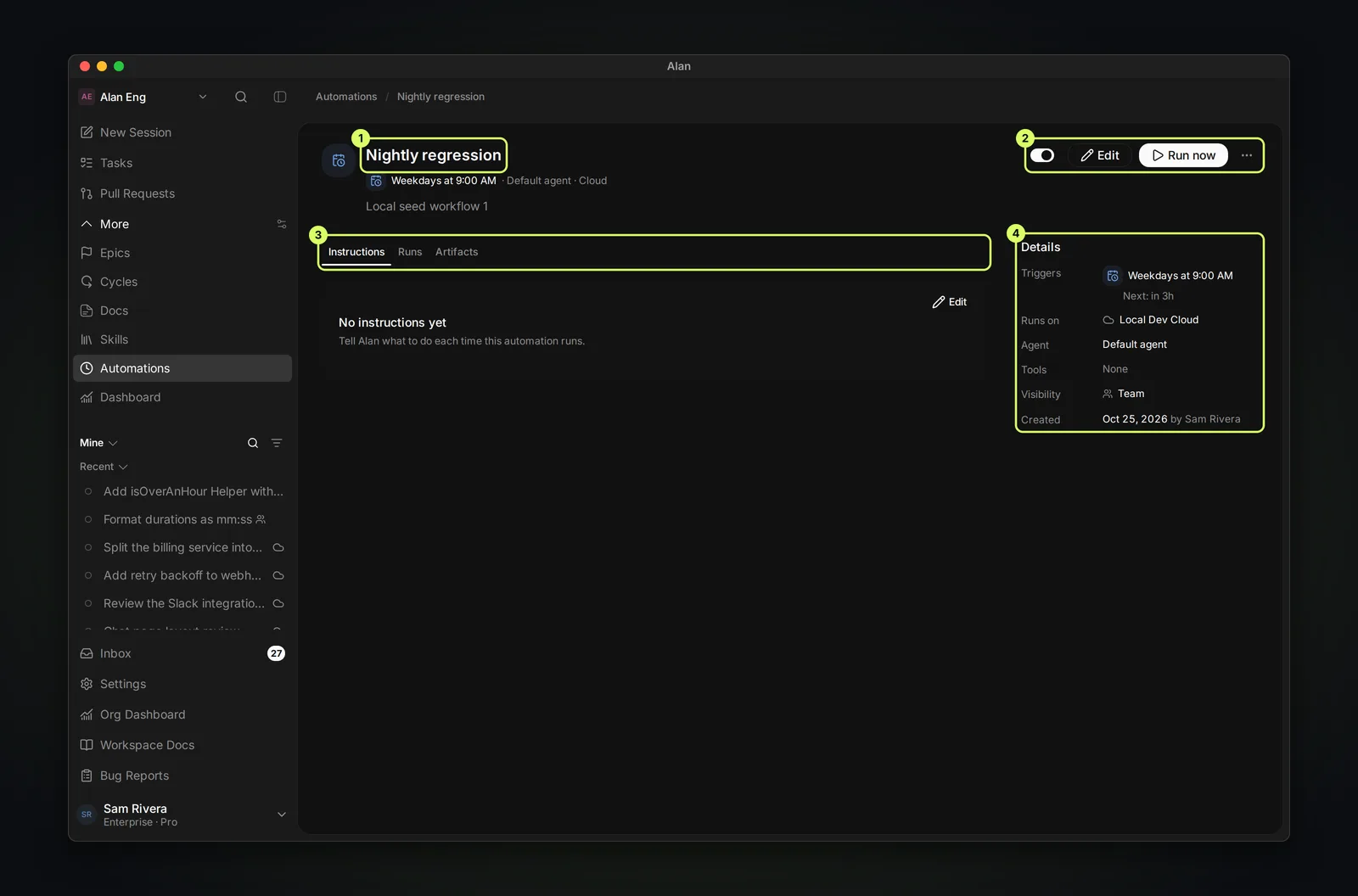
Use the switch on the automation's row, side panel, or page. From then on its triggers start runs by themselves.
Change or remove an automation
- Edit (on the row's ⋯ menu, the side panel, or the page) reopens the editor; choose Save changes.
- Only the person who created a team automation can make it personal again.
- The page's ⋯ menu has Copy link, Copy latest payload (after an event-triggered run), and Delete. Delete asks you to choose Confirm delete.
- Older automations that run on a local computer or a non-default cloud environment show Advanced in the editor, with Where it runs and Move to Team Cloud. Moving pauses the automation so you can test it again. Local automations also have a catch-up setting for runs missed while the computer was offline: Latest only, All missed, or Skip.