Pull requests
Track your team's pull requests, check reviews and automated checks, link them to tasks, and merge from Alan.
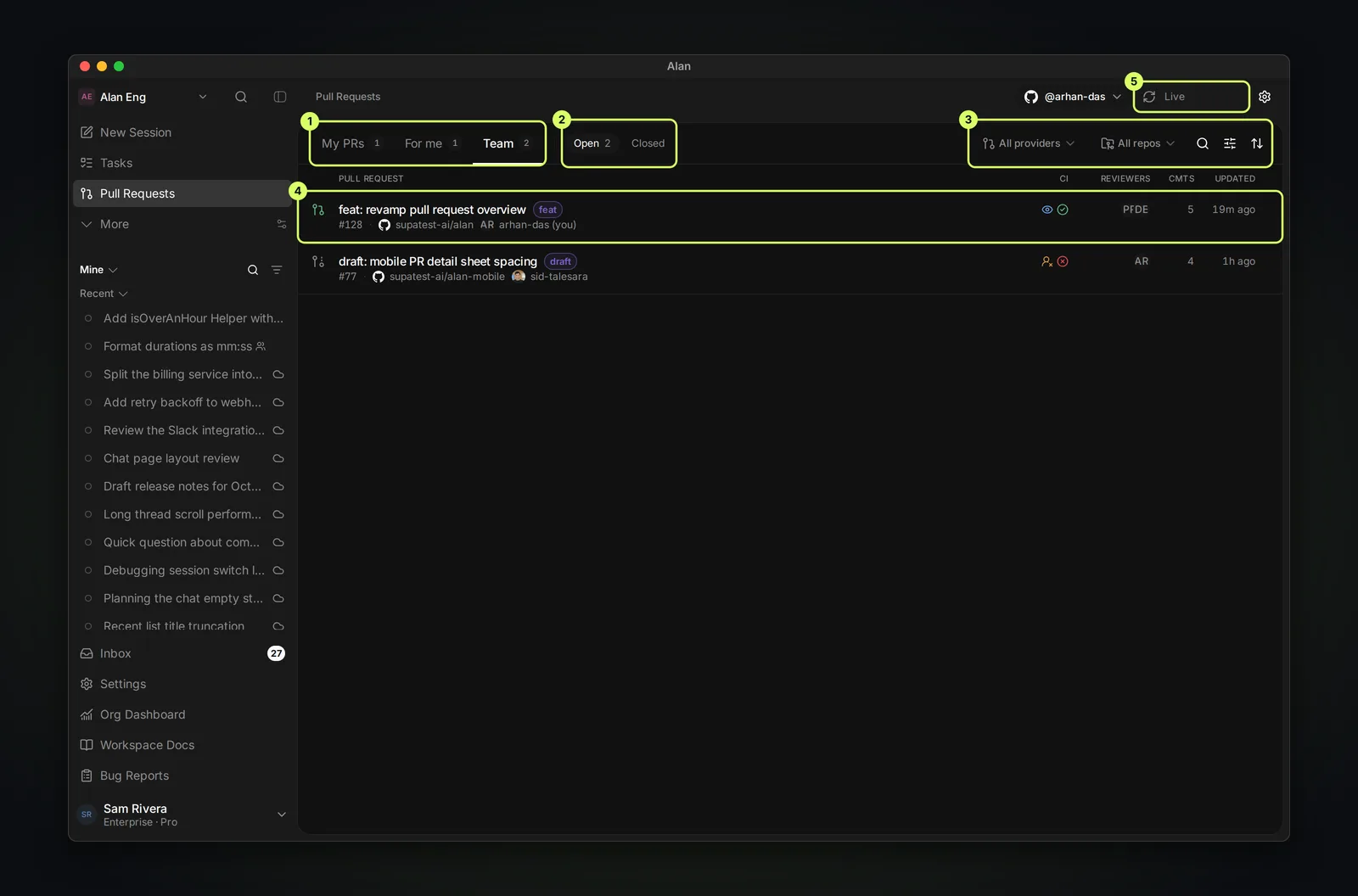
A pull request proposes file changes for review before they become part of the project. The Pull Requests page in the sidebar lists open and closed pull requests from the repositories linked to your team. Open one to read the discussion, see checks and reviewers, link it to a task or session, start an Alan review, and merge it.
Alan reads pull requests from GitHub, Azure DevOps, and Bitbucket. A pull request shows up once its repository is linked to the team; see Connect GitHub, Connect Bitbucket, or Connect Azure DevOps.
The pull request list
| Tab | Shows |
|---|---|
| My PRs | Pull requests you opened |
| For me | Pull requests where you are a requested reviewer. This is the default tab. |
| Team | Every pull request on the team's linked repositories |
My PRs and For me need your personal account linked, so Alan knows which pull requests are yours. If it isn't, the page shows Connect your GitHub account (or the Azure DevOps or Bitbucket equivalent). Link it in Settings → Account → Connected accounts.
Choose Open for active pull requests, or Closed for finished ones. Closed adds All, Merged, and Closed only to narrow further. On the right:
- All providers and All repos narrow the list to one provider or repository.
- Search filters by title.
- Filters narrows by team member, author, CI, Review, and labels. Include drafts is on by default.
- Display sets Sort by (Recently updated, Newest, Oldest, Most comments) and Group by (No grouping, Repository, Status).
The list refreshes on its own. The header shows Live while updates stream in, or a countdown such as Auto-refresh 30s; select the refresh icon to update now. The settings icon opens the team's repository settings.
Read a row
Each row shows the title, number, repository, author, labels, and linked Alan tasks. CI means automated checks, such as tests and builds. Reviews are feedback from people or agents. Check both:
| Column | Values |
|---|---|
| CI | Passing, Failing, Running, or No checks |
| Review (icon next to CI) | Approved, Changes requested, Review required, or No review |
| Reviewers | Requested reviewers |
| Cmts and Updated | Comment count and last activity |
Drafts carry a draft label. Filter by CI or Review to build a queue, such as every pull request with Failing checks.
Pull request detail
Select a row to open the pull request.
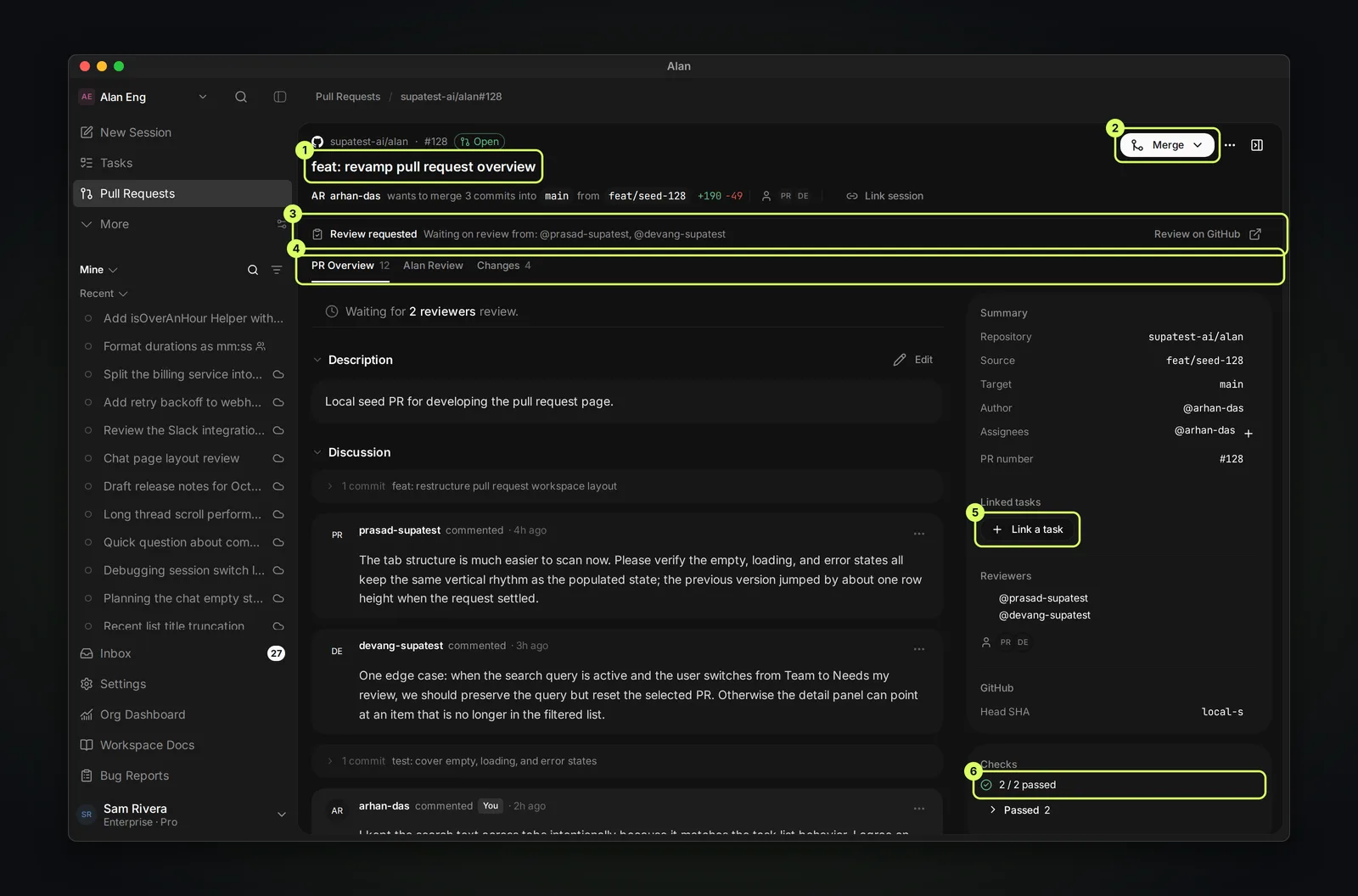
- Header: the repository, number, and state (Open, Draft, Merged, or Closed), the title (select it to edit), the branches, and Link session.
- Status line: what the pull request is waiting on, for example Review requested with "Waiting on review from: @…". Review on GitHub opens it on the provider.
- PR Overview: the description, the discussion (comments, reviews, and commits in order), and a box to comment on the provider.
- Alan Review: review sessions with the Review Agent. See Review work.
- Changes: the diff, file by file. Its Commits sub-tab lists the commits.
- Right-hand panel: summary, assignees, Linked tasks (Link a task), reviewers (request more here), and Checks with each check marked Required or Optional.
Link pull requests to tasks and sessions
Link a pull request to the work that produced it, so reviewers can see the brief and the task shows its pull request.
- Link a task in the right-hand panel searches the team's tasks; you can link several. Linked tasks appear as chips on the list row.
- Link session in the header links a session.
When an agent opens a pull request from a task session, Alan links them for you.
Before you merge
Review state, CI, draft state, and conflicts are separate. One green signal doesn't make a pull request ready.
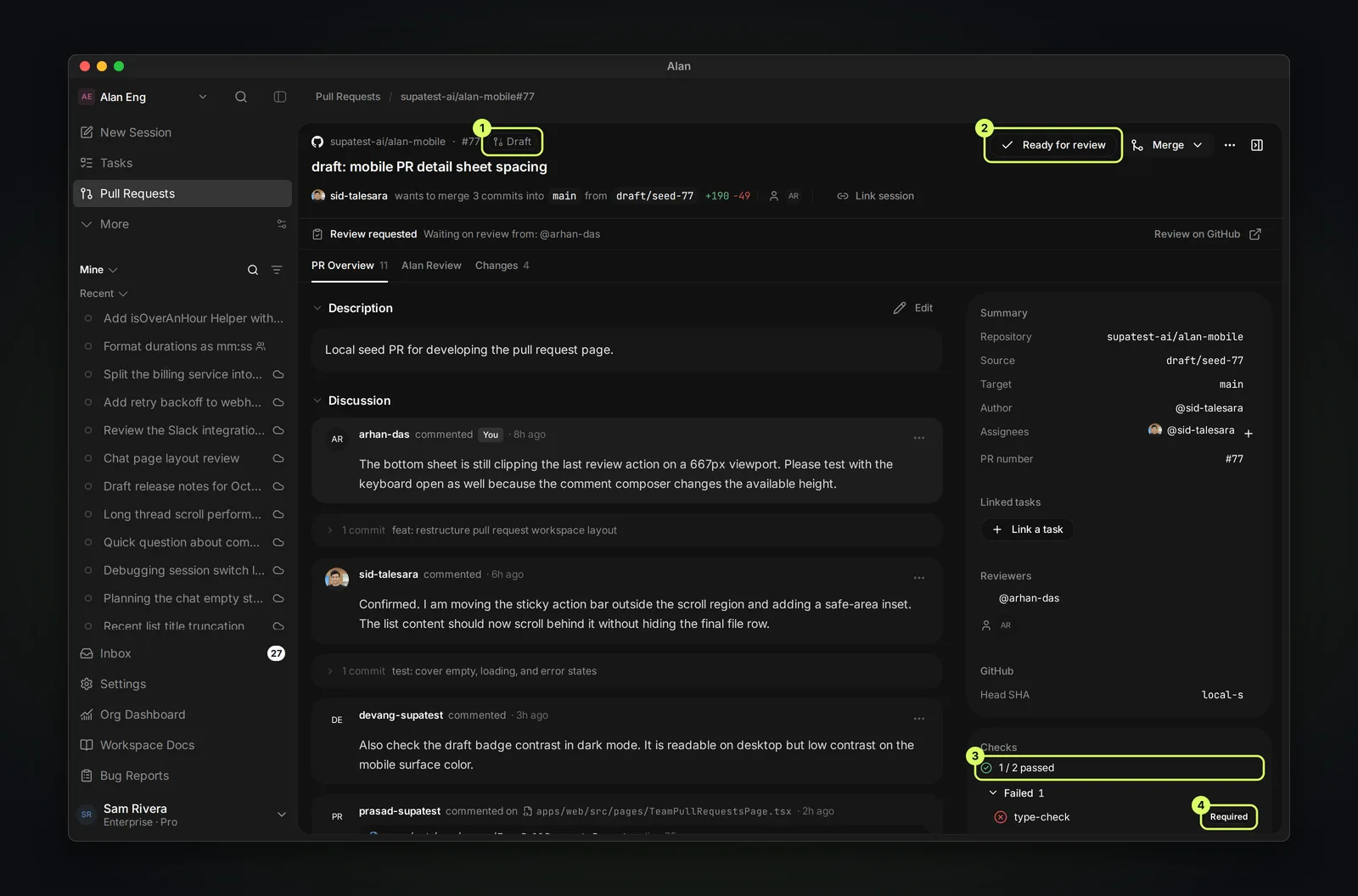
Check, in order:
- Not a draft. Choose Ready for review first; Alan won't merge a draft.
- Review: no Changes requested, and required reviews are in.
- Checks: every Required check passes. Optional checks never block a merge, and a failing one shows Optional checks failing above the diff.
- No conflicts: the merge status shows No conflicts with base branch. If the branch is behind, choose Update branch. For conflicts, choose Resolve with agent to start a review session that plans the fix; review sessions can't edit files, so apply it in an editing session. See Review work.
- Evidence: the linked task has a test report or other validation. See Testing evidence.
Merge or close
Open the Merge menu and choose Create a merge commit, Squash and merge, or Rebase and merge. Alan confirms the method, branch, and change size before Confirm merge.
When a pull request can't merge yet, the menu shows Can't merge yet with the reasons, and the Merge button explains the first blocker on hover, such as required reviews, failing checks, or conflicts to resolve on the provider. A draft or a conflicted branch also disables the merge methods.
The same menu has Close pull request, with an optional closing comment. After a merge, the header shows Delete branch to remove the source branch.