Automations overview
Save agent instructions once and let Alan run them on a schedule, on a GitHub, Bitbucket, or Alan event, or when you press Run now.
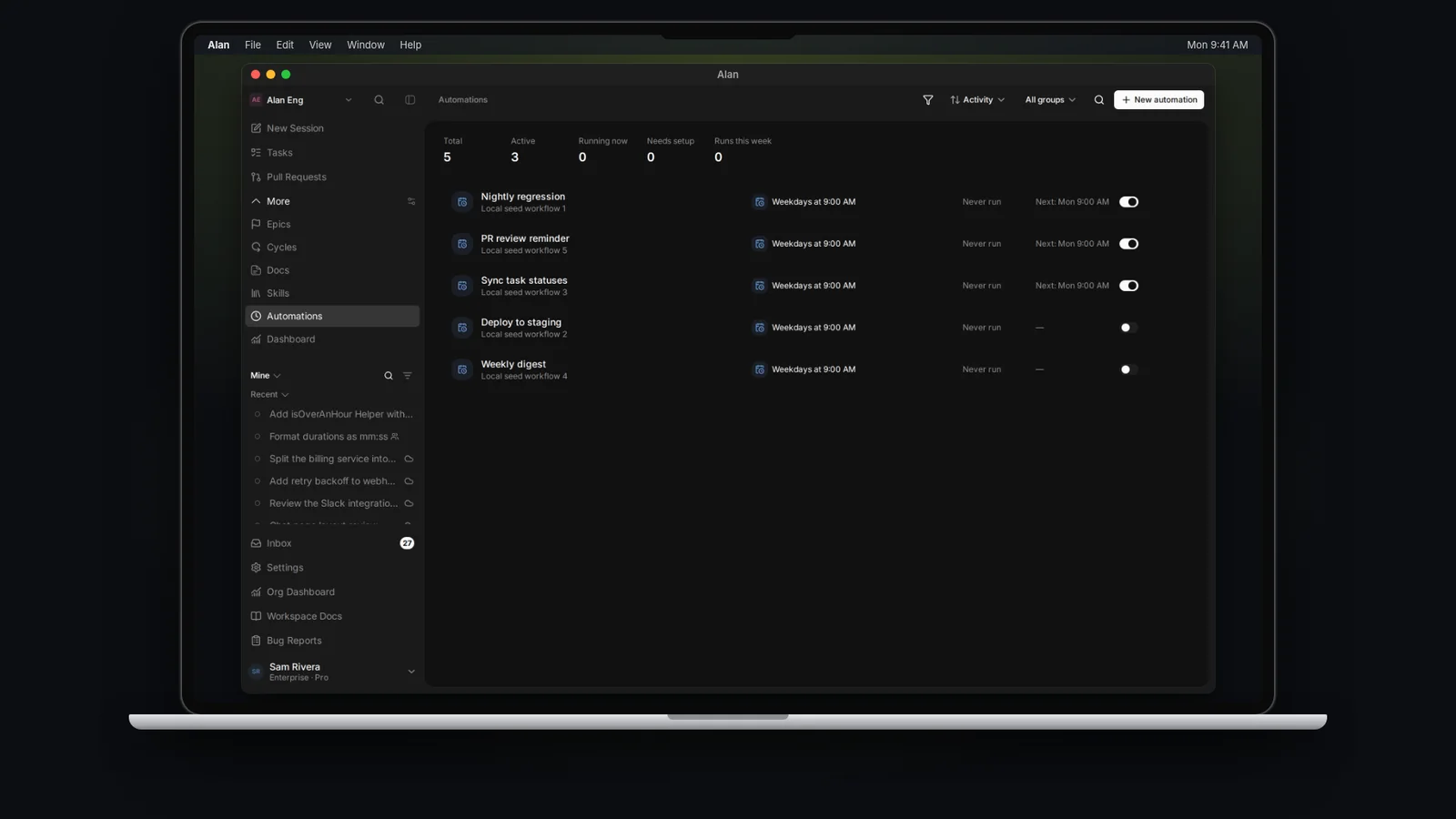
An automation is a saved set of instructions that Alan runs for you, again and again, in your team's cloud environment. Write it once ("every weekday at 9:00, summarise yesterday's merged PRs"), choose what starts it, and each run becomes an agent session you can open and read.
Open Automations in the team sidebar (it may sit under More if you haven't pinned it).
What a run is
Each run starts an agent session in a new conversation, using the automation's instructions and allowed tools. It runs on a temporary cloud computer and can create plans, reports, or other artifacts.
Because a run is an ordinary session, you read it the same way you read any session. See Automation runs.
What an automation holds
| Part | What it does |
|---|---|
| Name and icon | How the automation appears in the list |
| Instructions | What Alan does on every run ("What should Alan do?") |
| Triggers | What starts a run (at least one is required) |
| Tools | Extra actions Alan may take, picked with Add Tool |
| Agent | The coding agent, model, and effort level for each run |
| Visibility | Team (every teammate can see and run it) or Personal (only you) |
| Runs on | Your team's cloud environment |
What can start a run
Choose triggers with Add trigger in the editor. The picker groups them like this:
| Group | Examples | Fires when |
|---|---|---|
| Schedule | Every hour, Every day at 9 AM, Every Monday at 9 AM, Custom schedule | The time comes round, in the timezone you choose |
| GitHub | Pull Request Opened, Pull Request Merged, PR Checks Failed, Issue Opened, Release Published | That event happens in a connected GitHub repository, optionally filtered to one repository and branch |
| Bitbucket | Pull Request Opened, Pull Request Merged, Review Submitted, Pull Request Commented, Push to Branch | That event happens in a connected Bitbucket repository |
| Alan activity | Task Created, Task Status Changed, Task Assigned, Document Created, Task Commented, Mentioned @alan | Something happens in Alan |
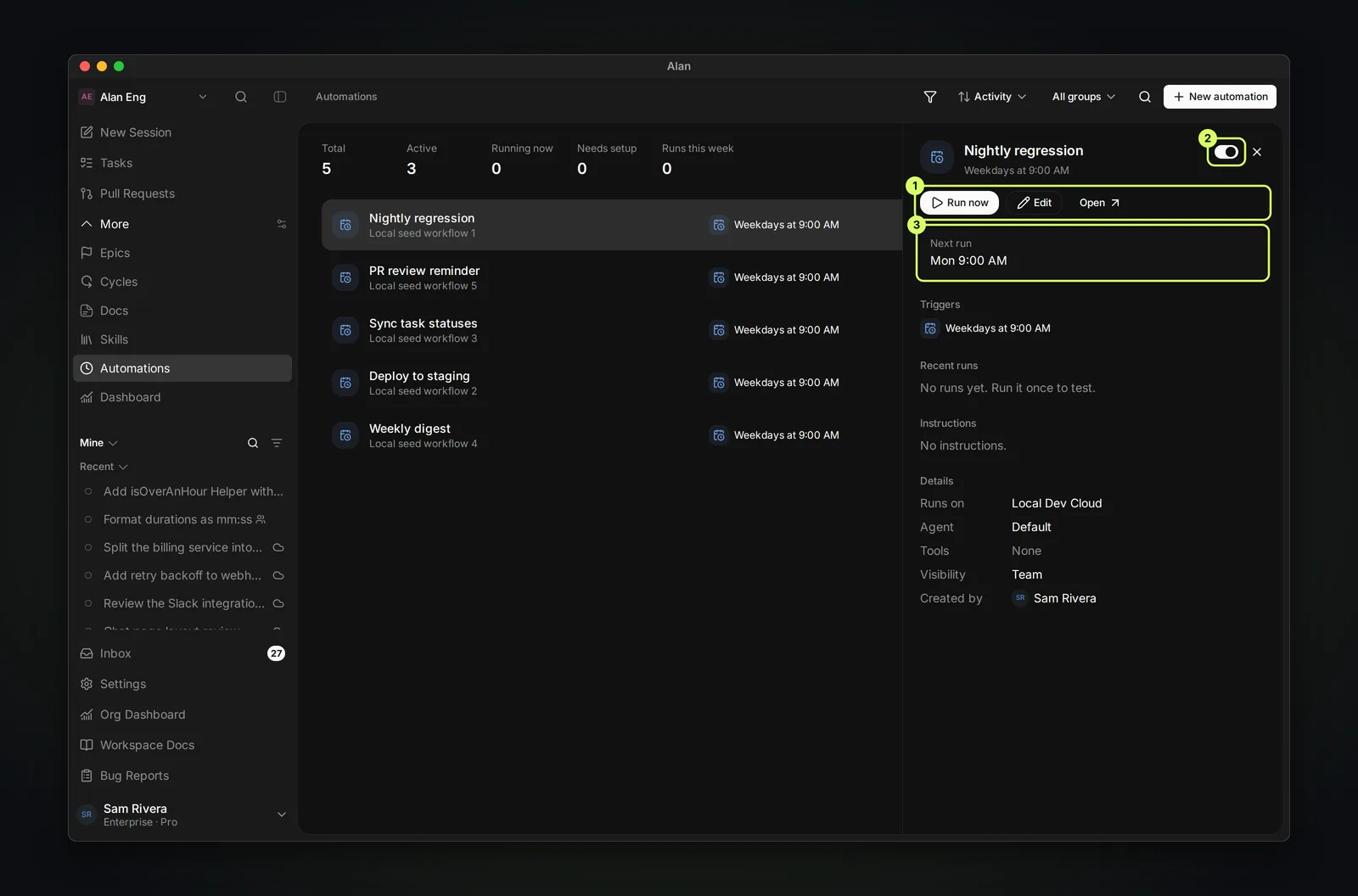
You can also start any automation yourself with Run now, whatever its triggers are. That's how you test one before you rely on it.
Some entries in the picker are marked Coming soon and can't be selected yet, including Custom Webhook and several task events such as Task Unassigned. Slack messages can't start an automation yet. See Create an automation for the limits on schedules and events.
Find and organise automations
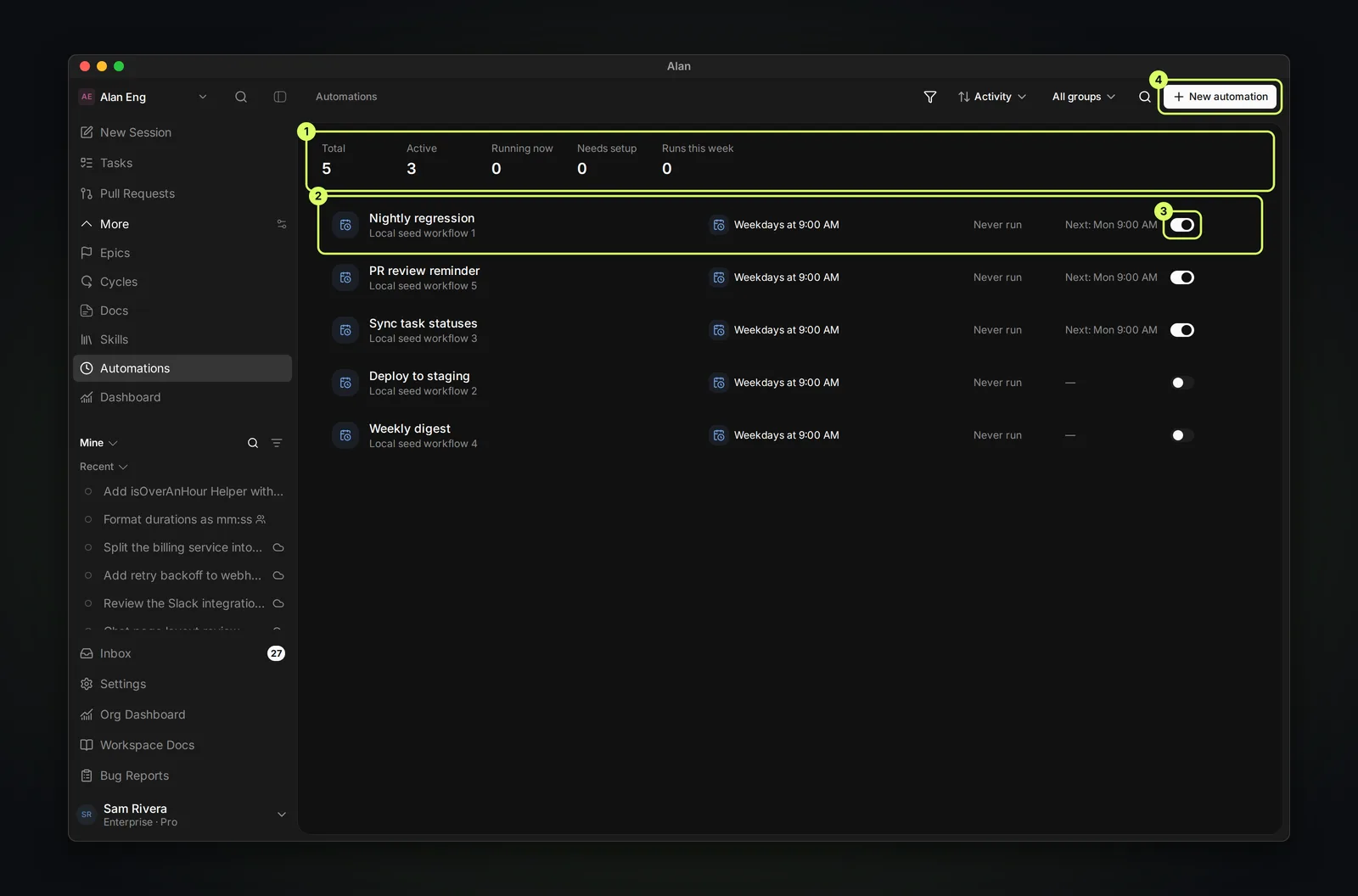
- The totals across the top show Total, Active, Running now, Needs setup, and Runs this week. Select Active to show only automations that are on.
- The filter button narrows the list by status (Active, Paused), target (Cloud, Local), trigger, and visibility (Team, Personal).
- The sort menu orders by Activity, Name A–Z, Name Z–A, Last run, Next run, Most runs, or Recently created.
- All groups filters by group. Choose New group to create one; a group is a named folder for related automations.
- Select an automation to open a side panel with Run now, Edit, and Open (the full page).
On, paused, and needs setup
An automation is either on or paused; use the switch on its row, side panel, or page. A paused automation never fires by itself, but you can still press Run now.
The list also flags automations that need you:
| Label | Meaning |
|---|---|
| Needs setup | The automation has nowhere to run: its cloud environment is missing, deleted, or archived. A banner above the list says how many can't run, with Set up. You can't turn it on until this is fixed. |
| Running | Its latest run is still pending or running. |
| Failed | Its latest run failed, was interrupted, or timed out. |
When to use an automation
Use one when the same instructions will run more than once, the trigger is predictable, and you can check the result: a review on every new PR, a weekly report, a scheduled cleanup.
Don't put work that still needs steering turn by turn into an automation. Run it as a task session first, then save the repeatable part as an automation once it works.