Connect Codex CLI
Share ChatGPT accounts with your team's Codex pool so cloud sessions can run OpenAI's Codex CLI.
Cloud sessions run Codex with ChatGPT accounts that team members connect to the team's Codex pool. Each new cloud computer gets one available account from the pool and keeps it for its lifetime.
Find it in the team's Settings → Integrations → Coding agents.
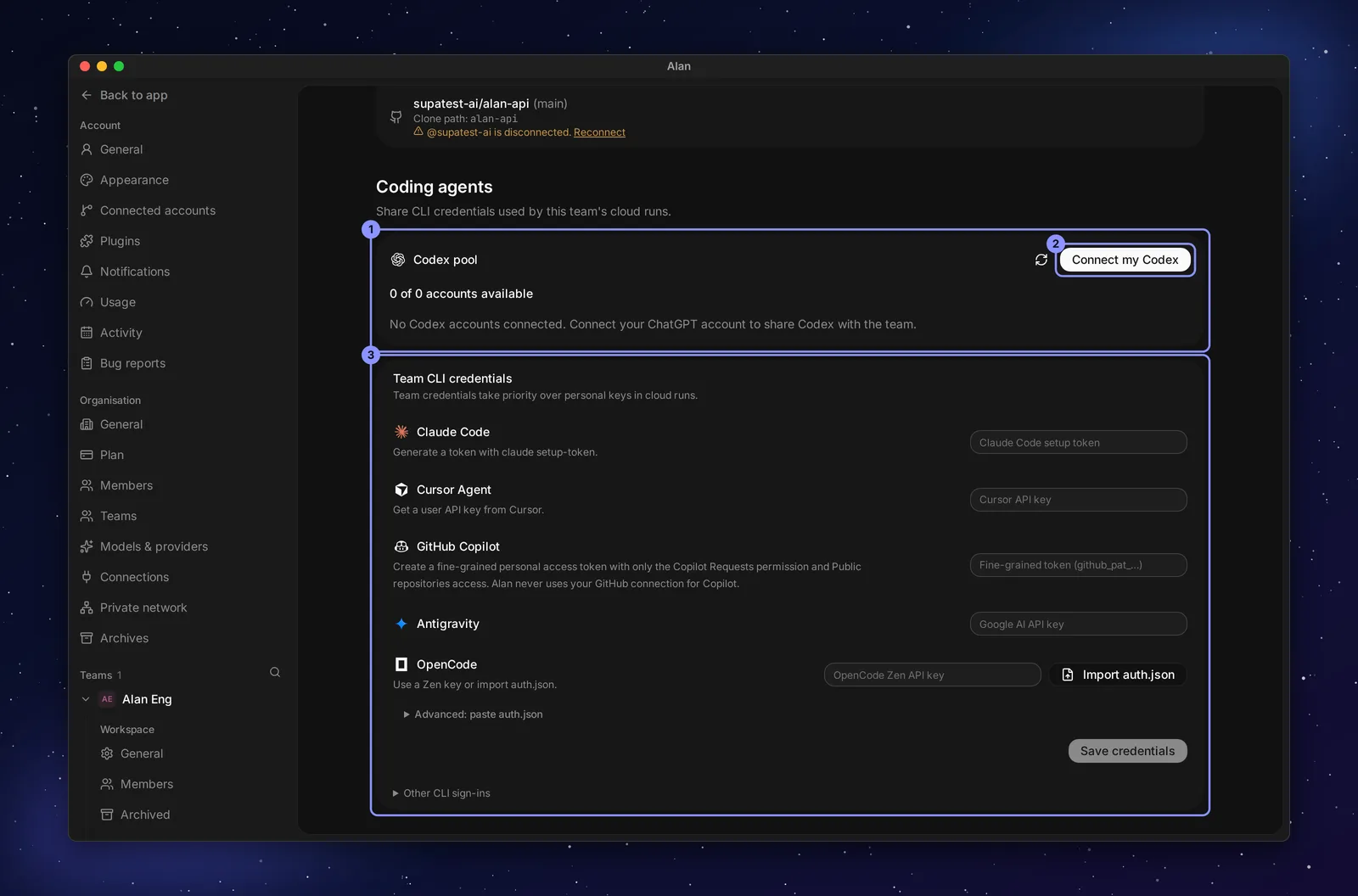
This is only for cloud sessions. Codex on your own computer uses the CLI installed and signed in there; see Local execution. Other supported coding agents use Team account pools below the Codex pool. Connect one or more accounts; Alan assigns an available account automatically. You can optionally rename an account after connecting it. Existing team credentials remain usable.
Before you begin
- You must be a member of the team, and member connections must be enabled for it. Otherwise the pool reads "Member connections are not enabled for this team yet." or "Only team members can connect a Codex account."
- The ChatGPT account must allow device-code sign-in for Codex:
- Personal account: in ChatGPT, open Settings → Security and login and turn on device code authorization for Codex.
- Workspace account: a ChatGPT workspace admin enables it under workspace permissions.
- The account is shared with the team's cloud runs. The same ChatGPT account can't be connected twice in one team.
Connect an account
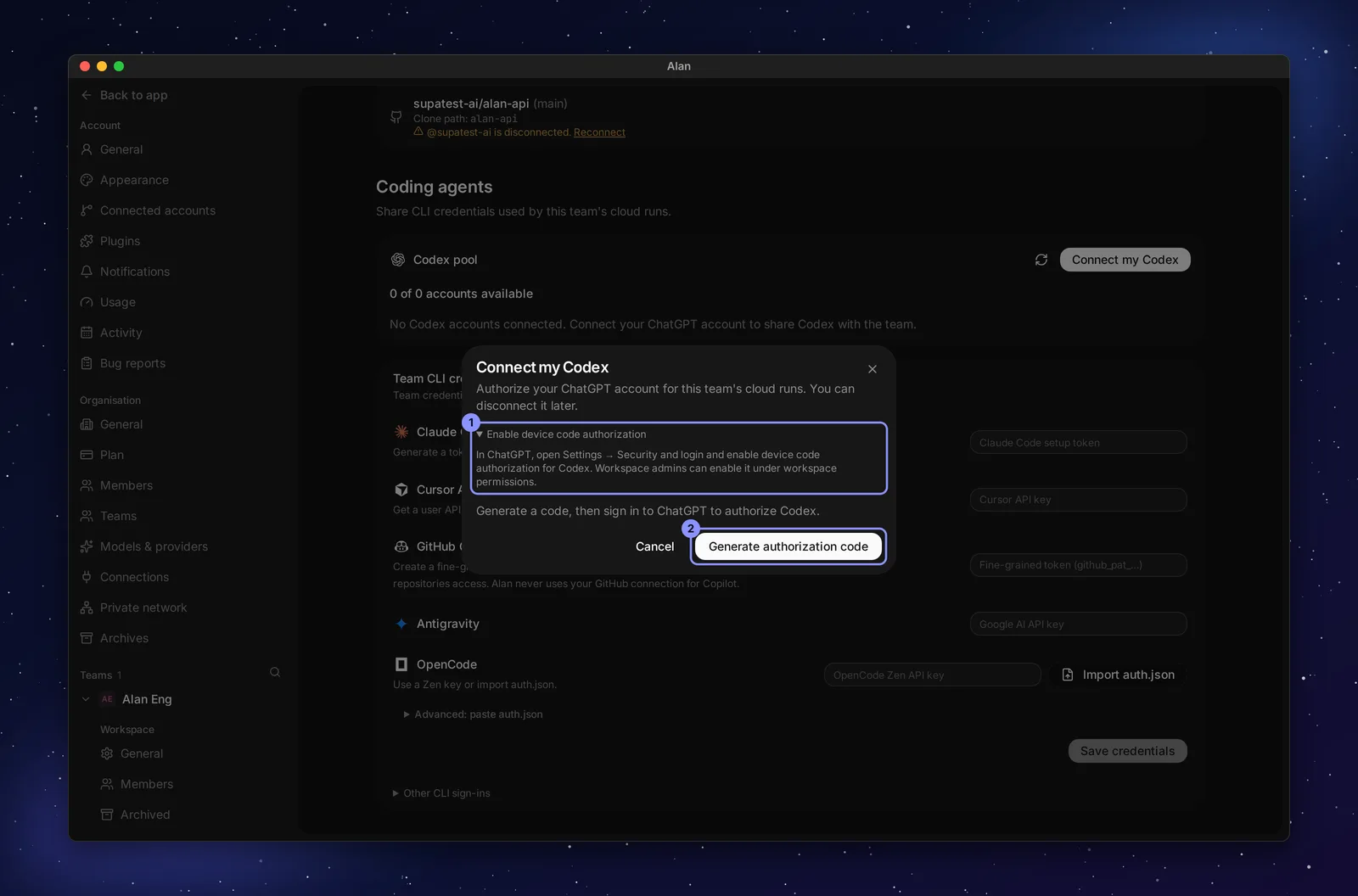
Open the dialog
Choose Connect my Codex. "Authorize your ChatGPT account for this team's cloud runs. You can disconnect it later." Expand Enable device code authorization if you still need to turn it on in ChatGPT.
Generate a code
Choose Generate authorization code. Alan shows Open verification page, the one-time code (select it to Copy code), and when it expires.
Approve in ChatGPT
Open the verification page, sign in to the account you want to share, enter the code, and approve. Alan checks automatically ("Waiting for authorization. Alan checks automatically."); you can also choose Verify.
Done
"Codex account connected." Choose Done. The account appears in the pool.
If the code expires or the request is denied, the dialog says so ("Authorization code expired.", "Authorization was denied.") — choose Generate authorization code or New code and use the new code. You can connect more than one distinct ChatGPT account; each gets its own row.
A device code is a short-lived sign-in credential. Only approve a code you generated in Alan, and don't share it.
Read the pool
The pool header shows how many accounts can take new work, for example 2 of 3 accounts available. Team pool usage averages the usage reported for accounts on the same plan and window; select Refresh to fetch current usage. Each account row shows its name, email, plan, status, and usage windows (Primary, Secondary, and a spend limit or credits when the plan has them).
| Status | Meaning |
|---|---|
| Available | Can be given to a new cloud computer |
| Limited | At or near a usage limit; unavailable for new computers until usage allows it |
| Needs reconnect | Authorization stopped working; its owner chooses Reconnect |
| Disconnected | Revoked by its owner or an admin |
| Pending authorization | The device-code sign-in hasn't finished |
Usage comes from OpenAI and can be incomplete ("Usage reported for 1 of 2 accounts", "Awaiting current usage"). Codex use outside Alan also counts against an account's limits.
How cloud sessions use the pool
Connecting an account doesn't select Codex for every session. Make sure Codex is enabled in the environment's Agents tab (Cloud setup), then pick a Codex model in the composer.
A cloud computer is assigned an available account for Codex and keeps that assignment: the session shows Codex account, the owner and plan, and "Fixed for this sandbox". If that account hits a limit, the computer waits for the reset rather than switching accounts. A new session can get another account.
Accounts in workflows
Cloud workflows use Team pool · Automatic by default. Open the agent menu and expand Account to choose a specific connected account when needed. The composer shows one agent control; an explicit account name appears in its label. Names are optional; unnamed token accounts receive a display label, and Codex accounts show their provider-reported details.
An explicit account choice is saved for each workflow execution. If that account is unavailable, the run reports an error rather than using another account. Returning the account choice to Team pool · Automatic restores automatic allocation for new runs. Local workflows use the CLI signed in on their computer.
You can rename a Codex account from its … → Rename menu. Clear the name to restore its provider-reported details. Other CLI accounts have Rename beside the account; adding another account never requires a name.
Reconnect, disconnect, or remove
Open an account's … menu:
- Reconnect: sign in again with the same ChatGPT account. Existing computers keep using it.
- Disconnect (your own account) or Remove (an admin removing someone else's): "Existing sandboxes remain assigned to this account and will need the same account reconnected. They do not switch to another member's account."
Removing a member from the team or organization disconnects their accounts.
Common problems
- The Connect button is missing. You're not a team member, or member connections aren't enabled for the team. Ask a team admin.
- Verify says it isn't authorized yet. Finish the approval in ChatGPT, then choose Verify again.
- ChatGPT doesn't accept the code. Device code authorization is off for that account (or workspace), or the code expired. Turn it on and generate a new code.
- A session stopped using Codex after a disconnect. Its computer is tied to that account. Reconnect the same account, or start a new session.