Coding agents, models, and defaults
Choose which coding agents and models are available, and set defaults for a computer or cloud environment.
A coding agent is the software that runs the work. An agent profile, such as General Agent or Review Agent, sets its role and permissions.
A coding agent is the CLI that actually edits files and runs commands. Alan supports Alan Code (built in, nothing to install), Claude Code, Codex, GitHub Copilot, Cursor Agent, Droid, Antigravity, Grok Build, Kimi, Command Code, and OpenCode. Each session uses one coding agent and one of its models. What you can pick depends on where the session runs: every computer and every cloud environment has its own list of enabled agents, approved models, and a default.
Pick the agent and model in the composer
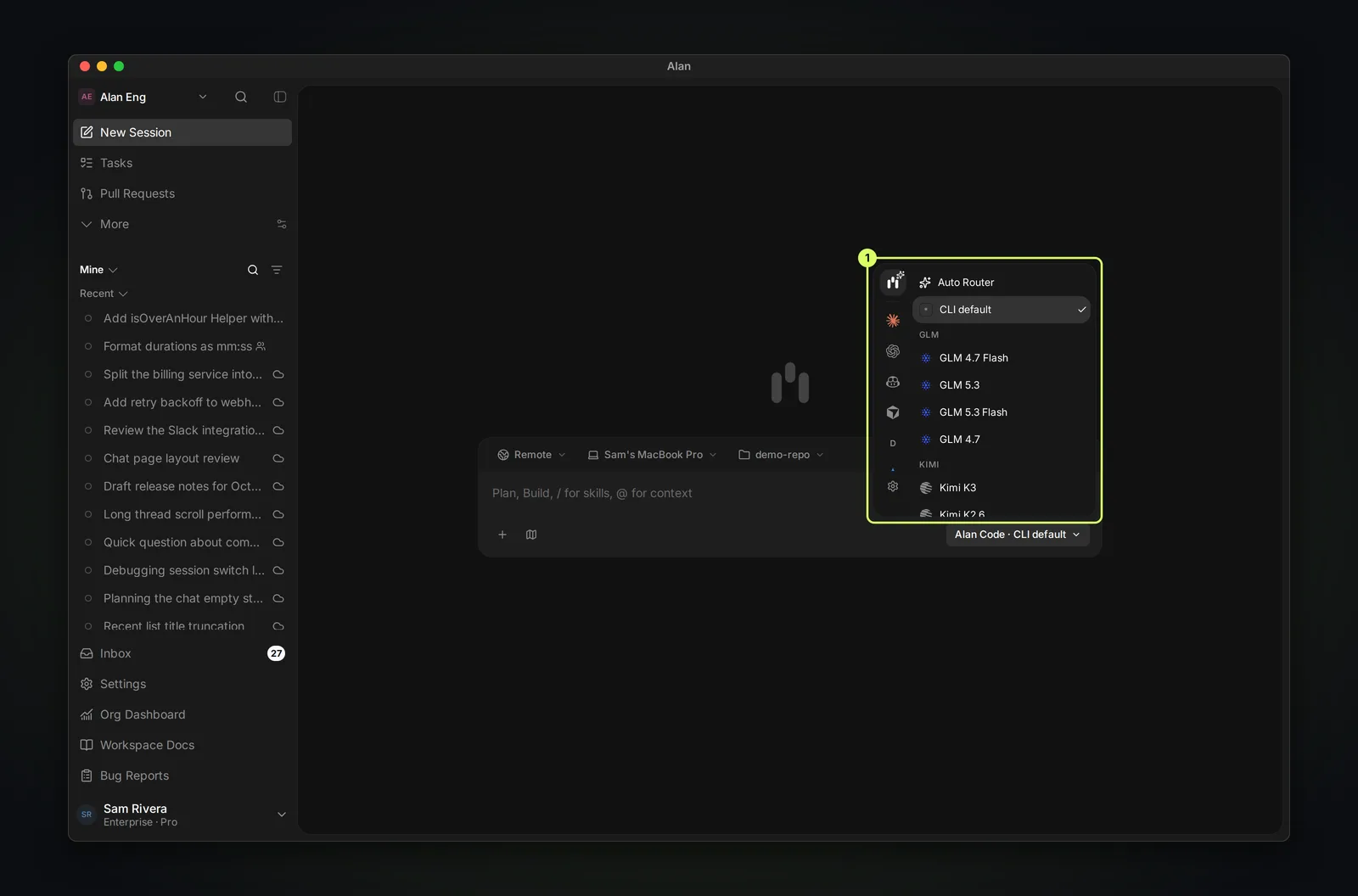
Open Agent and model at the bottom right of the composer. The left column lists the coding agents enabled for the current target; select one to see its models, grouped by model family. For Alan Code, Auto Router lets Alan choose the model. The button then reads, for example, Alan Code · DeepSeek V4.1 Flash, or Alan Code · CLI default when the target's default is used. If nothing is enabled for the target, it reads No supported agent CLIs detected.
Where to configure it
| What | Where | Who |
|---|---|---|
| Agents and models on a computer | Alan desktop app → Settings → Account → General → Computers → choose the computer → Agents | The computer's owner |
| Agents and models in a cloud environment | Settings → your team → Cloud Environment → Agents | Any team member |
| Which models the organization allows | Settings → Organisation → Models & providers ("Choose the models your organisation can use.") | Any organization member |
| The provider behind Alan Agent | Settings → your team → Alan Agent | Any team member |
The Computers list only appears in the desktop app. In a browser it reads No computers connected — Open the Alan desktop app to connect this computer.
Local computer: the Agents tab
Choose which agents and models appear when this computer is selected. A green dot means the CLI is installed; its account status shows whether it is signed in.
On your current computer, the CLI column can offer Install or Setup guide. An Alan-managed installation shows Managed v…; a CLI you installed yourself shows Existing CLI. Its menu can switch to Use existing CLI or install a separate Alan copy. These installation controls apply to the current computer, not a remote machine.
Rescan if a CLI was just installed
Choose Rescan models to re-detect installed CLIs and their available models (reads Scanning… while it runs). A toast confirms Agent models rescanned, or reports Model rescan failed. Is the computer online?
Enable a provider
Each row is one coding agent, for example Claude Code, Codex, GitHub Copilot, Cursor Agent, Antigravity, or OpenCode, with an On switch, its install status (Available, Offline, or Not installed), and a models summary button.
Choose its models
Open the models button — it reads Not installed, No models, Select models, or {n} of {total} model(s). The dropdown header is {Provider} models with a Select all / Clear toggle; every model underneath is its own checkbox. Select the models you want to offer in the composer.
Set the default
The Default row has two dropdowns — Provider and Model — for the provider/model combination the composer preselects on this computer.
Save
A Save changes button appears when you make a change (Unsaved changes label, Discard to revert). Saving shows Saving…, then a toast: Agent settings saved, or Failed to save agent settings on error.
Cloud environment: the Agents tab
Open Settings → your team → Cloud Environment → Agents. Under Agent defaults ("Control which agents and models are available for this team's Cloud environment."), each supported coding agent has a switch and a models menu, and the default picker sets which agent and model new cloud sessions start with. Below it, Alan Code models lists the models Alan Code can use: new models from Alan and from your organisation's connected providers appear automatically, and you can turn individual ones off.
Changes save automatically shortly after you stop editing; a toast appears only if saving fails (Failed to save agent settings). The tab exists once the team has a cloud environment; see Cloud setup.
Alan Agent
Alan Agent is the lightweight agent behind Slack threads, cloud chats, and task drafts. It uses Alan-managed models unless someone on the team adds a custom provider.
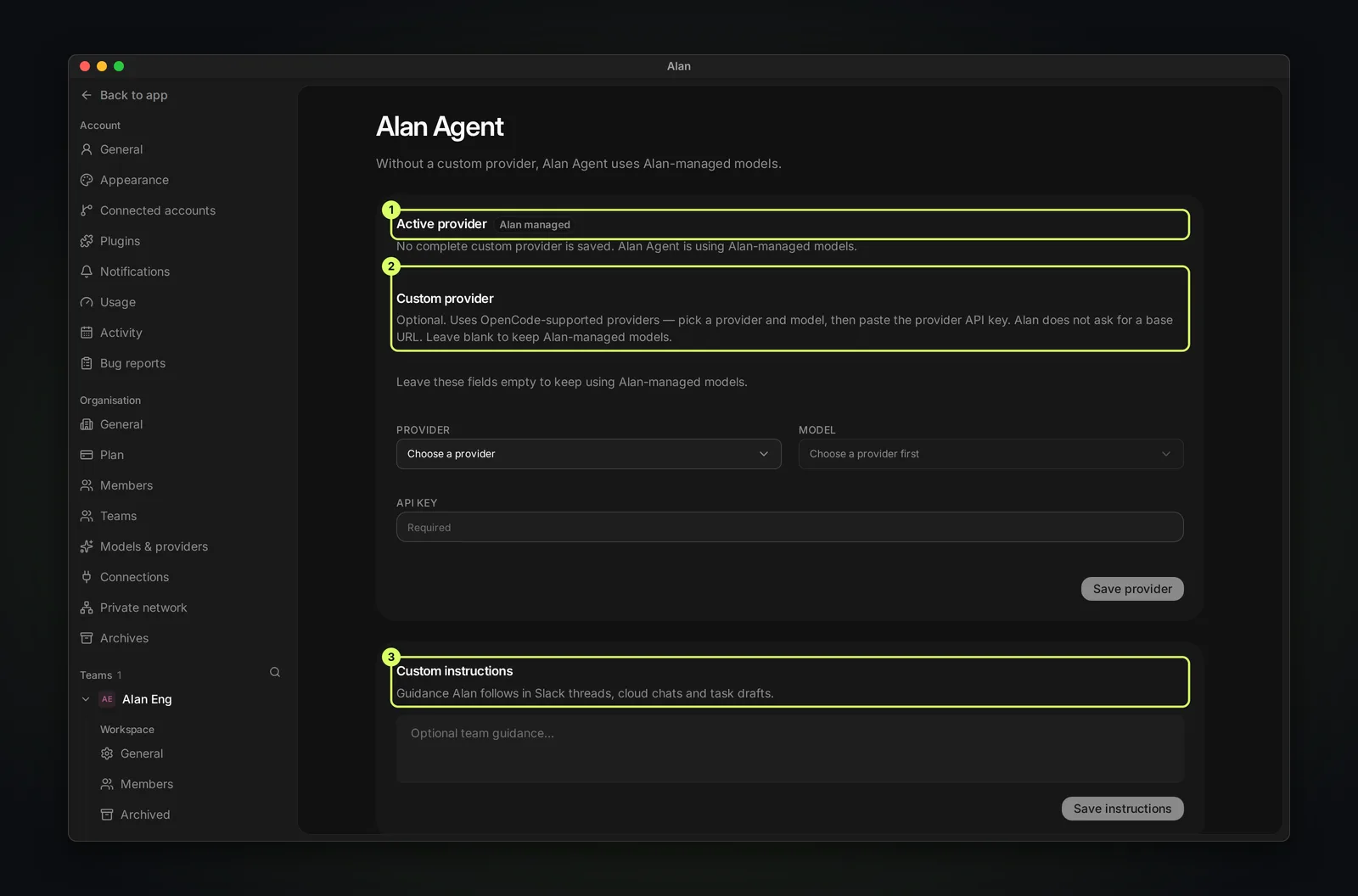
- Active provider shows what Alan Agent uses now, for example Alan managed.
- Custom provider is optional. Pick an OpenCode-supported provider and model, paste the provider API key, and choose Save provider. Alan does not ask for a base URL.
- Custom instructions is guidance Alan follows in Slack threads, cloud chats, and task drafts. Any team member can change it.
Common mistakes
- Expecting "agent" here to mean the same thing as an agent profile — it doesn't. See the callout above.
- Enabling a provider on a cloud environment but never confirming it's actually installed — the Agents tab reflects catalog support, not a live install check; the sandbox confirms availability when a session actually starts.
- Assuming installation also signs you in. Check the agent's account status, finish its sign-in if needed, then use Rescan models if models are missing.
- Leaving a provider's model list empty on a local computer. Unlike cloud (which auto-selects on first enable), a local computer with a provider On but zero models checked has nothing to offer in the composer.