Cloud setup
Set up repositories, variables, and scripts for your team's cloud sessions.
A cloud environment defines how Alan prepares your team's cloud computers: repositories, variables, and install and start scripts. Alan builds an image from this setup. New cloud sessions start from that image with repositories cloned and install steps complete.
Each team has one cloud environment. Configure it in the team's Settings → Cloud Environment, under Runtime.
Create the environment
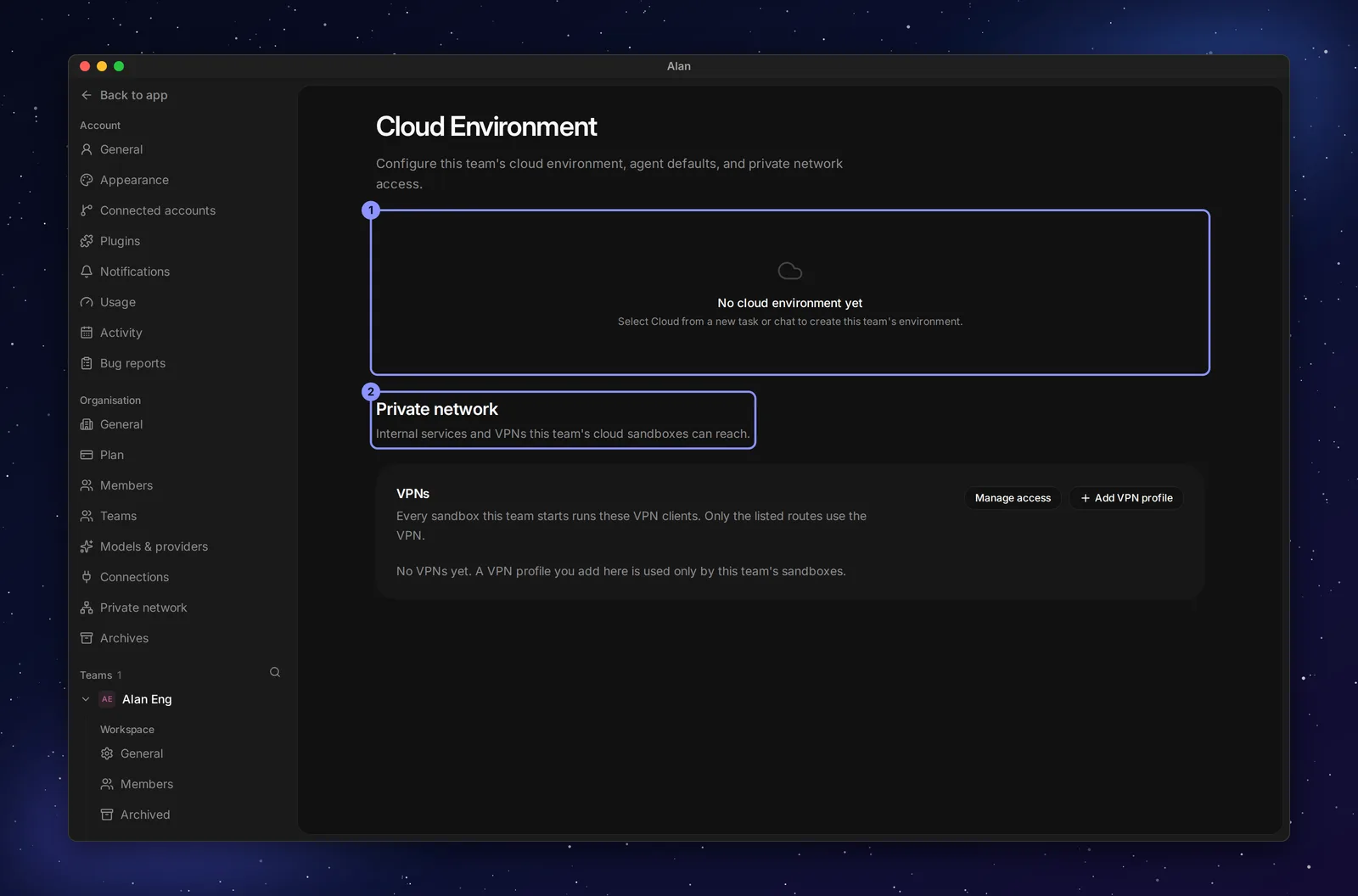
To create the environment, choose Cloud in a new task or chat. Settings shows No cloud environment yet until you do this.
Alan names the environment Cloud. The composer then shows Set up cloud environment because it has no image yet.
Cloud Environment, Alan Agent and VMs only appear in Settings when your plan includes cloud sessions. Without it, the page sends you to your organization's plan. See Plans and limits.
The Cloud Environment page
Once the environment exists, the page header shows its name, a status badge, and a summary such as "Medium machine · Daytona · 2 repositories" (the size and provider are set by Alan).
| Status badge | Meaning |
|---|---|
| Ready | A built image exists; new sessions start from it |
| Building | A build is queued or running |
| Build failed | The latest build failed; the previous image, if any, is still used |
| Not built | No image yet |
New session opens a new session. The More actions menu has Verify with agent (starts a session that checks the environment builds and starts) and Trigger build (shows Building… while a build runs).
| Tab | What it holds |
|---|---|
| Overview | Machine details, repositories, build history summary, and cloud usage |
| Builds | Every image build. See Images and builds. |
| Setup | Repositories, environment variables and scripts |
| Agents | Agent defaults: which coding agents and models this environment offers |
| Private network | VPN profiles the team's cloud computers join. See Private network. |
Configure Setup
The Setup tab has three numbered sections.
Repositories
Add a repository already linked to the team and choose its branch. If it is missing, first link it in Settings → Integrations. Each repository has its own install and start scripts.
Environment Variables
Use Files for .env-style files and Variables for single values. Put secrets here, never in scripts.
Scripts
Use separate scripts for installing dependencies and starting services:
- Install script: runs in the repository's folder while the image builds (for example
bash .alan/setup.sh). - Start script: runs in the background each time a session's computer boots (for example
bash .alan/start.sh).
Choose Save scripts after editing. Set up means at least one script is saved; it does not prove the app starts successfully. Use Verify with agent to check that.
Saving doesn't build anything: "Scripts saved. Trigger a build to apply the install script." Choose More actions → Trigger build when you want new sessions to get the change.
Set up with an agent
An agent can configure and test the setup for you. Choose Set up cloud environment under the composer (or Set up selected repositories when you've picked a repository the image doesn't have yet). Alan starts a cloud session with the built-in alan-environment-setup skill. Hover over the button for a preview.
The agent works through the skill's checklist:
- Understand the codebase: reads the README, manifests, lockfiles, tool versions, Compose files and CI workflows.
- Get it running and exercise a product journey: installs what's needed, starts the app, and checks it actually works.
- Write environment.json and the scripts:
.alan/environment.json,.alan/setup.shand.alan/start.shin the repository. - Build on a branch: tests the build, pushes a branch, and builds an image from it. A successful build becomes the environment's image.
- Open the PR, save, and report: opens a pull request with the three files, saves the scripts to the environment, and reports per repository whether it's set up now, already set up, or blocked.
A few things to know:
- Secrets: the agent never asks you to paste a secret into chat. It names the variables it needs; add them in Setup → Environment Variables, then continue the session.
- Failed builds: the agent fixes the script and builds again, and stops to ask you after 5 failed builds, or 3 in a row failing at the same step.
- After the PR merges: pushes and merges don't build the image. Choose Trigger build so the image is built from the configured branch with the merged files.
To check an existing environment later, use More actions → Verify with agent, which runs the same skill with /alan-environment-setup verify this environment builds and starts.
Agent defaults
The Agents tab controls which coding agents and models are available for this team's cloud sessions ("Control which agents and models are available for this team's Cloud environment."). Some agents also need team credentials or accounts in Settings → Integrations → Coding agents; see Connect Codex CLI and Coding agents and models.
Private network
The Private network tab ("Internal services and VPNs this team's cloud sandboxes can reach.") lists VPNs: "Every sandbox this team starts runs these VPN clients. Only the listed routes use the VPN." Use Add VPN profile to add one for this team. Profiles shared by your organization are listed too; Manage access opens the organization's Private network settings. It's available even before the team has an environment.