Local execution
Connect a computer or team VM, choose a project folder, and run a session there.
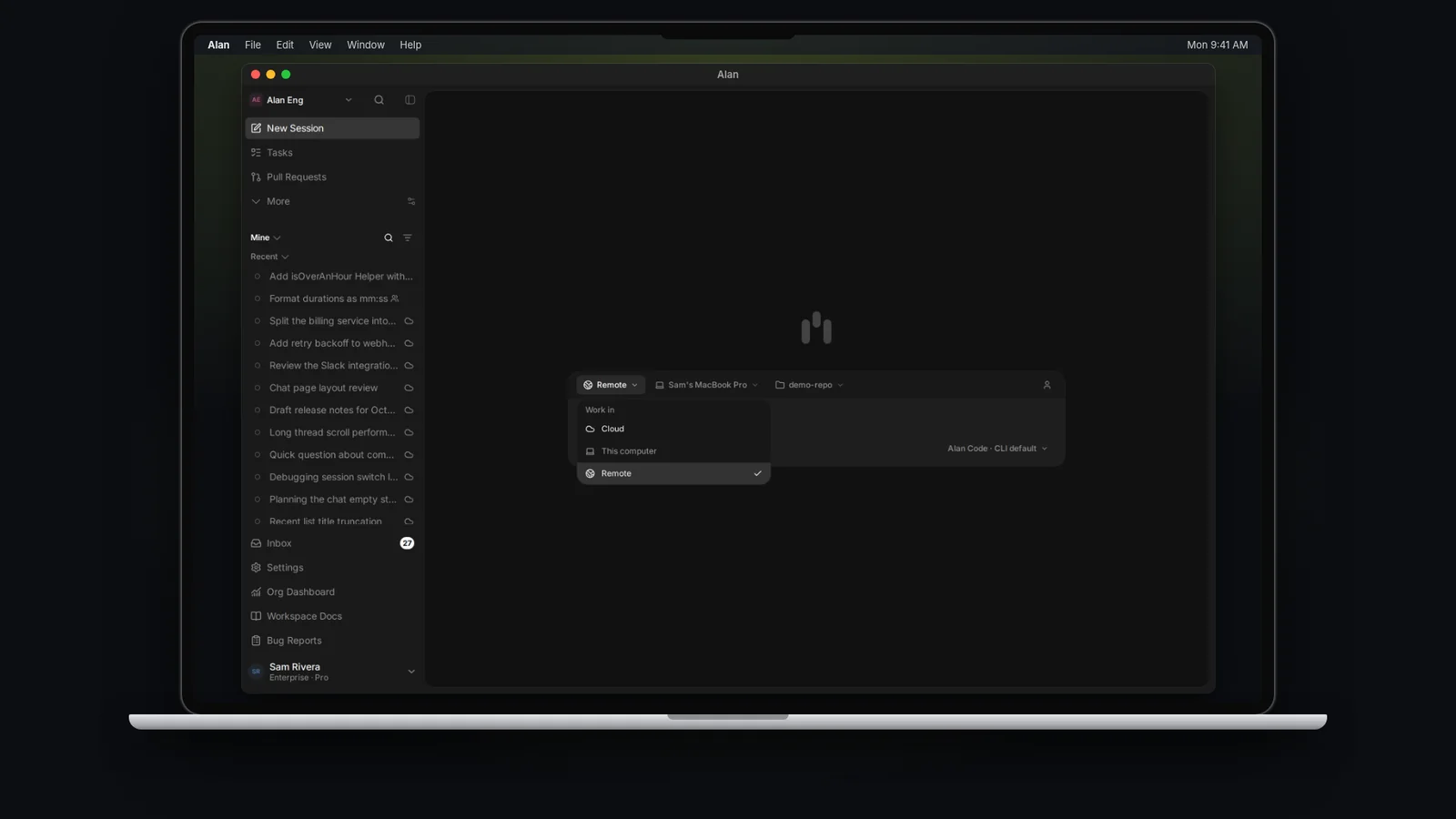
Local execution runs a session on a machine you control instead of an Alan cloud computer. Use it when the work depends on something only that machine has: an existing checkout, services already running, native builds, simulators, or credentials stored on that machine.
There are two kinds of machine:
| Your computer | Team VM | |
|---|---|---|
| How it connects | Sign in to the Alan desktop app on it | Run a setup command from Settings → VMs on it |
| Where it's managed | Settings → Account → General → Computers (desktop app) | Team Settings → VMs |
| Who can run sessions on it | You | Everyone in the team |
| Composer option | This computer (on that machine), or Remote from elsewhere | Remote |
Starting solo: what runs where
Alan runs the selected coding agent on your connected computer. The project folder you choose is its working directory: it can read and edit files and run commands there. Changes are made directly in that local checkout, so review the diff and test results before keeping or publishing the work.
For a solo setup, use This computer in the desktop app. Keep the app running while the agent works. Cloud availability depends on your feature tier. You do not need a team VM, GitHub connection, or codebase indexing to start with a local folder.
Connecting GitHub grants repository access; it does not replace choosing a local checkout. If the project is not on your computer yet, clone it using your usual Git tools, then choose that folder in Alan.
Connect your computer
Install the desktop app and sign in
Sign-in hands the session back to the app through an alan:// link; see Sign in and first run. The app's local service registers the machine with Alan.
Check it in Settings
In the desktop app, open Settings → Account → General. The Computers section lists this computer with the This computer tag and its state, for example Ready. If it isn't registered, you see This computer is not connected and a Connect this computer button.
The Computers section only works in the desktop app. In a browser it reads No computers connected — "Open the Alan desktop app to connect this computer." — even when your computer is connected and usable as a Remote target.
The computer and Alan's local service must stay running while the agent works. If the service stops or the computer loses its connection, the target becomes Offline.
Share a machine as a team VM
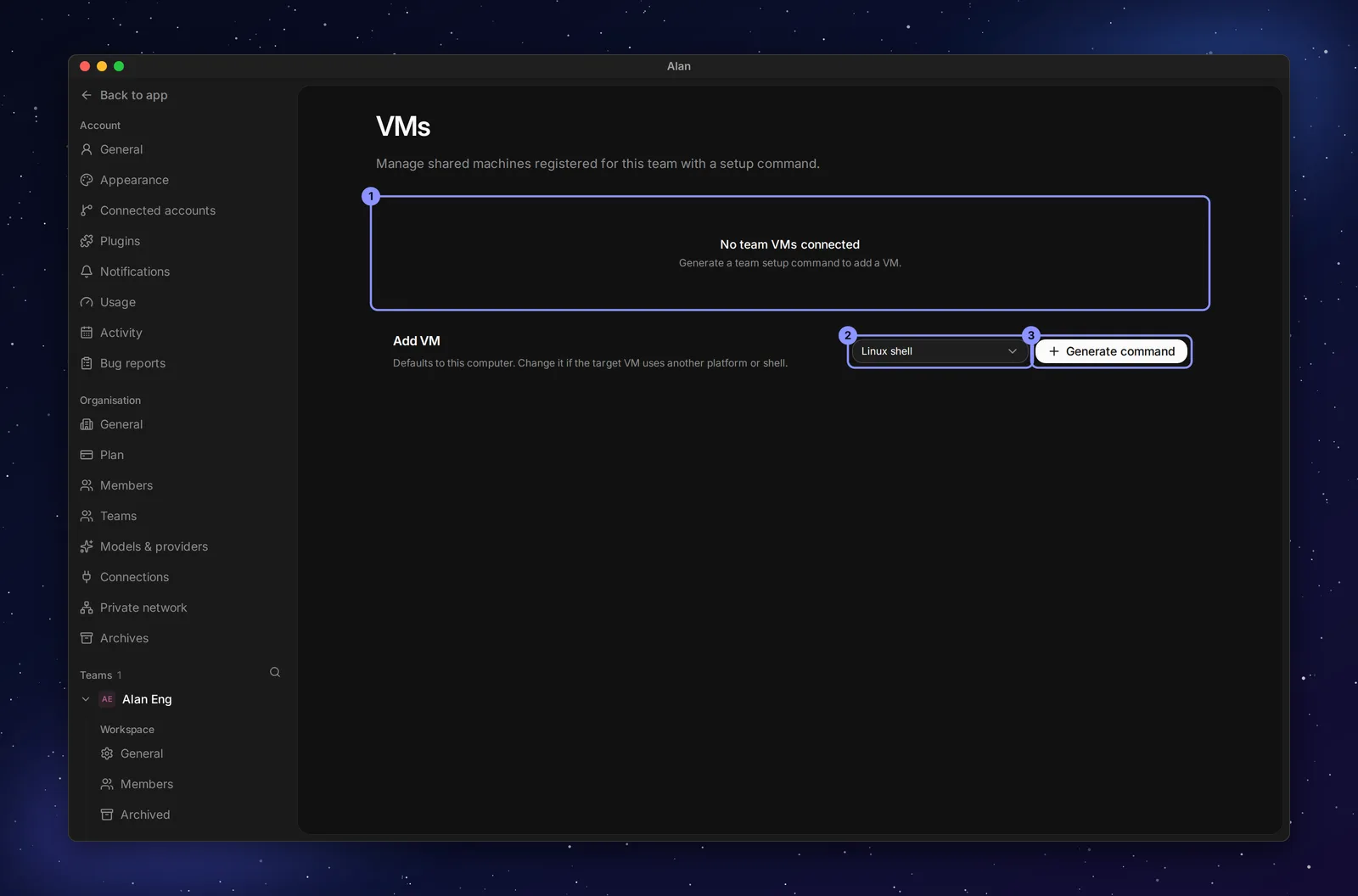
Open the VMs page
Open the team's Settings and choose VMs under Runtime.
Pick the platform and generate the command
Under Add VM, choose the target machine's shell: macOS Terminal, Linux shell, Windows PowerShell, or Windows Command Prompt. It defaults to the computer you're on. Choose Generate command, then copy it with Copy command.
Run it on the machine
Run the command where the instruction says (for example Run in a shell on Linux). It installs and starts the Alan runtime and registers the machine for this team. The command is short-lived; if it no longer works, generate a new one.
Confirm it's Ready
The machine appears under Team VMs with its state. Team members can now pick it under Remote in the composer.
Anyone in the team can run agent commands on a team VM. Use a dedicated build machine or VM, not a personal laptop with files the team shouldn't touch.
Machine states and actions
Computers and VMs show one of these states, both in Settings and in the composer:
| State | Meaning | Action shown |
|---|---|---|
| Ready (green dot) | Online and accepting work | — |
| Reconnecting… (blue) | Alan is re-establishing the link | Wait |
| Needs attention (amber) | Something blocks it, such as a sign-in or a disabled machine | Reconnect, Sign in, Enable, Update Alan, or Update |
| Offline (grey) | The app or runtime isn't running | Open the desktop app on that machine |
| Update required | The machine runs an Alan runtime that is no longer supported | Run the update command shown, then reconnect |
Each row's … menu has Rename, Enable / Disable, and Remove. For the computer you're on, it also has Reconnect and Download diagnostics.
The Agents tab
Expand a computer or VM and open Agents to choose which coding agents Alan can run there: "Choose which coding agents Alan can run on this computer. A green dot means the CLI is installed."
- Turn agents on or off, see N detected models per agent, and set the default agent ("New chats on this computer start with this agent."). Choose Save changes.
- Each agent shows a status such as Signed in, Signed out, Not installed, Offline, Cannot start, or Built into Alan.
- On your current computer, use Install or Setup guide in the CLI column if an agent is missing. Alan Code is built in. After installing another CLI, sign in if needed and choose Rescan models.
See Coding agents and models for choosing models.
Alan MCP in your own CLIs
For your current computer, the Native CLIs tab connects the coding-agent CLIs you run yourself (Claude Code, Codex, Cursor and others) to Alan's tools. Choose Enable to add the Alan MCP server to their configuration; once enabled, the panel reads Alan MCP enabled with Sync and Disable buttons. Alan MCP needs attention means the last sync failed; the message below it says why.
The same tab has Session ingestion, which imports sessions you run in your own terminal into Alan after each turn.
These settings are for CLIs you run directly in a terminal. Sessions started in Alan do not need them.
Run a session on a machine
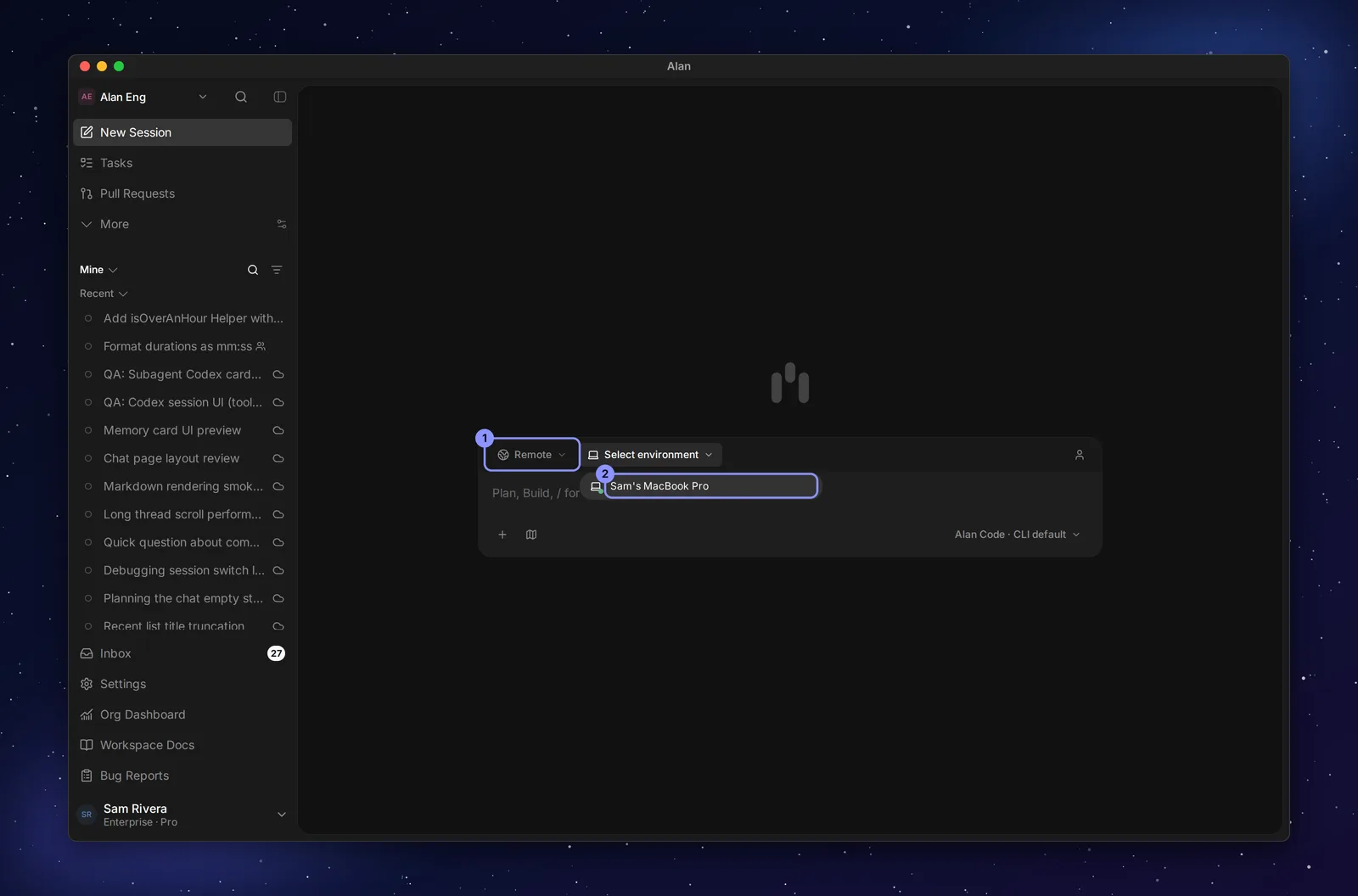
Choose the target
Open Execution target in the composer. Choose This computer to run on the machine with the desktop app, or Remote and then a machine from the list (the picker reads Select environment until you do). Only Ready machines can be picked. With nothing connected, Remote shows No remote VMs connected and Set up remote VM, which opens the VMs page.
Choose the folder
Open the folder picker next to the machine. This is the working directory the agent reads, edits and runs commands in.
Send
Pick the agent and model, write the request, and press Enter. See Start a session.
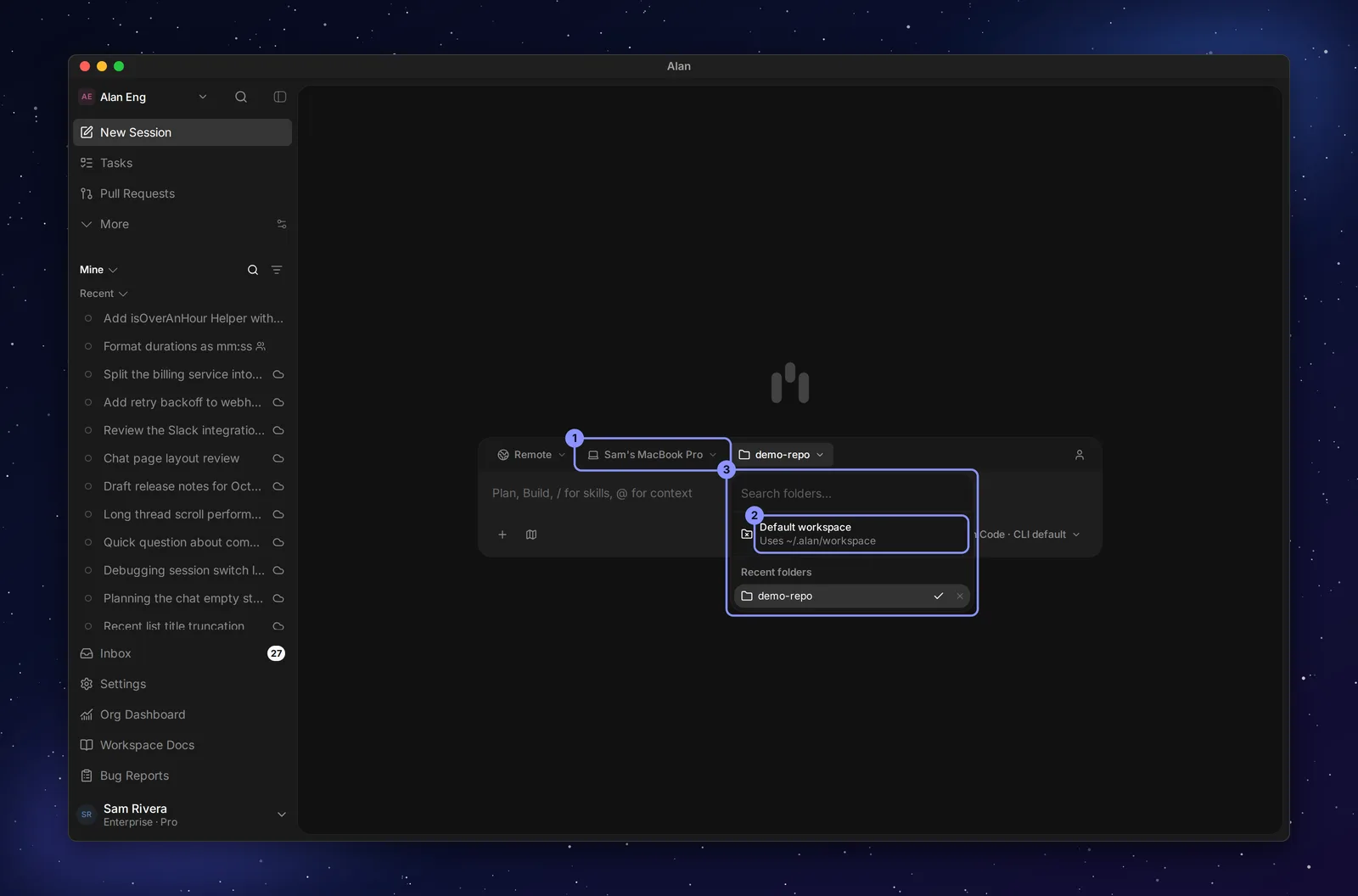
| Folder option | Use it for |
|---|---|
| Default workspace ("Uses ~/.alan/workspace") | Scratch work. The chip then reads Default. |
| Recent folders | Checkouts you used before on this machine. Remove one with its ×. |
| Search folders… | Finding a recent folder by name. |
| Add local directory | Adding another checkout on this computer. |
If a recent folder shows Folder moved or deleted, choose Locate folder to point Alan at its new path. Sending without a folder shows "Choose a folder or the Default workspace for this computer before sending."
Choosing a machine doesn't choose a repository. Check both the machine and the folder before sending, and check out the branch you want the agent to work on.
Once a session has started
- The target is fixed for the session: "The execution target is fixed for this session. Start a new session to choose a different target." To move a task, change the task's Execution target; existing sessions become read-only. See Cloud sessions and execution.
- If the machine goes offline and its runtime supports queued messages, Alan keeps your message queued: the composer reads Runs when machine is online and the run starts when it's back. Otherwise a banner above the composer explains what's wrong and offers Reconnect, Sign in, Enable, Update Alan, or Start new session. See Runtime recovery.