Connect AWS, Google Cloud or Azure
Let agents in cloud sandboxes use your cloud account with short-lived credentials, and approve destructive commands before they run.
Connect a cloud account to give agents in your team's cloud sandboxes access to Amazon Web Services, Google Cloud or Microsoft Azure. Agents can then run aws, gcloud and az commands, and Terraform or OpenTofu, against your account without anyone pasting keys.
Alan never stores cloud keys. Your cloud account trusts Alan as an identity provider. Each sandbox gets a credential for the role you choose, and that credential expires within an hour. Commands that delete or stop resources wait until someone in the chat approves them.
Alan uses large language models, which can produce inaccurate output. Give agents the least access they need, and review what they plan to run.
Before you start
- You must be a team admin to connect, edit or disconnect an account. Other team members can see what's connected, but can't change it.
- The team needs a cloud environment. Cloud accounts are used by cloud sandboxes, not by local sessions.
- In your cloud account, you need permission to create an identity provider and a role: IAM in AWS, workload identity pools and service accounts in Google Cloud, or app registrations and role assignments in Azure.
Each Alan team connects its own accounts. A team can connect one account for each cloud.
How the trust works
Alan publishes a sign-in issuer for your organization. Your cloud account trusts that issuer, but only for tokens about this team. When a sandbox needs access, Alan signs a short token that says "this team's sandbox", and your cloud exchanges it for temporary credentials on the role you set up.
Settings shows the two values your cloud needs:
| Value | Example |
|---|---|
| Issuer | https://api.tryalan.ai/public/oidc/orgs/<organization-id> |
| Subject | team:<team-id> |
You don't need to copy them by hand. The setup commands and the AWS template already include them.
Connect an account
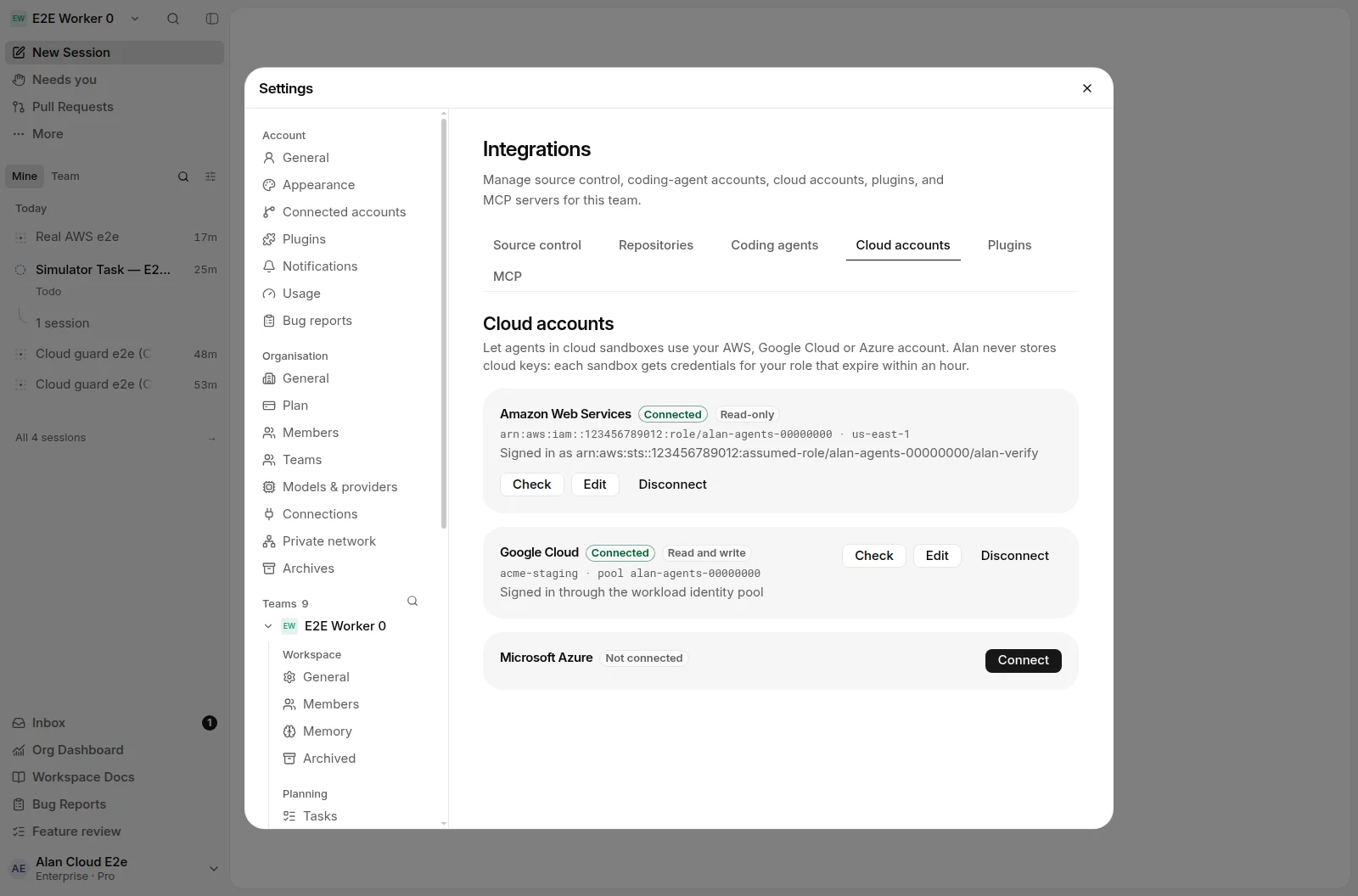
Open Cloud accounts
Open Settings. Under your team, choose Integrations, then the Cloud accounts tab.
Choose Connect and pick the access level
Choose Connect on the cloud you want, then pick Agent access: Read-only or Read and write. The setup commands update to match.
Run the setup in your cloud
Copy the commands with Copy commands and paste them into your cloud's own shell, as described for each cloud below. In AWS you can choose Launch in AWS instead.
Paste the result and choose Save and check
Paste the identifiers the setup printed, then choose Save and check. Alan signs in to your cloud right away and shows Connected, or the error your cloud returned.
The access level decides which permissions the setup grants:
| Cloud | Read-only | Read and write |
|---|---|---|
| AWS | ReadOnlyAccess | PowerUserAccess |
| Google Cloud | roles/viewer on the project | roles/editor on the project |
| Azure | Reader on the subscription | Contributor on the subscription |
You can grant something narrower in your cloud instead. Alan only ever gets what the role allows.
Amazon Web Services
You have two ways to set up AWS:
- Launch in AWS opens CloudFormation with Alan's template and your issuer, subject and access level filled in. Create the stack, then copy RoleArn from the stack's Outputs. If this AWS account already trusts Alan's issuer for another team, set CreateOidcProvider to
false. - Copy commands gives two blocks to run in AWS CloudShell. They trust Alan as an identity provider, create a role named
alan-agents-<team>, and print its ARN.
Then enter:
| Field | What to enter |
|---|---|
| Role ARN | The role's ARN, like arn:aws:iam::123456789012:role/alan-agents-1a2b3c4d |
| Default region | The region commands use when they don't name one (default us-east-1) |
Google Cloud
Run the commands in Cloud Shell, in the project agents should use. They:
- Enable the IAM, IAM Credentials and Security Token Service APIs.
- Create a workload identity pool and a provider that only accept this team.
- Create a service account, grant it the access level's role on the project, and let the pool act as it.
- Print the project number.
Then enter:
| Field | What to enter |
|---|---|
| Project ID | The project's ID, like acme-staging |
| Project number | The number the setup printed |
| Workload identity pool ID | Prefilled with the pool the commands create |
| Pool provider ID | Prefilled with alan |
| Service account (optional) | The service account's email, like alan-agents-1a2b3c4d@acme-staging.iam.gserviceaccount.com. Leave it empty if you grant roles to the pool directly. |
Google Cloud can take a few minutes to apply a new pool or role. If Save and check fails right after setup, wait a minute and choose Check.
Microsoft Azure
Run the commands in Azure Cloud Shell. They register an app with a federated credential that trusts this team, then assign it the access level's role on your current subscription. The last line prints the three values to enter:
| Field | What to enter |
|---|---|
| Directory (tenant) ID | Your Microsoft Entra tenant ID |
| Application (client) ID | The app the commands created |
| Subscription ID (optional) | The subscription agents should use by default |
What agents get in a sandbox
Alan refreshes each sandbox's credentials every 15 minutes, so they never expire mid-task. Nothing is written into your repositories.
| Cloud | In the sandbox |
|---|---|
| AWS | An AWS profile that assumes your role. It is the default profile unless the sandbox already has its own default, in which case it's named alan (aws --profile alan …). AWS SDKs use the same profile. |
| Google Cloud | An active gcloud configuration named alan, plus application default credentials, so Google Cloud client libraries work too. |
| Azure | az signed in as the app, with your subscription selected if you set one. Azure SDKs that use the Azure CLI credential pick it up. |
The aws, gcloud and az command-line tools come preinstalled in Alan's cloud image.
If an agent needs a cloud that isn't connected, it shows a card in the chat asking you to connect it, instead of asking for keys.
Approve destructive commands
Read-only commands, such as listing, describing and help, run straight away. Commands that delete, stop or remove resources pause first. The agent shows an Approve a cloud command card with the exact command and what it would do.
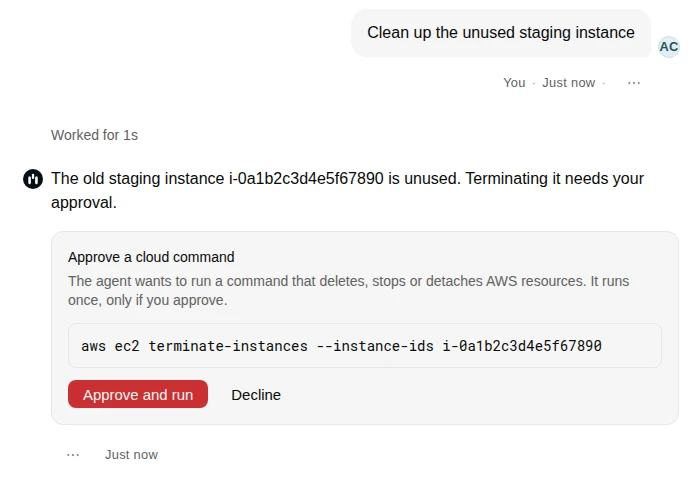
- Approve and run lets the agent run that exact command once, within 30 minutes. A different command, or the same command a second time, needs a new approval.
- Decline tells the agent not to run it and to ask you how to proceed.
- If your decision is saved but the chat message doesn't go through, the card shows Send again. This resends only the message; your decision is already saved.
These commands wait for approval:
| Tool | Needs approval |
|---|---|
aws | Operations that delete, terminate, remove, deregister, purge, detach, disassociate, revoke, disable, stop, reboot, cancel or reset; s3 rm, s3 rb, s3 mv; s3 sync --delete |
gcloud | Commands that delete, destroy, stop, reset, disable, purge, abandon or remove |
az | Commands that delete, purge, remove, stop, deallocate, restart or reset; az rest with any method other than GET, HEAD or OPTIONS |
terraform, tofu | destroy; apply with -destroy, with -auto-approve, or with a saved plan; state rm; workspace delete. Arguments set in TF_CLI_ARGS or TF_CLI_ARGS_<command> count too. |
If the sandbox can't reach Alan to check a command, the command doesn't run. The agent sees a message to try again shortly.
The approval step is a safety net for mistakes, not a security boundary. A determined process could still call the cloud directly. The role's permissions are the real limit, so connect a Read-only role unless agents need to change things.
Check, edit or disconnect
Each connected cloud shows its status and three actions:
| Action | What it does |
|---|---|
| Check | Signs in again and updates the status. Use it after you change the role or trust in your cloud. |
| Edit | Changes the identifiers or access level, then checks again. |
| Disconnect | Asks you to confirm, then stops giving the account to new sandboxes. |
After you disconnect, sandboxes that are already running keep their credentials until they expire, within an hour. To cut off access completely, also delete the role or identity provider in your cloud.
Troubleshooting
Save and check shows the error your cloud returned. Common ones:
| Error | What to do |
|---|---|
AWS InvalidIdentityToken | The account doesn't trust Alan's issuer. Run the first setup block, or check the identity provider's URL matches the Issuer exactly. |
AWS AccessDenied … AssumeRoleWithWebIdentity | The role's trust policy doesn't match this team, or the role was just created. Check the :aud is sts.amazonaws.com and the :sub is the Subject, then choose Check again. |
Google invalid_target | The project number, pool ID or provider ID is wrong, or the pool was disabled or deleted. |
Google PERMISSION_DENIED on the service account | The pool can't act as the service account. Rerun the roles/iam.workloadIdentityUser binding from the setup. |
Azure AADSTS90002 | The tenant ID is wrong. |
Azure AADSTS700213 or another federated credential error | The app's federated credential doesn't match the Issuer and Subject. Rerun the first setup block. |
Azure AADSTS53003 | A Conditional Access policy in your tenant blocks the app. Ask your Entra admin to exclude it. |
If Connect doesn't appear, you're not a team admin. Ask one to connect the account.