Connect Microsoft Teams
Mention @Alan in Teams channels to start cloud sessions in the Alan team that owns the channel.
Connecting Microsoft Teams lets your team mention @Alan in mapped Teams channels. Alan starts a cloud session in the Alan team that owns the channel, replies in the Teams thread, and links the result back to Alan, much like the Slack integration.
The connection is organisation-wide. Once your Microsoft 365 tenant is connected, you map each Teams channel to an Alan team and link each person's Microsoft account to their Alan account.
Prerequisites
- A plan that includes shared integrations. On other plans the Microsoft Teams card says Needs a Team plan, with See plans.
- Permission to consent to the Alan app in your Microsoft 365 tenant. Your tenant may require a Microsoft 365 admin to approve it first.
- The Alan app added to the Teams team whose channels you want to use, so people can @mention it there.
- A cloud environment on each Alan team that will take work from Teams.
Connect the tenant
Open Settings, then Connections
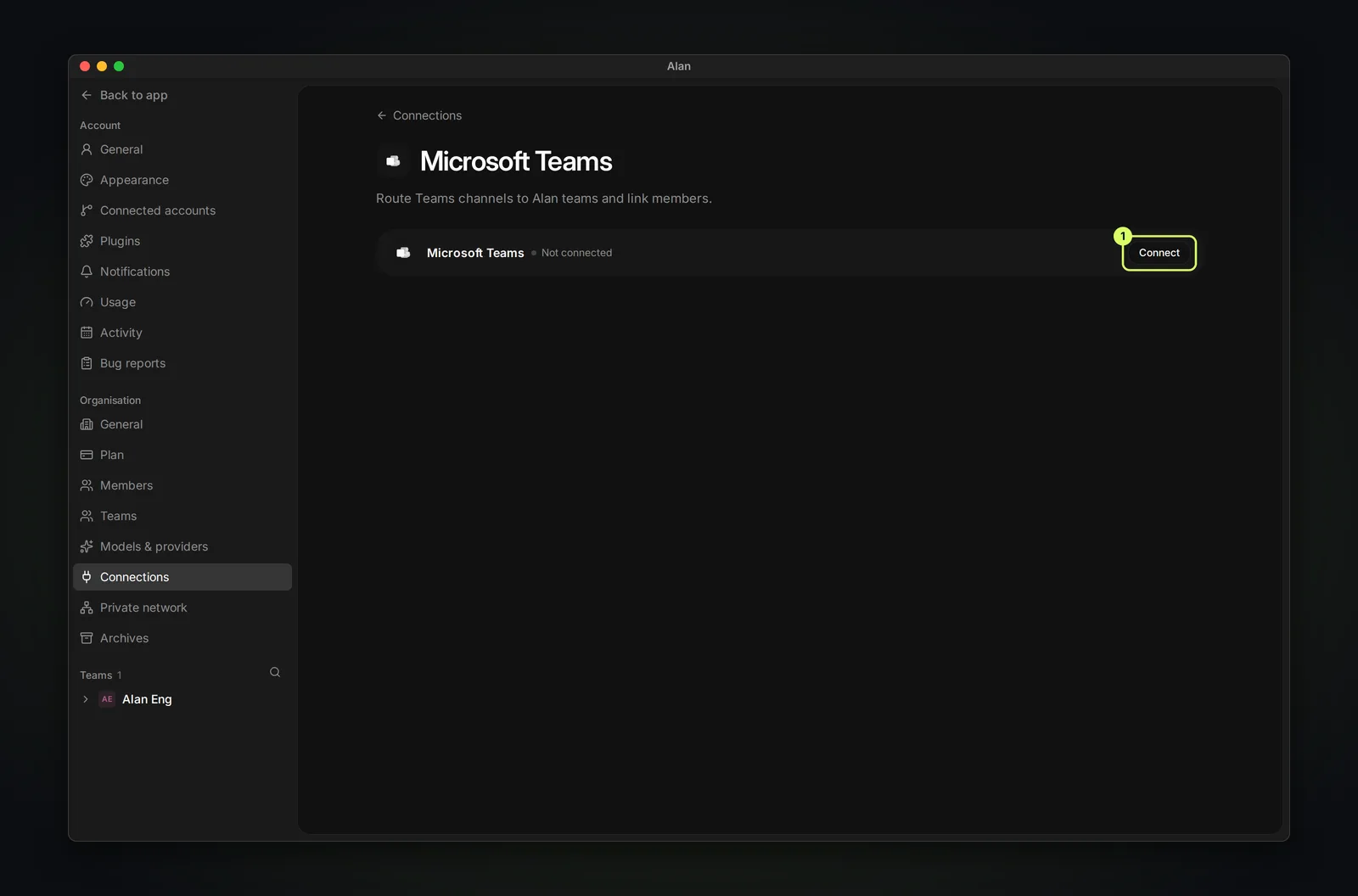
In Alan, open Settings and, under Organisation, choose Connections. Select Microsoft Teams.
Choose Connect
Sign in with Microsoft and approve the requested permissions. You return to Alan with the tenant connected.
Check the status
The page shows Connected with your tenant's name and the number of mapped channels. Disconnect removes the connection.
Alan asks Microsoft for read access to your directory, teams, channels, and the messages it is mentioned in. The channel and people pickers need that directory access; if they're empty, reconnect.
Map a channel
Each mapping ties one Teams channel to one Alan team. Work from that channel is created in that team.
Open Channel mapping
On the connected Microsoft Teams page, open Channel mapping and choose Add mapping.
Pick the channel
Choose it from Select a channel, or use Or enter a channel ID (it looks like 19:…@thread.tacv2). If the channel isn't in the list, also enter the ID of the Teams team it belongs to.
Choose the Alan team
Pick the Alan team whose work this channel should create, then choose Create mapping.
Each mapping has an edit button (to change the Alan team) and a remove button. To point Alan at a different channel, remove the mapping and add a new one. Only an org admin or a member of the mapping's Alan team can change or remove it.
Link members
Link each person's Microsoft account to their Alan account before they mention Alan in Teams.
Open User mapping and, for each Alan member, pick their Microsoft account from the directory. Alan suggests likely matches. If the directory can't be read, paste the person's Azure AD object ID on their row instead.
Someone who isn't linked can't start work by mentioning Alan; Alan replies to say it couldn't match them. Link people before they rely on Alan in Teams.
Ask Alan for work
In a mapped channel:
- Mention @Alan with a clear instruction in a conversation.
- Alan starts a cloud session in the channel's Alan team and replies in the thread.
- Reply in the same thread to steer it. Say
stopto end a turn.
Chats with Alan: once at least one channel is mapped, you can also message Alan in a one-to-one chat; it uses an existing mapping for your requests. Until then, Alan replies that chats aren't connected to an Alan team yet.
If Alan turns a request down, its reply says why, using the same reasons as Slack (for example, the team you're not on, a missing cloud environment, or a session limit). See If Alan doesn't respond.
Compare with Slack
| Slack | Microsoft Teams | |
|---|---|---|
| Where to connect | Settings → Connections → Slack | Settings → Connections → Microsoft Teams |
| Plan | Integrations | Shared integrations (Team plan) |
| Choosing a channel's team | Pick it in Slack the first time someone mentions Alan | Map the channel in Alan's settings |
| Matching people | By email, with self-service Link my Alan account | By linking each member under User mapping |
| What a mention starts | A cloud session | A cloud session |
| Starting automations | Not yet | Not yet |
| Posting from automations | Send Channel Message, Reply in Thread | Send Channel Message, Reply in Thread |
Common issues
Your Microsoft 365 tenant may need an admin to approve the Alan app before anyone can connect. If connecting fails straight away, ask your Microsoft 365 admin.
- @Alan doesn't respond in a channel. The channel isn't mapped, or the app isn't added to that Teams team. Alan replies "This Microsoft Teams channel is not mapped to Alan yet" when it can.
- Alan says it can't match you. Link your Microsoft account under User mapping.
- The channel list or directory picker is empty. Reconnect so Alan has directory access, or enter the channel ID and Teams team ID by hand, and paste Azure AD object IDs for members.