Connect Slack
Mention @Alan in Slack to start a coding session from a thread or a direct message.
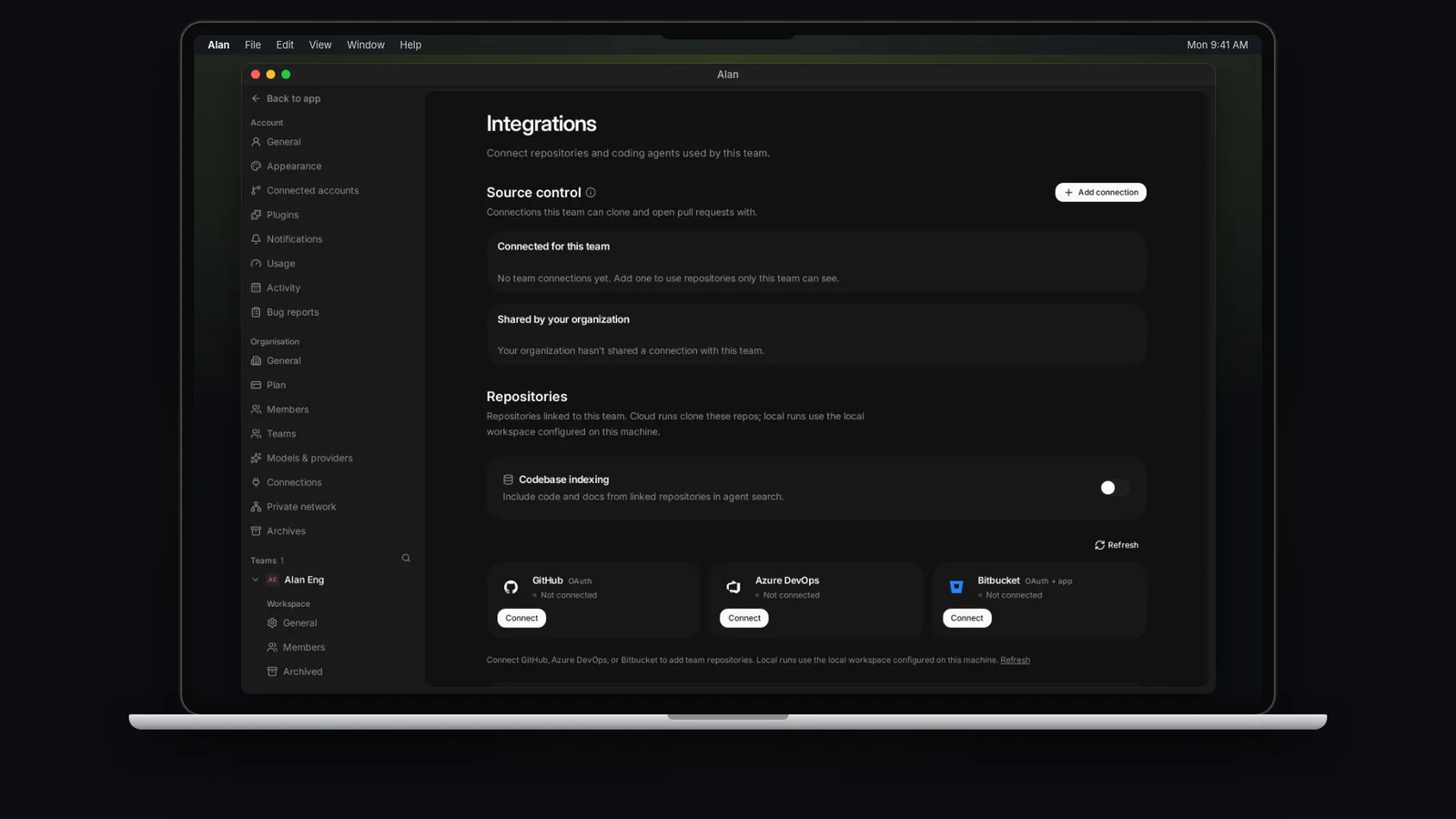
Connecting Slack lets your team ask Alan for work without leaving Slack. Mention @Alan in a thread, message Alan directly, or run /alan <task> in a channel. Alan reads the conversation, works in your team's cloud environment, posts progress in the thread, and links the result, often a pull request, back to Alan.
Alan answers in channels it has been invited to and in direct messages. The connection is organisation-wide: one member installs the app, and each channel then picks the Alan team its work runs in.
Alan uses large language models, which can produce inaccurate output. Review its answers and pull requests before you rely on them.
Get access
You need an Alan account and a plan that supports the work you want to run from Slack. See pricing for available plans.
- Any member of the Alan organisation can install the app, if your plan includes integrations.
- Every session Alan starts from Slack is a cloud session. If your plan doesn't include cloud sessions, the Slack page says so, and Alan replies in Slack with an upgrade link instead of starting work.
- Slack's agent view, where people chat with Alan in its own pane, needs a paid Slack plan.
Prerequisites
- Permission to install Slack apps in the workspace, or a Slack admin who can approve the request
- A cloud environment on each Alan team that will take work from Slack
- Slack members who will ask Alan for work should use a work email that matches their Alan profile, so Alan can recognise them
Connect the workspace
Open Settings, then Connections
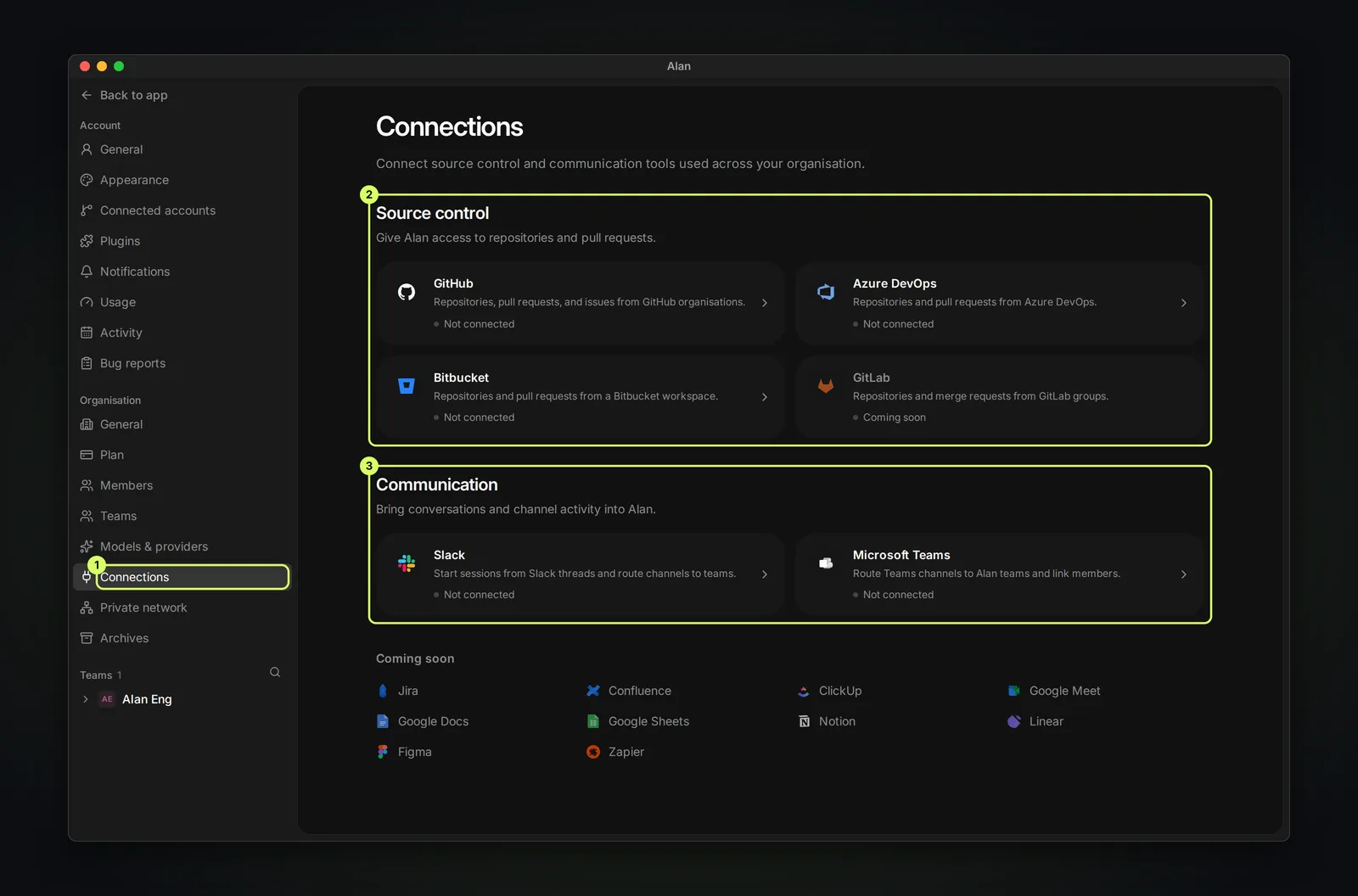
In Alan, open Settings and, under Organisation, choose Connections. Select Slack.
Add Alan to Slack
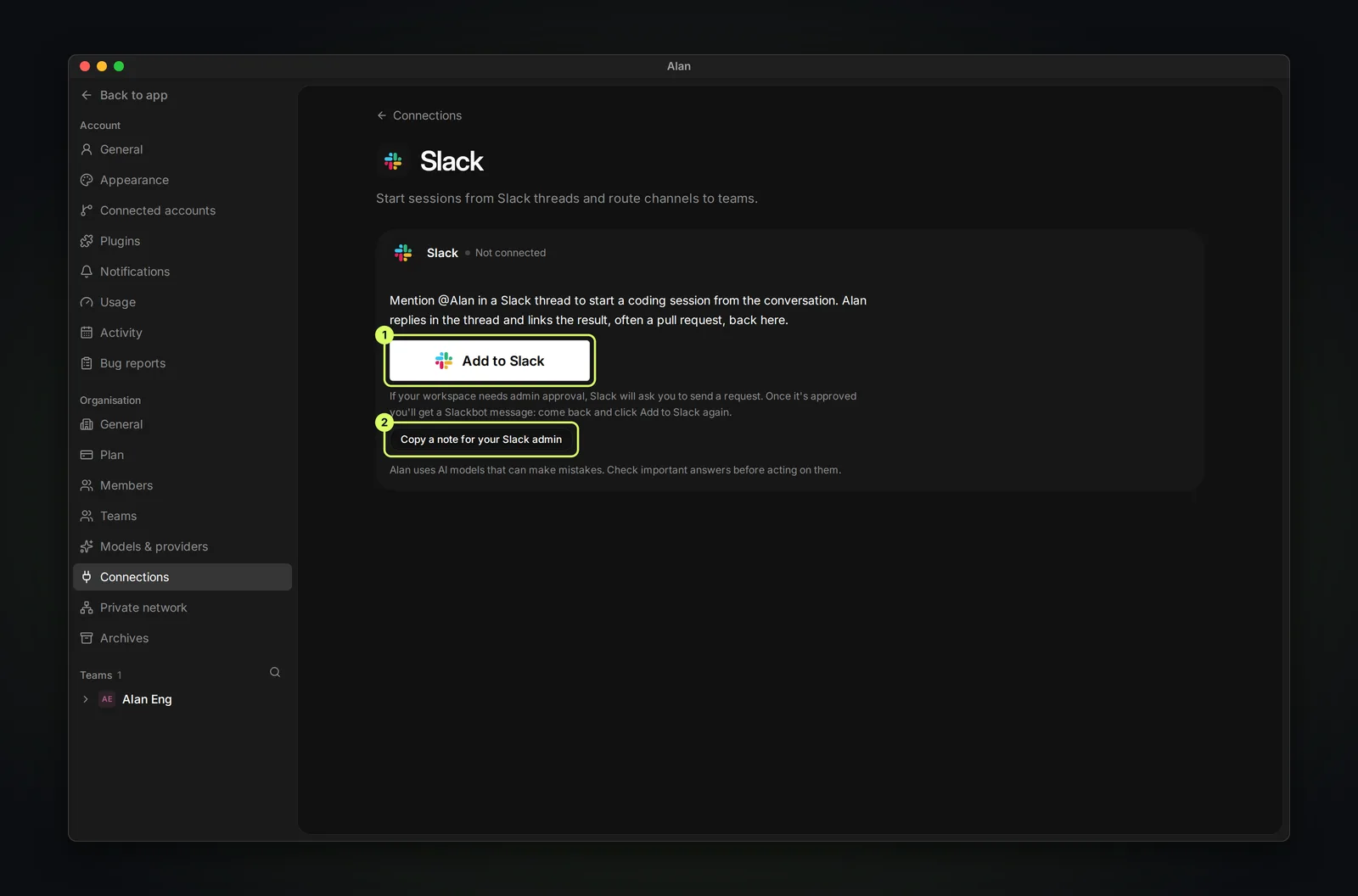
Choose Add to Slack. Slack asks you to install the Alan app and approve its permissions. When you return to Alan, the workspace appears on the page.
If your workspace needs admin approval
Slack asks you to send a request instead. Copy a note for your Slack admin copies a short explanation you can send them. Once it's approved you'll get a Slackbot message: come back and choose Add to Slack again.
Once connected, each workspace appears as a card with Open in Slack and, in its ⋯ menu, Disconnect. Add workspace installs Alan in another Slack workspace; an Enterprise Grid organisation shows Add to workspaces instead.
If the card says Alan's Slack permissions are out of date, choose Update permissions. Older installs can be missing permissions Alan needs, such as reading work emails to recognise people.
Each card has three tabs:
| Tab | What it shows |
|---|---|
| Channel routes | Which Alan team each channel runs in. Remove a route here; the next mention asks again. |
| User mapping | Which Alan members are linked to a Slack account, and how many of them. |
| Help | Setup steps, common questions, and Report a bug. |
Choose a team for each channel
You choose a channel's team in Slack, not in Alan's settings.
Mention Alan in the channel
The first time someone mentions @Alan in a channel, Alan checks which team it belongs to. If you're on only one Alan team, the channel uses that team straight away.
Choose a team
If you're on several teams, Alan asks which one the channel should run in. Pick one with Choose a team. Your request is saved and starts as soon as you pick, and everyone's new threads in the channel use the same team.
Change it later
Choose Change on Alan's message to move the channel to another team. Threads already running stay where they are. Only members of the channel's current team, or an org admin, can move it.
Direct messages work the same way: the first time you message Alan, it asks which team your direct messages should run in, and remembers your choice.
Invite Alan into the channel before testing. In Slack, run /invite @Alan (or your workspace's app name) in the channel so Alan can read messages and reply.
Ask Alan for work
In a direct message, just write what you need. In a channel Alan is in:
- Start or continue a thread.
- Mention @Alan with a clear instruction, for example
@Alan fix the login timeout. You can also pick Ask Alan from a message's ⋯ menu, or react to a message with 🛠️. - Alan replies in the thread. Each thread is one session: reply in it to steer Alan. Press Stop, or say
stop, to end a turn. Saymute(or use 👎 on Alan's reply) and Alan stays out of the thread until someone mentions it again.
You can also run /alan <task> in a channel Alan can post in. Alan starts a thread for the task and replies there.
What Alan can do from Slack
- Answer questions using the thread's context
- Work on code in the team's cloud environment and open a pull request
- Post back into Slack: send a message, reply in a thread, add a reaction, or upload a file
Let Alan watch a channel
You can ask Alan to watch a channel for certain posts, so it can help without being tagged. Mention it in the channel with what to watch for, for example @Alan suggest fixes on Sentry alerts here. Alan confirms the rule in the thread.
- In suggest mode, Alan adds 🛠️ to a matching post; anyone on the team can tap it to start Alan on that post.
- In act mode, Alan starts on matching alert-bot posts straight away and replies in their thread.
- If people keep muting its suggestions, Alan steps the rule down to a quieter mode and says so.
- Your rules appear in Alan → Home in Slack, where you can pause and resume them. Ask
@Alan what are you watching here?to list a channel's rules.
Describe the rule in a message to Alan and check its confirmation before relying on it.
User identity
Alan matches Slack users to organisation members by email.
- Installing the app, or updating its permissions, doesn't link personal accounts or replace existing links. The Slack account that approved the install may be a shared workspace admin.
- The email on the member's Alan profile should match the work email on their Slack account.
- If the emails differ, open Alan → Home in Slack and press Link my Alan account. Alan shows the Slack account and the Alan account it will link, and warns if either already has a different link. If the Alan account isn't yours, choose Use a different Alan account. Otherwise choose Continue to Slack and authorize the same Slack account you used to press the button.
- If your browser authorizes a different Slack account, Alan rejects the link without changing the existing one. Switch the browser to the intended Slack account, then reopen Alan Home and try again. Link buttons expire after 24 hours; reopening Home gives you a fresh one.
- The User mapping tab in Alan shows who is linked. Links are made from Slack, not from that tab.
Your data
Alan reads the Slack messages, files and member details it needs to answer you: the thread or direct message it was asked in, files people share there, and the names and work emails used to match members to Alan accounts.
- Messages from a thread become part of that Alan session, which your organisation can view and delete in Alan.
- Shared files are fetched only when Alan needs them, through a link that expires after 15 minutes. Text Alan reads from a file becomes part of the session, and a file it downloads is kept in the session's cloud workspace.
- Cached Slack member and channel details expire after a day.
- Uninstalling the Slack app clears Alan's Slack tokens and deletes its channel routes, user links, and Slack notification settings.
Read the privacy policy for the full details. To ask for your data or for it to be deleted, email support@tryalan.ai.
Automations and Slack
Automations can post to Slack with the Send Channel Message and Reply in Thread tools, and can add reactions or upload files. A Slack message can't start an automation yet. See Create an automation.
If Alan doesn't respond
When Alan turns down a request, it replies privately to the person who asked, and says what to fix. Look for that reply first.
| Alan's reply says | What to do |
|---|---|
| It couldn't match your email to anyone in the organisation | Ask an Alan admin to invite that email, or use Link my Alan account in Alan Home. |
| The conversation runs in a team you're not on | Ask an Alan admin to add you to that team. |
| This channel isn't connected to an Alan team yet | Mention Alan again and choose a team, or ask an admin to check Connections → Slack. |
| The team's cloud environment can't be used right now | Fix the team's cloud environment in team settings (it was archived, or none is the default). |
| The plan doesn't include cloud sessions | An admin can upgrade the plan. |
| It's already running as many sessions as it can | Wait for one to finish, then mention Alan again. |
| You already have as many sessions running as one person can | Say stop in one of them, or wait. |
| Your model credit for the month is used up | Wait for the reset shown in the reply. |
If there's no reply at all, check that Alan is in the channel. Run /invite @Alan, then mention it again. Slack guest accounts can't use AI apps, so Alan can't take requests from guests.
Common issues
If your Slack workspace requires admin approval for apps, installation stays pending until a Slack admin approves the Alan app.
- The Slack card says Alan's permissions are out of date. Choose Update permissions and approve the new permissions in Slack.
- Alan doesn't know who I am. Your Alan profile email doesn't match your Slack work email. Fix the email, or use Link my Alan account in Alan Home.
- Member or channel names are missing. Choose Update permissions and try again. Confirm Alan is in the channel.
Get help
Email support@tryalan.ai with the channel, the time of your request, and any error message.