Import issues from Linear
Connect Linear and copy your Linear issues into an Alan team as tasks.
This page helps you copy issues from Linear into an Alan team. Each Linear issue becomes an Alan task.
The import is one-way. Alan reads from Linear and never changes anything in Linear.
Linear import is in each team's settings. It is not on the organisation Connections page.
Before you start
- Your organisation uses the Team or Enterprise tier. These tiers include shared integrations, such as Linear. To check your tier, see Plans and limits.
- You are a member of the Alan team that will receive the tasks.
- You can sign in to the right Linear workspace in your browser.
- If you choose Connect Linear, a Linear workspace admin must approve the connection. If you are not a Linear admin, you can use a Linear API key instead. An API key is a secret code from Linear that lets Alan read your Linear data. Connect with an API key explains this.
Who can do what
| Action | Who can do it |
|---|---|
| Connect or disconnect Linear | An organisation admin, or a member of every Alan team that already uses the Linear connection |
| Start, cancel or retry an import | Any member of the team that receives the tasks |
| Pause or resume the ongoing sync (Alan copying new Linear changes) for a team | Any member of that team |
There is one Linear connection for the whole Alan organisation. Every team uses the same connection.
Connect Linear
Open settings
Open your account menu at the bottom of the sidebar. Choose Settings. You see the settings menu.
Open the team's settings
Under Teams, choose the team that should receive the tasks. You see the team's settings groups.
Open Import
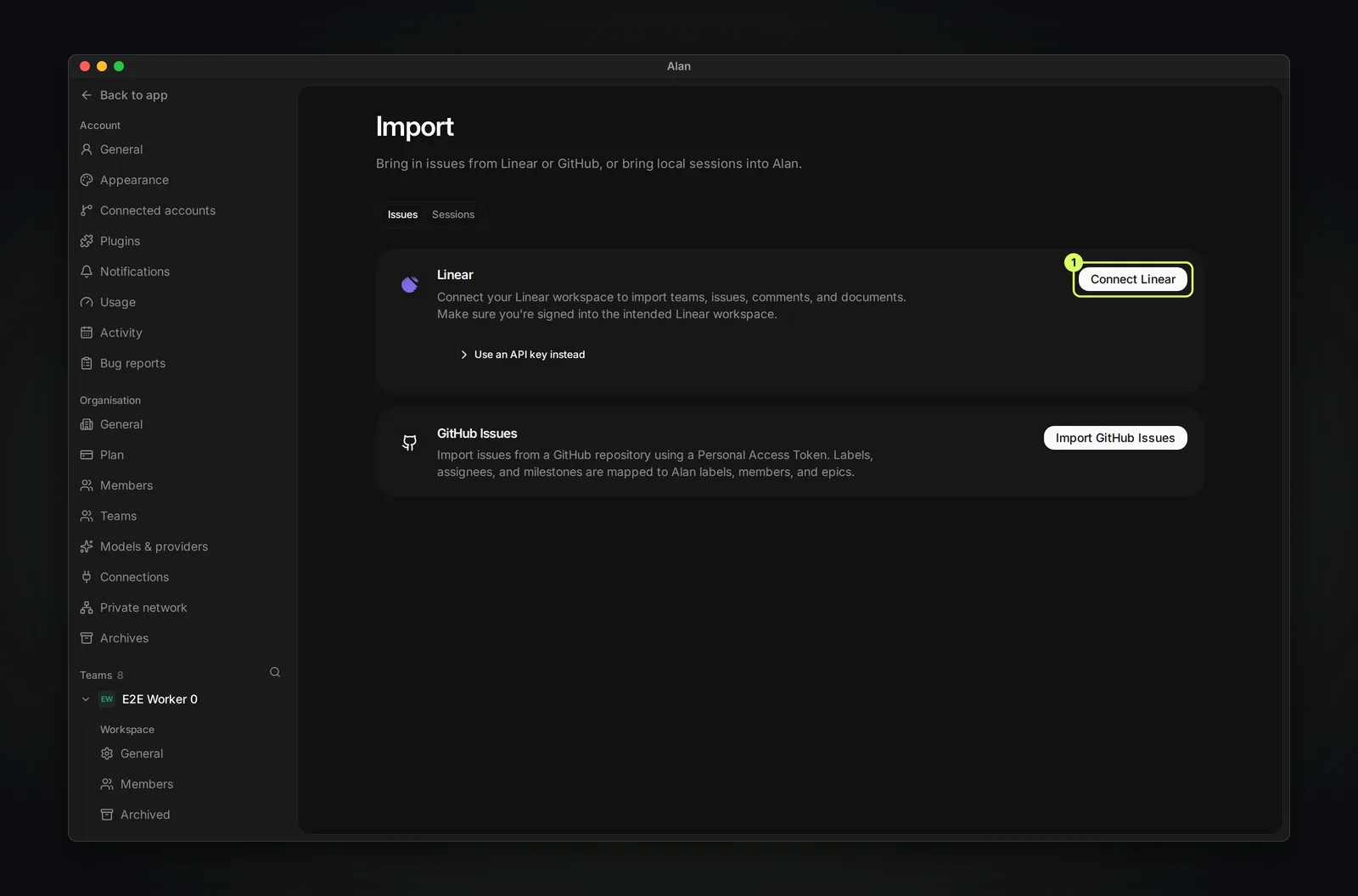
In the Connections group, choose Import. The Issues tab opens. You see a Linear card and a GitHub Issues card.
Choose Connect Linear
On the Linear card, choose Connect Linear (1). Linear opens in a new browser tab. In the desktop app, it opens in your normal browser.
Approve the connection in Linear
In Linear, approve the request. Alan asks only for read access. Alan shows Linear connected for and your workspace name.
If you started in the desktop app, the browser tab shows Linear connected in Alan. Close the tab and go back to the app.
The Linear card now shows Connected and your Linear workspace name.
Connect with an API key
Use this if you are not a Linear admin. The import then runs as the owner of the key.
- In Linear, open Settings → Security & access. Create a personal API key and copy it.
- In Alan, on the Linear card, choose Use an API key instead. A field for the key appears.
- Paste the key into the field.
- Choose Connect. The Linear card shows Connected.
The connection attempt expires after 15 minutes. If it expires, choose Connect Linear again.
Import your issues
The import opens a short wizard with four steps. The tasks always go into the team whose settings you have open.
Start the wizard
On the Linear card, choose Import from Linear. You see Step 1 of 4.
Pick the Linear teams
Select one or more Linear teams. Each row shows the team's name and number of issues. Choose Next.
You choose whole Linear teams. You cannot pick one project, one label or only open issues.
Match people
Each Linear person has a menu of Alan members. People with the same email address are already matched and show Email match. Change a match if it is wrong. Leave a person as Leave unmapped if they are not in Alan. Choose Next.
Choose what to import
Turn each item on or off: Comments, Documents, Attachments & pull requests, Relations, Cycles, Epics and Assets. All of these are on at first. Activity history is off at first, because it makes the import much slower. Choose Next.
Check the preview and start
The preview shows how many issues Alan will import and how long it may take. Choose Start import. You see the Linear import progress window.
The import runs in the background, so you can close the window. Tasks appear in the team's task list while the import runs. When it finishes, you see Imported and a count of tasks, comments, documents and assets. Choose Open and the team name to see the tasks.
To start the import later, set Start later (optional) in step 3 of 4, where you choose what to import.
What Alan copies
| In Linear | In Alan |
|---|---|
| Issue | A task in the team, with the same title, description, due date and labels |
| Sub-issue | A subtask of the matching task |
| Priority Urgent, High, Medium, Low or No priority | The same priority in Alan |
| Workflow state | A team status with the same name |
| Project | An epic |
| Cycle | A cycle |
| Document | A document |
| Assignee you matched | The task's assignee |
| Assignee you left unmapped | No assignee |
Alan adds Linear statuses and labels to the team's own lists. The team keeps its existing statuses. Each Linear status keeps its name, including custom statuses. Alan puts it in a status group by its type in Linear:
| Linear status type | Alan status group |
|---|---|
| Triage, Backlog, Unstarted | Not started |
| Started | Active |
| Completed | Done |
| Canceled, Duplicate | Closed |
To learn about status groups, see Statuses.
Comments from people that you left unmapped are copied too. Alan shows them as written by the person who started the import. The original author's name is at the top of the comment.
Archived Linear issues are copied as deleted tasks. They do not show in the task list.
Run the import again
You can run the import again at any time. Alan updates the tasks it already copied. It does not create duplicates.
Changes in Linear win. If a field changed in Linear, the next import or sync writes the Linear value over the Alan value.
After the first import, the card shows Ongoing sync for each linked team. Alan keeps copying changes from Linear to that team. To stop this, choose Pause sync. To start it again, choose Resume sync. Pausing does not delete any tasks.
A Linear team stays linked to the first Alan team you import it into. Other teams see it as locked. To import it again, open the team it is linked to.
Disconnect Linear
- On the Linear card, choose Disconnect. You see Disconnect Linear?
- Choose Disconnect to confirm. Alan shows Linear disconnected.
Your imported tasks stay in Alan. A running import pauses. It continues after you connect again.