Epics
Group related tasks under one outcome, track status and target dates, and roll up progress automatically.
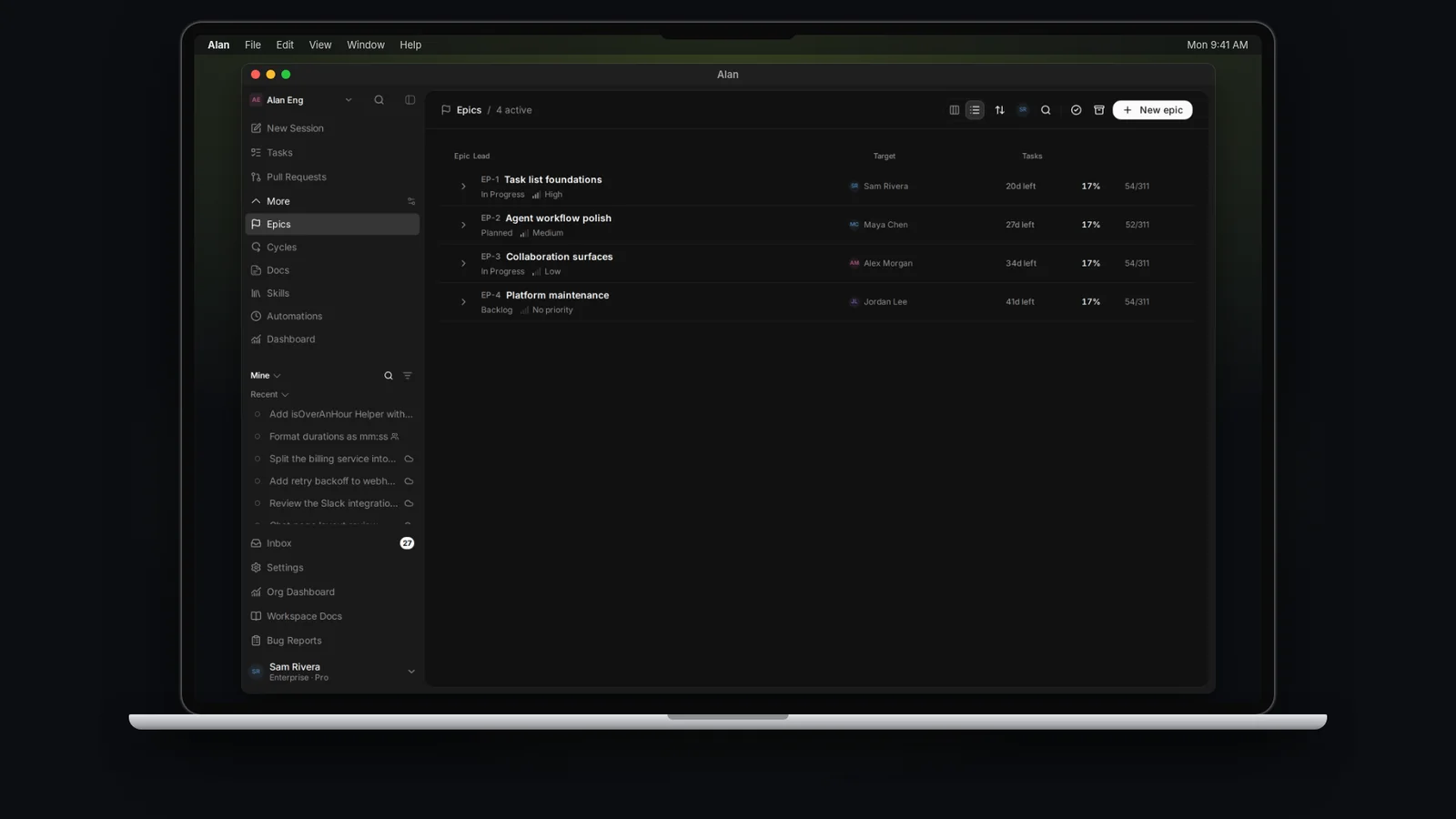
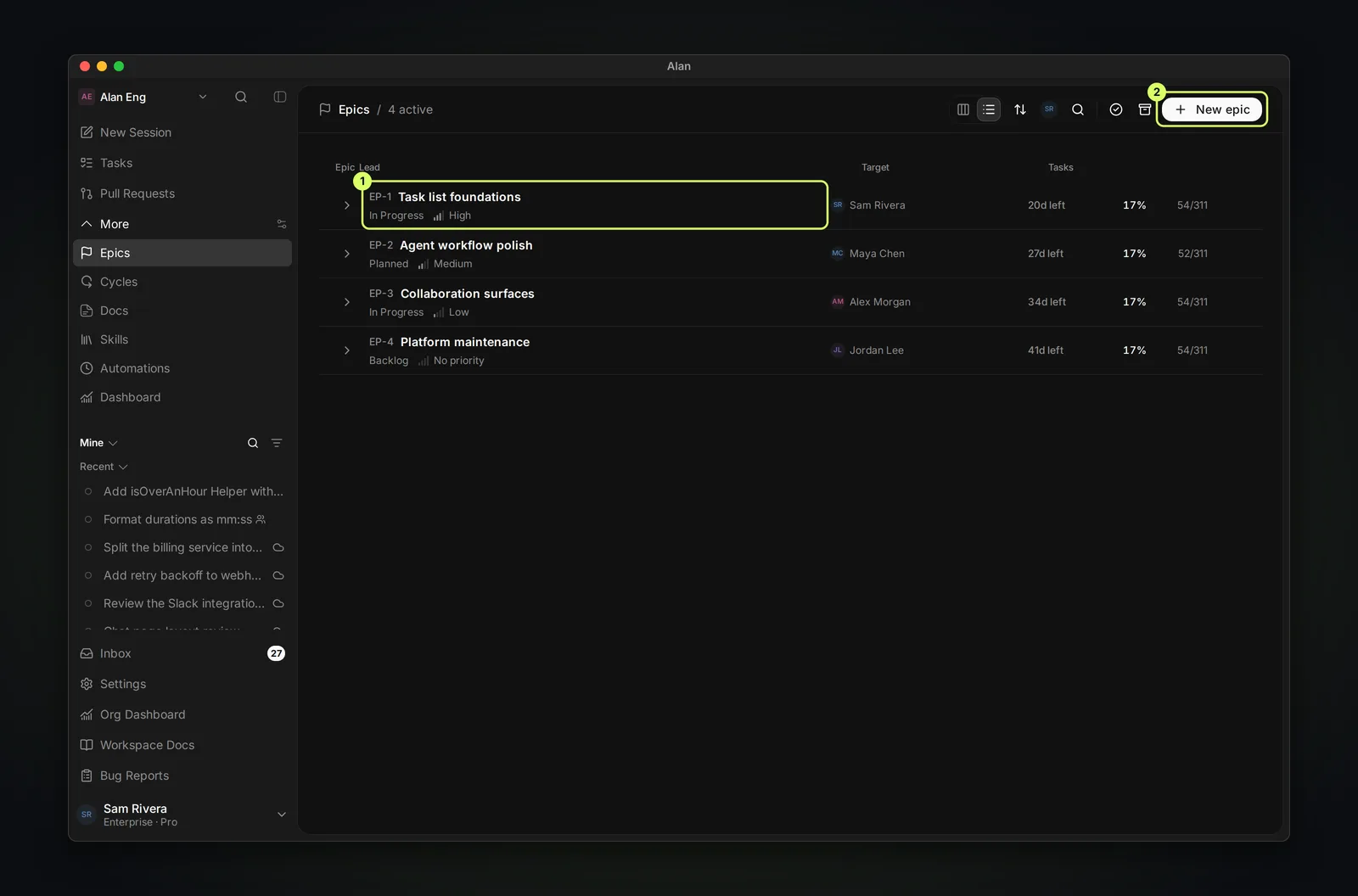
An epic groups tasks that contribute to one goal. Use it when the goal needs several tasks and you want to track their progress together. Each epic has its own status, priority, lead, and target dates.
Epics are off for new teams. Any team member can turn them on in Settings → your team → Epics with Enable epics. Turning them off hides the Epics page but keeps existing epic assignments.
Video: a tour of epics, cycles, and docs is on Cycles.
Epic or cycle?
Both group tasks, but they answer different questions:
| Epic | Cycle | |
|---|---|---|
| Answers | What & why — the outcome | When — the execution window |
| Scope | Outcome-based, open-ended | Time-boxed (e.g. a two-week sprint) |
| Lifetime | Lives until the outcome ships | Ends on its date |
They are independent ways to group tasks. A task can sit in an epic, in a cycle, in both, or in neither. The epic says what larger goal this task serves; the cycle says which window you're trying to land it in.
A task can belong to one epic and one cycle at a time. Changing one does not change the other.
What an epic holds
Beyond a title and description, every epic has:
- Status: where the epic is in its lifecycle.
- Priority: for example High, Medium, Low, or No priority.
- Lead: the one person accountable for the outcome.
- Target dates: a start and end date. The Epics list shows the time left, for example 20d left.
- Artifacts: plans, documents, and other outputs attached to the epic.
Epic statuses
Epic statuses are team-specific, like task statuses. Each team starts with:
| Group | Default statuses |
|---|---|
| Not started | Backlog (required), Planned |
| Active | In Progress |
| Done | Completed |
| Closed | Canceled |
Add, rename, recolor, and reorder statuses in Settings → your team → Epics → Epic statuses.
Progress rolls up automatically
You don't tally tasks by hand. The epic's Progress panel counts its tasks for you:
- Scope, Started, and Completed counts, with a chart over time.
- Tasks by cycle, so you can see how the epic spreads across execution windows.
- Breakdowns by Assignees, Labels, and Priority.
Update task statuses as work progresses so the epic reflects the current state.
Working inside an epic
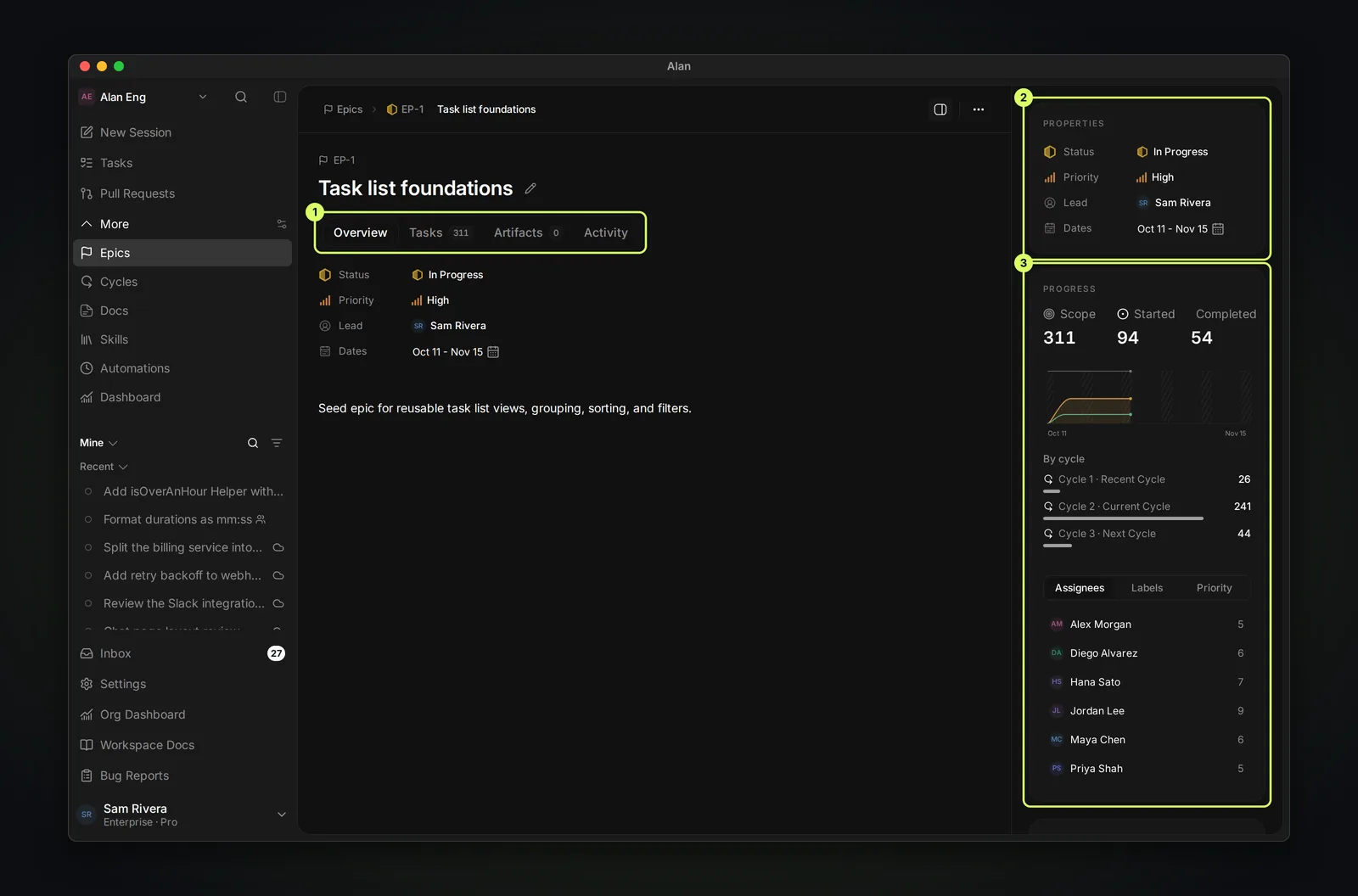
Overview
Properties (status, priority, lead, target dates), the description, and the progress panel.
Tasks
Every task in the epic, with a count on the tab. Create tasks here so they're attached from the start.
Artifacts
Plans, documents, and other outputs attached to the epic.
Activity
Every change to the epic and its tasks, so anyone can catch up without replaying chat.
On the Epics page, switch between list and board views, filter by lead, search, show completed epics, and open archived ones.
Create and finish an epic
Choose New epic on the Epics page. Give it a title that describes the goal, such as Improve local setup, then set a lead and target dates. Add the tasks needed to reach that goal from the epic's Tasks tab.
Use a task for a single fix. Use an epic when several tasks need shared context and progress tracking.
Archive an epic when the goal is complete or no longer planned. You can still find it in the archived view.