Connect Azure DevOps
Connect Azure Repos to your Alan team, choose repositories, and link your Microsoft account when available.
Connect Azure Repos so Alan can read code, push branches, and work on pull requests. Start with your Alan team, even if you work alone.
Your Alan organization holds teams and settings. Your Azure DevOps organization holds projects and repositories at dev.azure.com/<organization>. They are separate.
Before you start
- Your plan must include source-control connections. If Source control is missing, ask an organization admin to check the plan.
- Have access to the Azure DevOps projects and repositories you want to use, including permission to push if Alan will change code.
- Use a work or school Microsoft account for Connect with Microsoft. If you only have a personal Microsoft account, use the token option. Microsoft explains the account requirements.
- You can connect for your Alan organization without being an Alan admin. Connecting for one team requires access to that team and permission under your organization's connection policy.
This connects Azure DevOps Services, using dev.azure.com. Azure DevOps Server and custom server addresses are not supported, even though the token form mentions Server. This guide does not set up Azure Boards or Azure Pipelines.
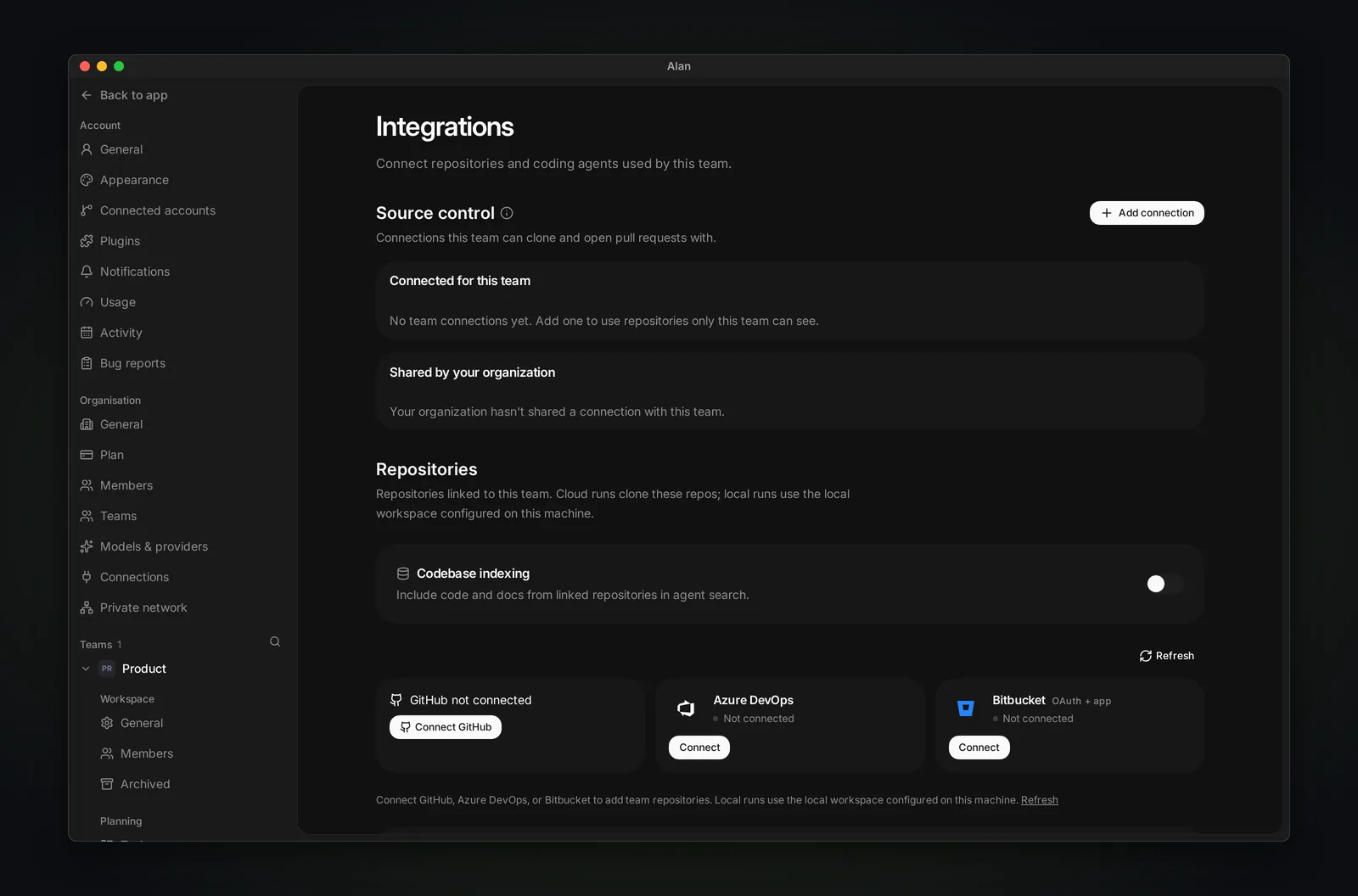
1. Open your team's Integrations
Choose Settings, then under your team choose Integrations. Under Source control, choose Add connection.
Select any screenshot to open it full size in a new tab. The instructions also work without the images.
2. Choose who can use the connection
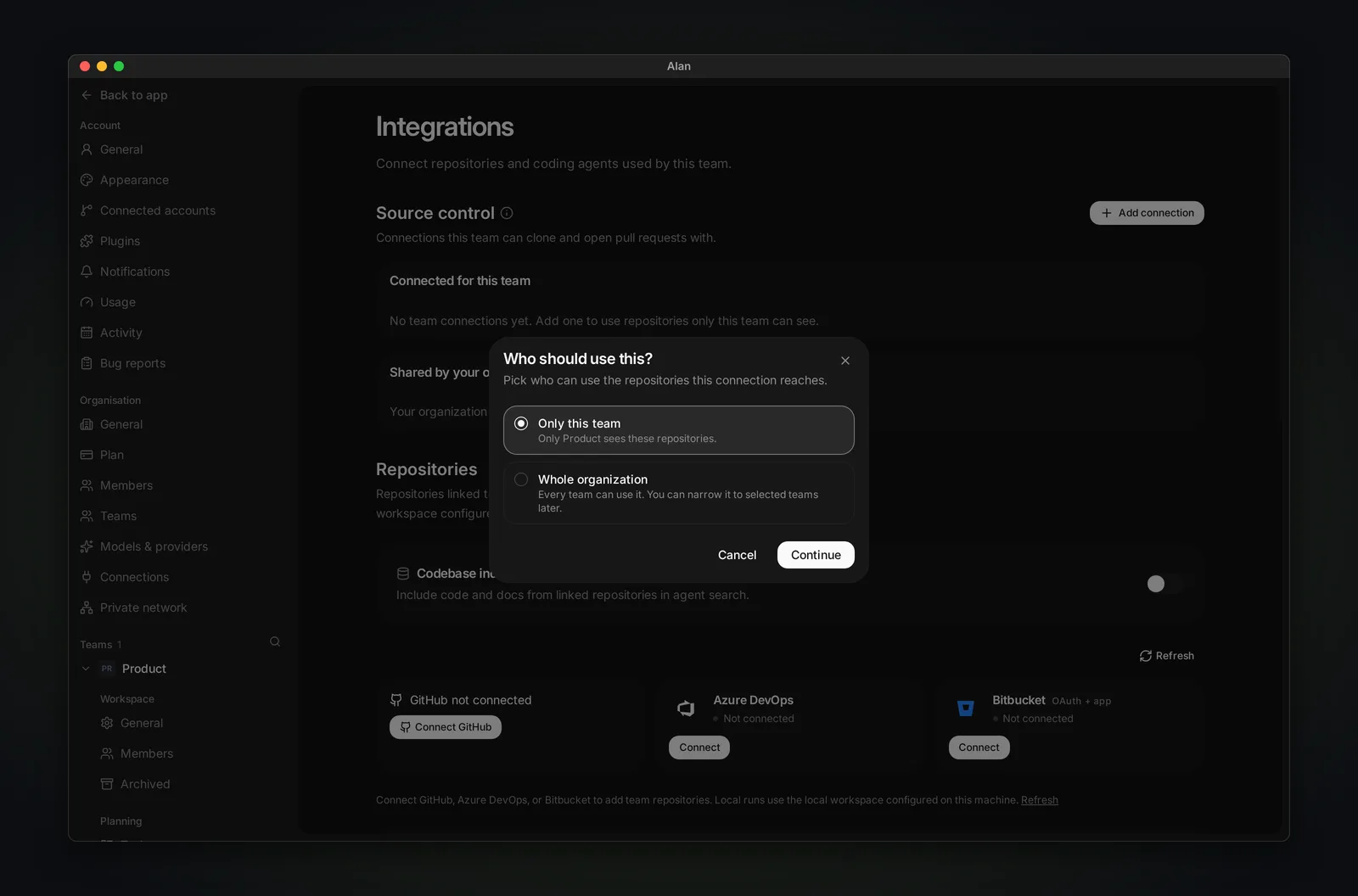
Choose Only this team to keep the connection within your team, or Whole organization so every team can use it. Choose Continue.
If Only this team is unavailable, your organization has turned off team-owned connections. Use Whole organization, or ask for an existing connection to be shared with your team.
3. Choose Azure DevOps
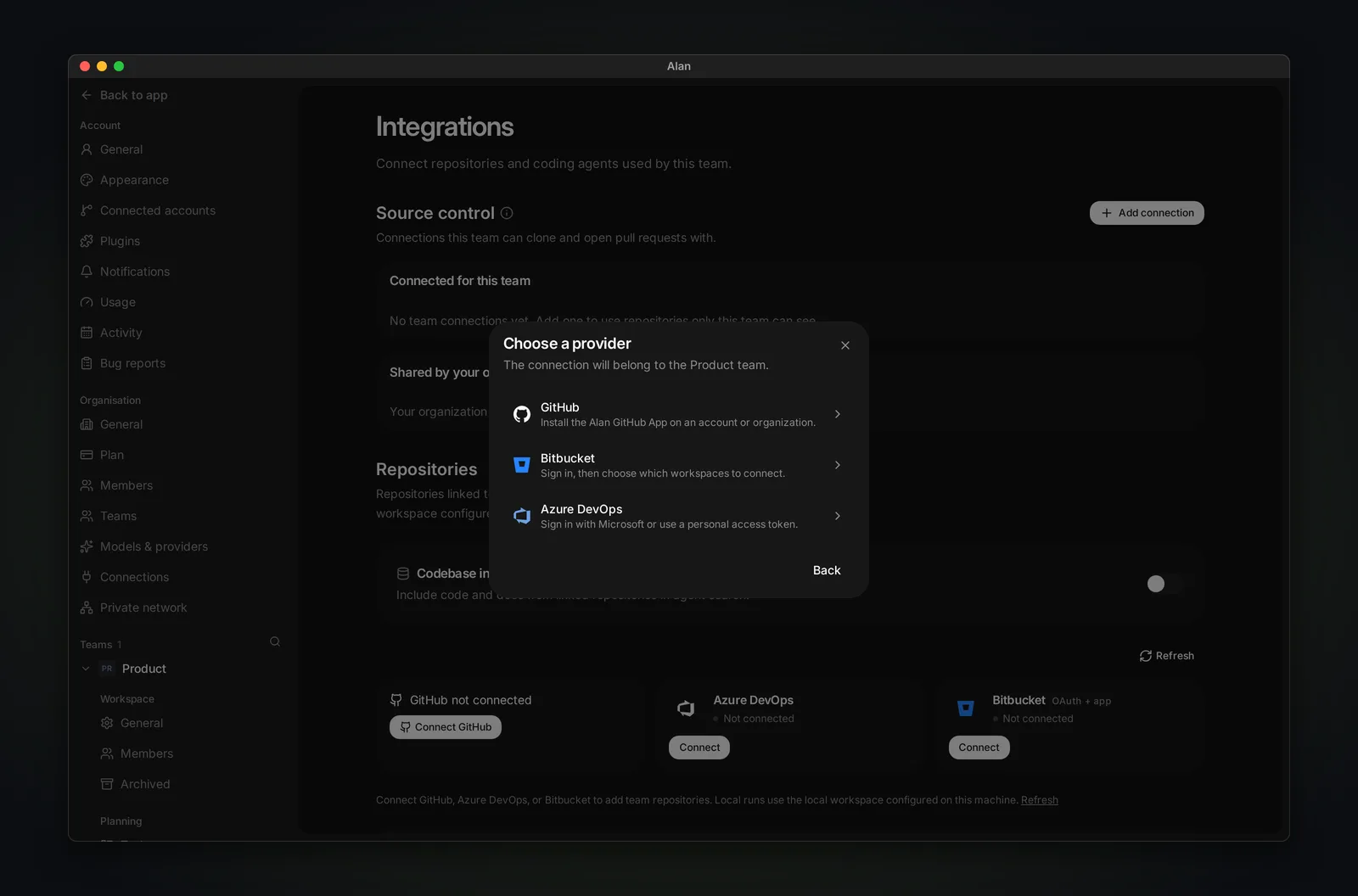
Select Azure DevOps from Choose a provider.
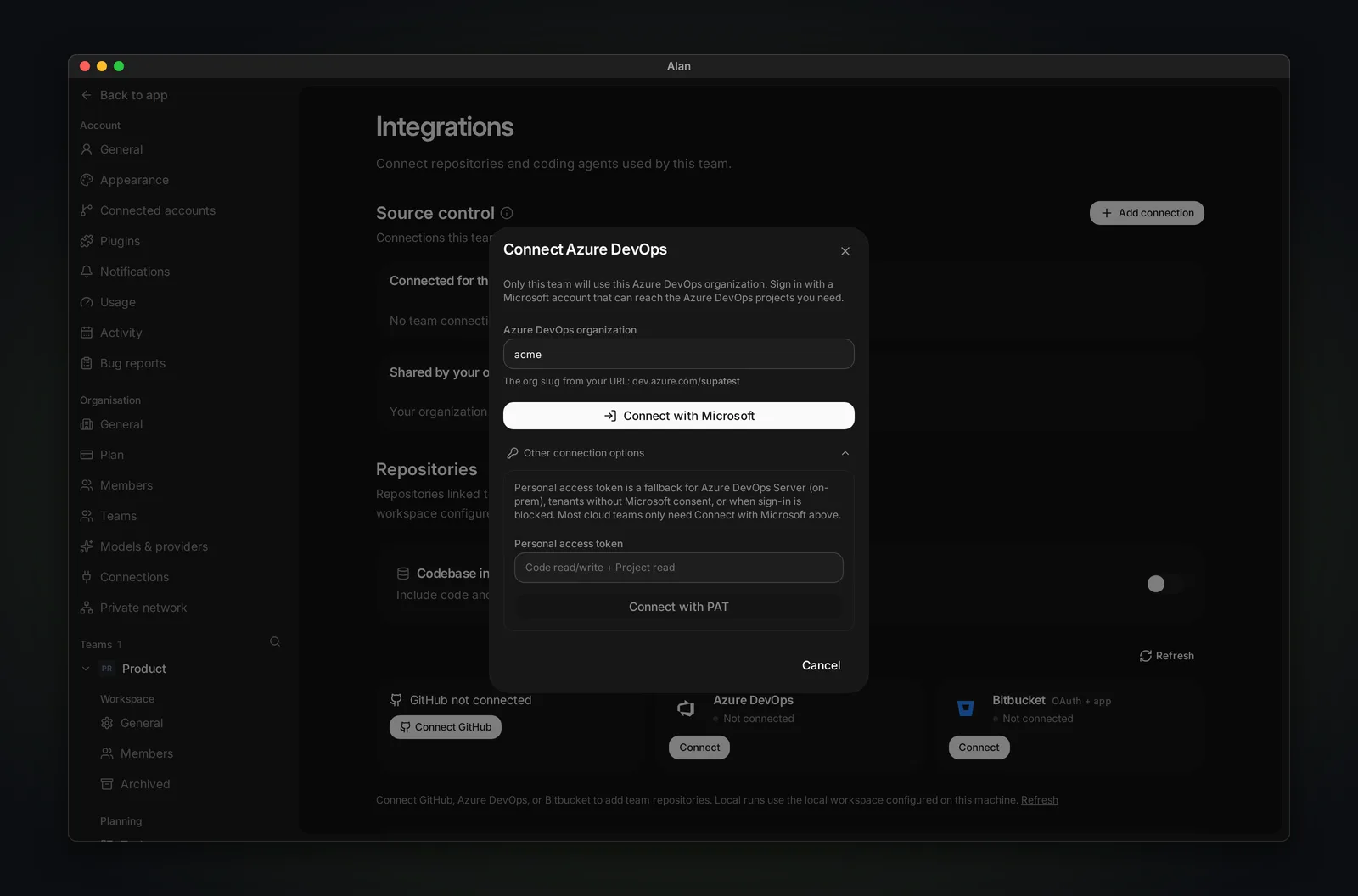
4. Sign in with Microsoft
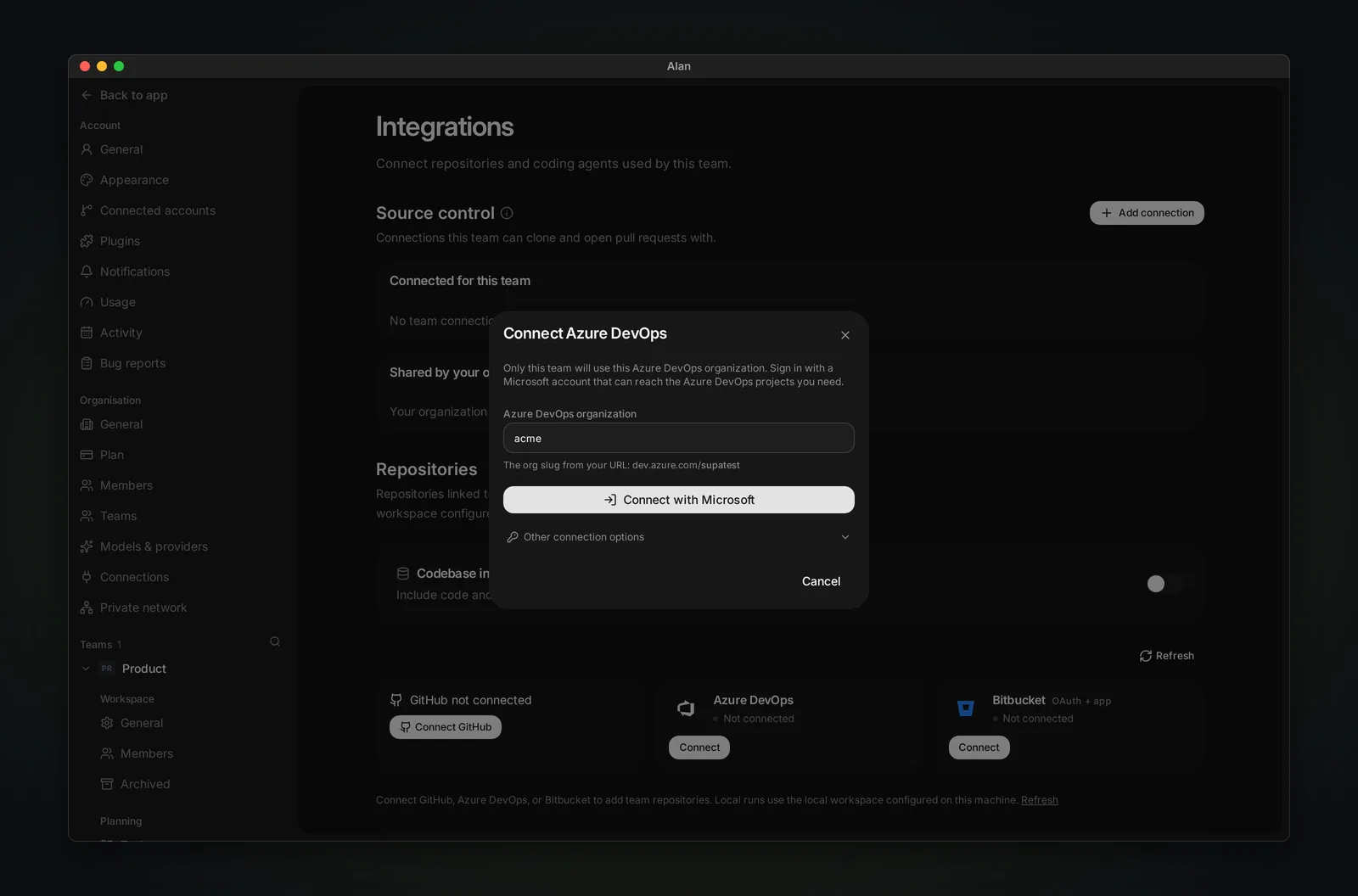
- Enter Azure DevOps organization: the name after
dev.azure.com/in your URL. Forhttps://dev.azure.com/acme, enteracme. A fulldev.azure.comorvisualstudio.comorganization URL also works. - Choose Connect with Microsoft.
- In your browser, select the account that can access those projects and complete authorization. Return to Alan when finished.
If Microsoft asks for admin approval, ask your Microsoft 365 administrator to review the request. Microsoft's consent guide explains these errors.
The connection appears under Connected for this team or Shared by your organization, depending on your choice.
Use a personal access token instead
Use this fallback when Microsoft sign-in is unavailable or blocked:
- In Azure DevOps, open User settings → Personal access tokens → New Token. Choose your organization, a name, and an expiration date. See Microsoft's PAT instructions.
- Select Code (read & write) and Project and Team (read) for repository work. Create and copy the token; Microsoft shows it only once. The token cannot grant access its owner doesn't have.
- In Alan's connection dialog, enter the organization, expand Other connection options, paste the Personal access token, and choose Connect with PAT.
5. Add repositories to the team
Back in Integrations → Repositories:
- On Azure DevOps, choose Add repo.
- Choose the connection if more than one is available, then a project.
- Select the repositories and each repository's branch, then confirm adding them.
Check that they appear in the team's repository list. Cloud sessions can clone linked repositories; local sessions use the project folder on your computer. A connection does not select that folder for you.
6. Link your own Microsoft account when available
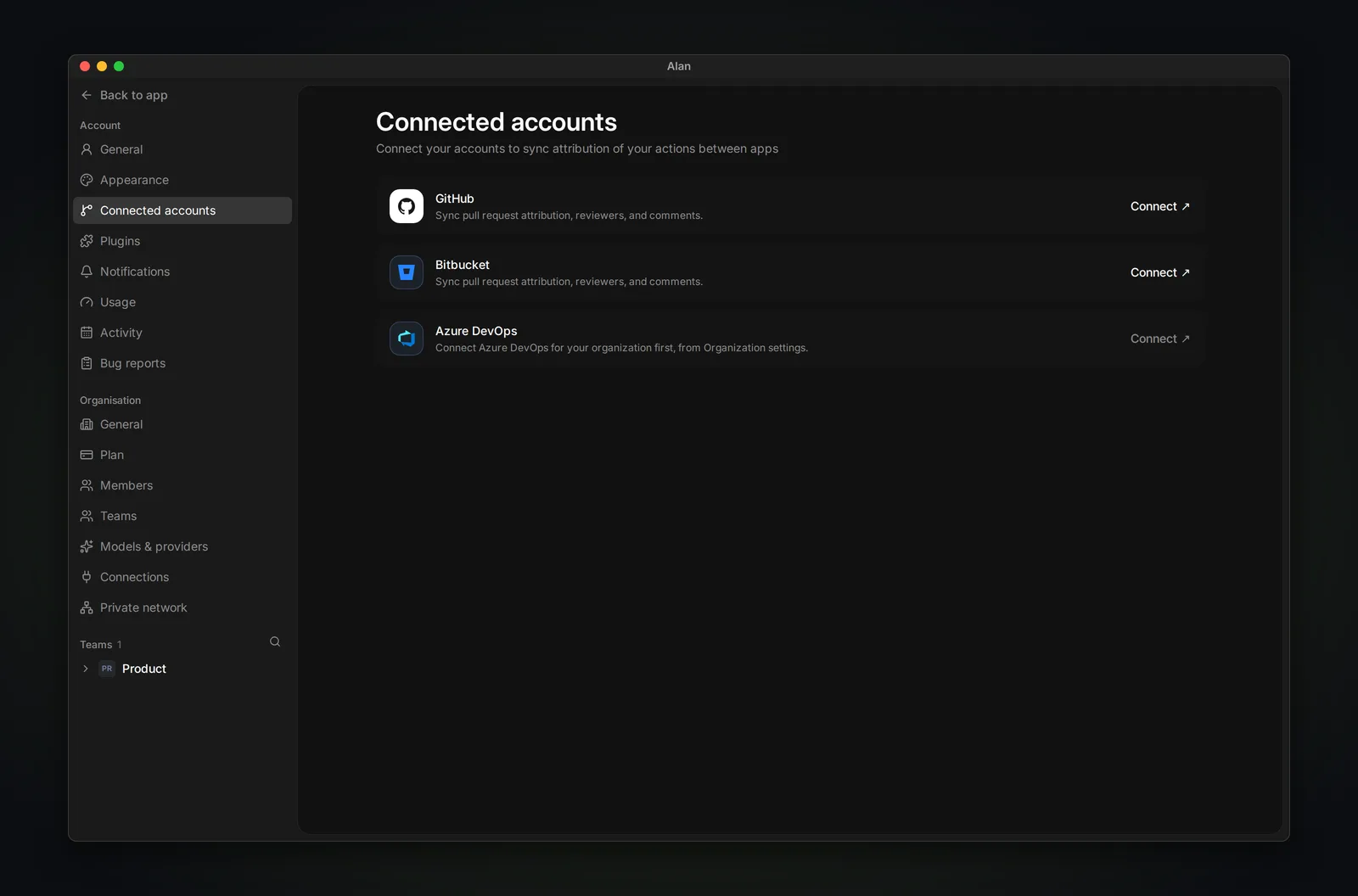
Open Settings → Account → Connected accounts. On Azure DevOps, choose Connect, sign in, and check for Microsoft account linked.
This personal link is separate from team repository access. Git operations prefer your linked account for the same Azure DevOps organization, and otherwise use the shared connection.
If Connect is disabled, Alan currently needs an organization-wide Azure DevOps connection for personal linking. A team-only connection may still work for repository access. Ask the connection owner about sharing it rather than creating a duplicate.
If something doesn't work
- Projects or repositories are missing: check the organization name, your Azure DevOps access, and which connection you selected. If the connection already belongs to another Alan team, ask its owner to share it.
- A token stops working: check its expiry and permissions. Use the connection's Check connection action before replacing credentials.
- Push fails: confirm write access for the account being used; linking a personal account doesn't add Azure DevOps permissions.
- Pull request updates arrive late: Alan tries to create service hooks, which send repository events to Alan. This can fail without breaking the connection. Ask your Azure DevOps project admin to check the hooks and their delivery history. Microsoft requires View subscriptions and Edit subscriptions permissions to manage them. Don't disconnect a working connection just to investigate delayed updates.
Next, start a session, or use Pull requests to review linked work.