Quickstart
Turn on Tasks, create your first task, and start an agent session on it.
Create a task, start an agent session, and review its output. If you only want to ask a question or work in a local project, you can start from New Session without enabling Tasks.
Before you start
- You are signed in and have finished onboarding. See Sign in and first run.
- You must be a member of the team. Any team member can change its settings, including turning on Tasks.
- To run the session you need an execution target: a cloud environment for one of your repositories, or a connected computer. You can create the task first and set the target later.
- For the agent to open a pull request, the team needs a GitHub connection and a linked repository. See Connect GitHub.
1. Turn on Tasks
Tasks are off for new teams, so the sidebar shows no Tasks item until you enable them.
- In the sidebar, choose Settings.
- Under your team, in the Planning group, choose Tasks.
- Switch on Enable tasks.
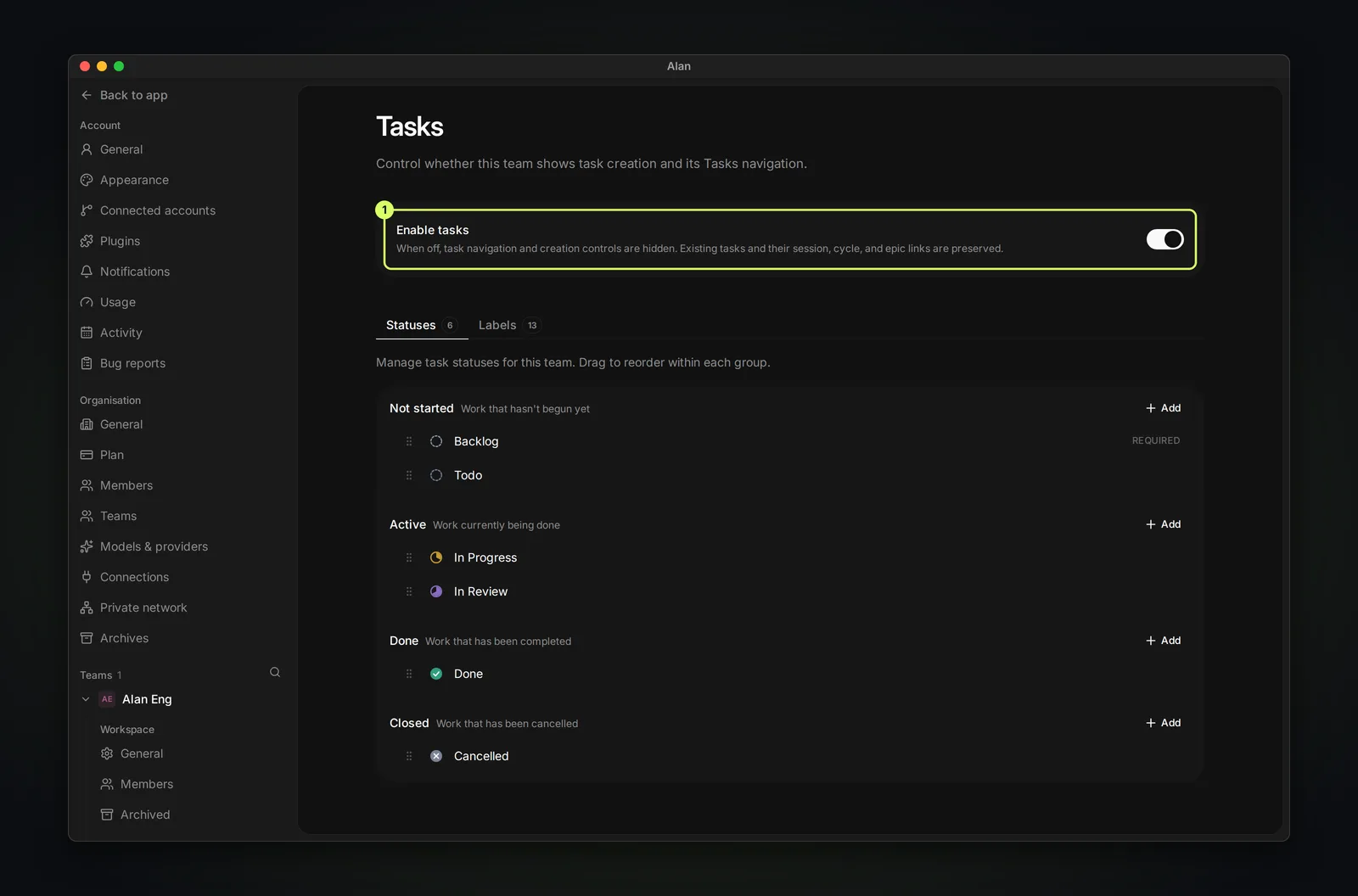
Turning Tasks off later hides task navigation and creation, but keeps existing tasks and their session, cycle, and epic links. Cycles and Epics have their own switches in the same group.
2. Create a task
- Choose Tasks in the sidebar, then New task (the + button at the top right).
- The dialog opens in Agent mode, where you describe the task in a sentence and Alan fills in the fields. For full control, choose Switch to manual.
- In Agent mode, describe the outcome and review Alan's proposed title and description. In manual mode, enter a Task title and description yourself. For example: "Write a guide for connecting a computer".
- Optionally set status, priority, assignee, cycle, epic, and labels from the row of chips.
- Choose Create task.
Turn on Create more to keep the dialog open for the next task.
3. Start a session on the task
Open the task from the Task created notice, or from the list. A new task opens on Start work.
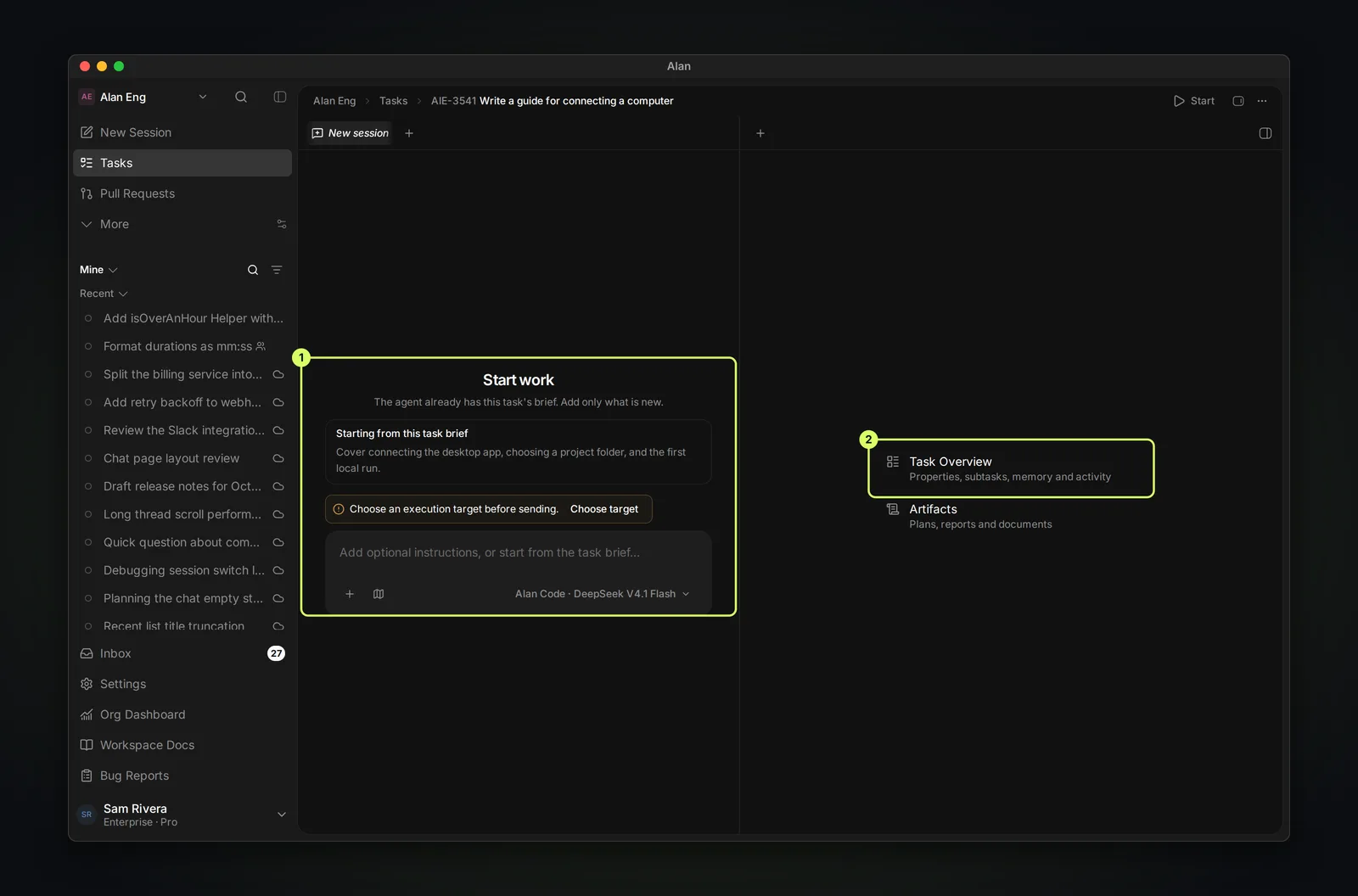
- Starting from this task brief shows the description the agent already has. Add only what is new in the composer, or send as is.
- If you see Choose an execution target before sending, choose Choose target and pick a cloud environment or computer. See Cloud sessions and execution.
- The panels on the right open the task's Task Overview and Artifacts. Once the session has a workspace, Desktop, Changes, Terminal, and Files let you watch and inspect the agent's work.
- To start without typing anything, choose Start in the task header. It starts an Agent session with the message "Let's begin working on this task."
Creating the first session moves a task from a Not started status to the team's first Active status, usually In Progress. Your team can customize these names.
For implementation work, get a plan before code. Switch the composer to Plan (the map icon) and send:
Inspect the repository and write a plan for this task. List the files to change and how you will verify the result.The agent saves the plan to Artifacts and the transcript shows Plan ready for review. Choose Accept Plan to let it build, or Reject Plan and reply with what to change.
4. Review the result
After a completed turn, read the Worked for… summary and the agent's reply. Open Changes to inspect the workspace diff. Reply in the same session to ask for fixes or more work.
Before you move the task forward, check that:
- The changed files match the task.
- The work covers the normal path, the failure path, and recovery.
- Tests ran, or the gap is stated.
- Plans and test reports are saved as artifacts on the task.
Alan doesn't change the task's status when a pull request is opened or merged. Set Status in Task Overview to In Review, then Done. Complete a task with an agent covers this loop step by step, including the pull request.