Sign in and first run
Sign in, walk through the onboarding wizard, and reach your first session.
This page covers the first time you open Alan: how sign-in works, what the onboarding wizard asks, and where it leaves you.
Sign in
Alan uses a hosted sign-in page. Enter your email address, choose Continue with email, then enter the one-time code sent to your inbox. You return to Alan once you are signed in.
Use any other sign-in method shown on the hosted page. Available methods depend on your organization's sign-in settings.
If a teammate invited you, open the invite link from your email. Sign in with the same email address the invite was sent to; Alan shows a mismatch warning if you use a different one.
On the desktop app
The desktop app opens sign-in in your system browser and shows Finish signing in in your browser while it waits. Complete sign-in in the browser; the app continues automatically. If you closed the tab, choose Open browser again.
The onboarding wizard
On your first sign-in Alan opens a short wizard, one decision per screen. The theme toggle in the corner switches light and dark mode at any point.
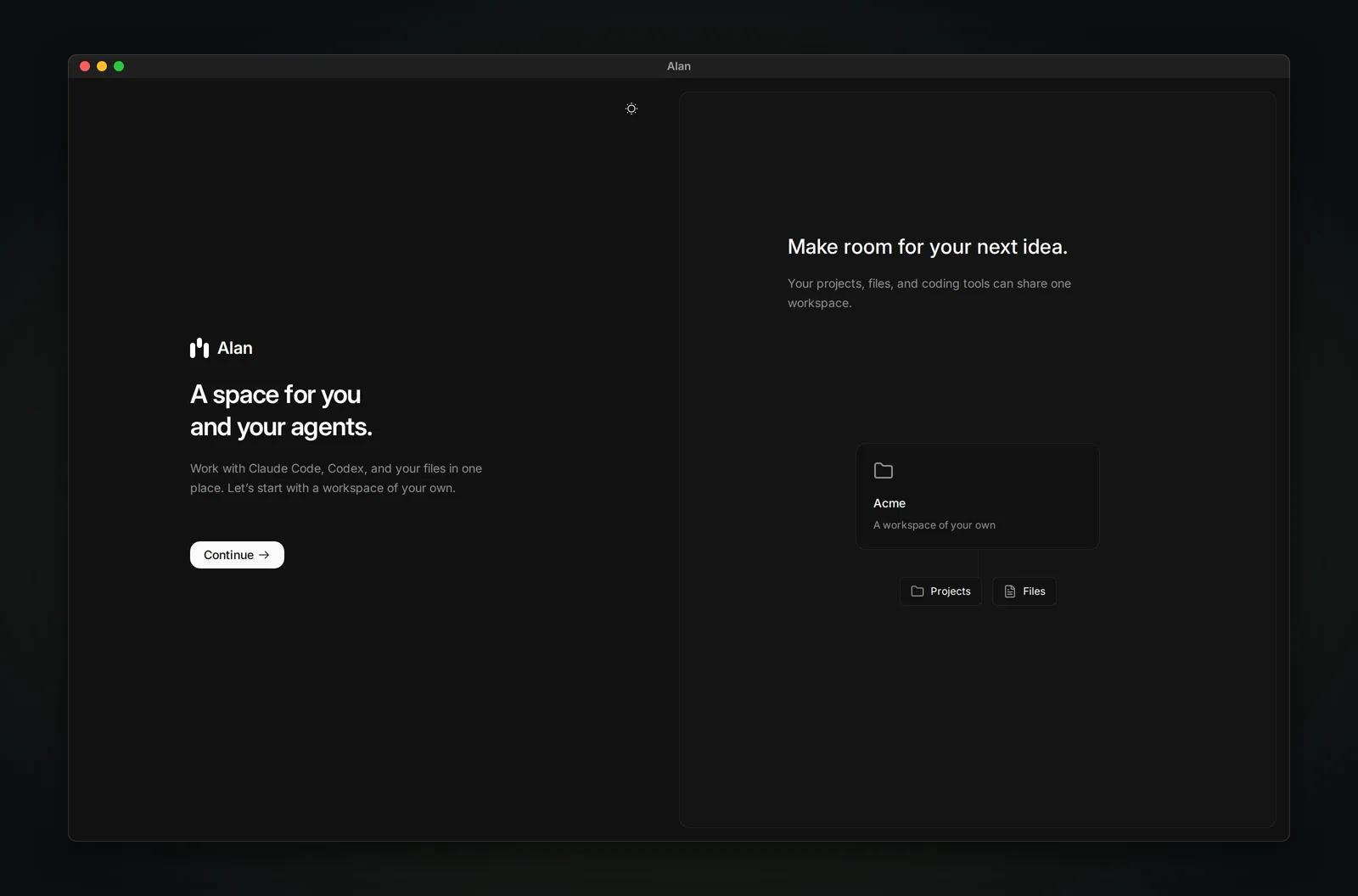
A space for you and your agents
The welcome screen. Choose Continue.
What should we call your workspace?
Your workspace is the organization that holds your teams, members, plan, and billing.
What should we call your team? (team setup only)
The team that will own your sessions, tasks, docs, and settings.
Invite your team (team setup only)
Add teammates by email and choose Send invitations, or choose Do this later.
Connect your GitHub account (paid plans only)
Link your personal GitHub account so pull requests and reviews carry your name. You can choose Do this later. After linking your account, the optional Give Cloud access to your repositories section lets you connect the GitHub App and Add repositories for the team. You can do this later; see Connect GitHub.
Make this computer yours (desktop app only)
Name this computer and choose Connect this computer. Alan lists the coding agents it finds installed, such as Claude Code and Codex. See Local execution.
Your workspace is ready
Choose Start a session to open the New Session screen.
Alan suggests team setup when you sign in with a company email address and personal setup for addresses such as Gmail or Outlook. Personal setup skips the team-name and invite screens. If your plan does not include adding members, Alan always uses personal setup.
Make yourself at home
The welcome screen for invited members.
You're joining your team
Your workspace and team already exist, so there is nothing to name.
Connect your tools, then finish
On paid plans, connect your GitHub account. On the desktop app, connect your computer and choose from its detected agents. On the ready screen, choose Start a session.
Starting solo
Personal onboarding is Welcome → Workspace name → Computer setup (desktop only) → Ready. Paid plans also show the GitHub step; free onboarding skips it. Computer setup includes choosing your detected coding agents on the same screen.
For solo setup, use the desktop app and run on This computer. Cloud availability depends on your feature tier; you do not need it for local work. After onboarding, follow Local execution to check your computer, agent, and project folder, then Start a session.
A separate paid-setup flow can show GitHub, Set up Alan Code, computer setup on desktop, and the ready screen. Alan Code availability follows your usage allowance; it is not required for using an installed coding agent locally.
What the wizard creates
Finishing onboarding adds a How Alan works document to your team's Docs. If Tasks is already turned on for the team, it also adds a Welcome to Alan 👋 task that links to that document.
New teams start with Tasks, Cycles, and Epics turned off. Under your team in Settings, open Tasks, Cycles, or Epics in the Planning group and turn on its enable switch. The Quickstart shows how.
Where the wizard leaves you
You land on New Session. From here you can describe work straight away, or set up Tasks first.
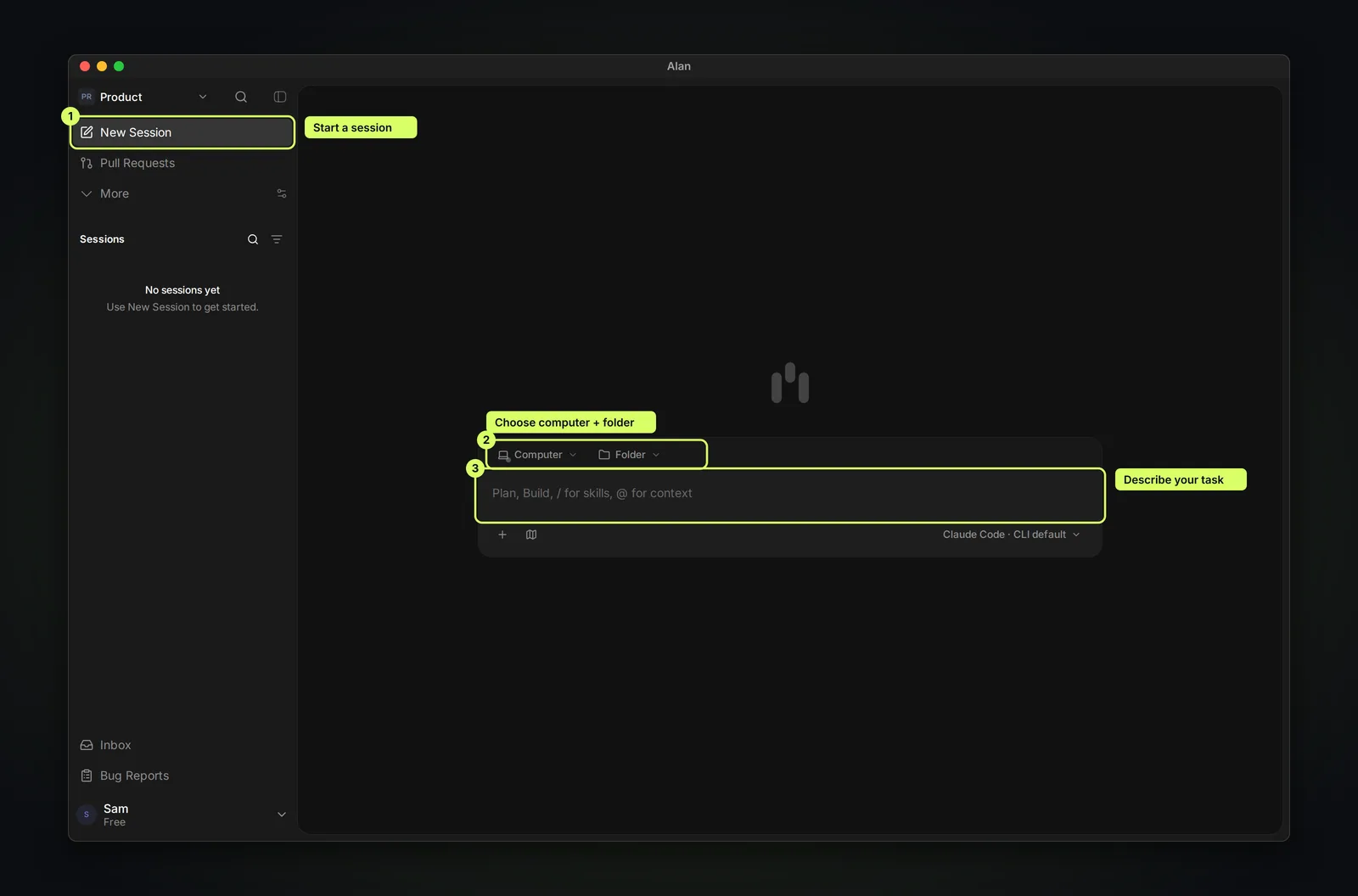
Before you send, check these three things:
- Execution target: where the agent runs. Cloud uses a managed sandbox; This computer (desktop app) or Remote runs on a computer you connected. A warning such as Cloud environment means the target still needs setup. See Cloud setup.
- Agent and model: the coding agent and model, for example Alan Code · DeepSeek V4.1 Flash. See Coding agents and models.
- Your message: type
/to use a skill and@to add context.
Do you need a local project folder?
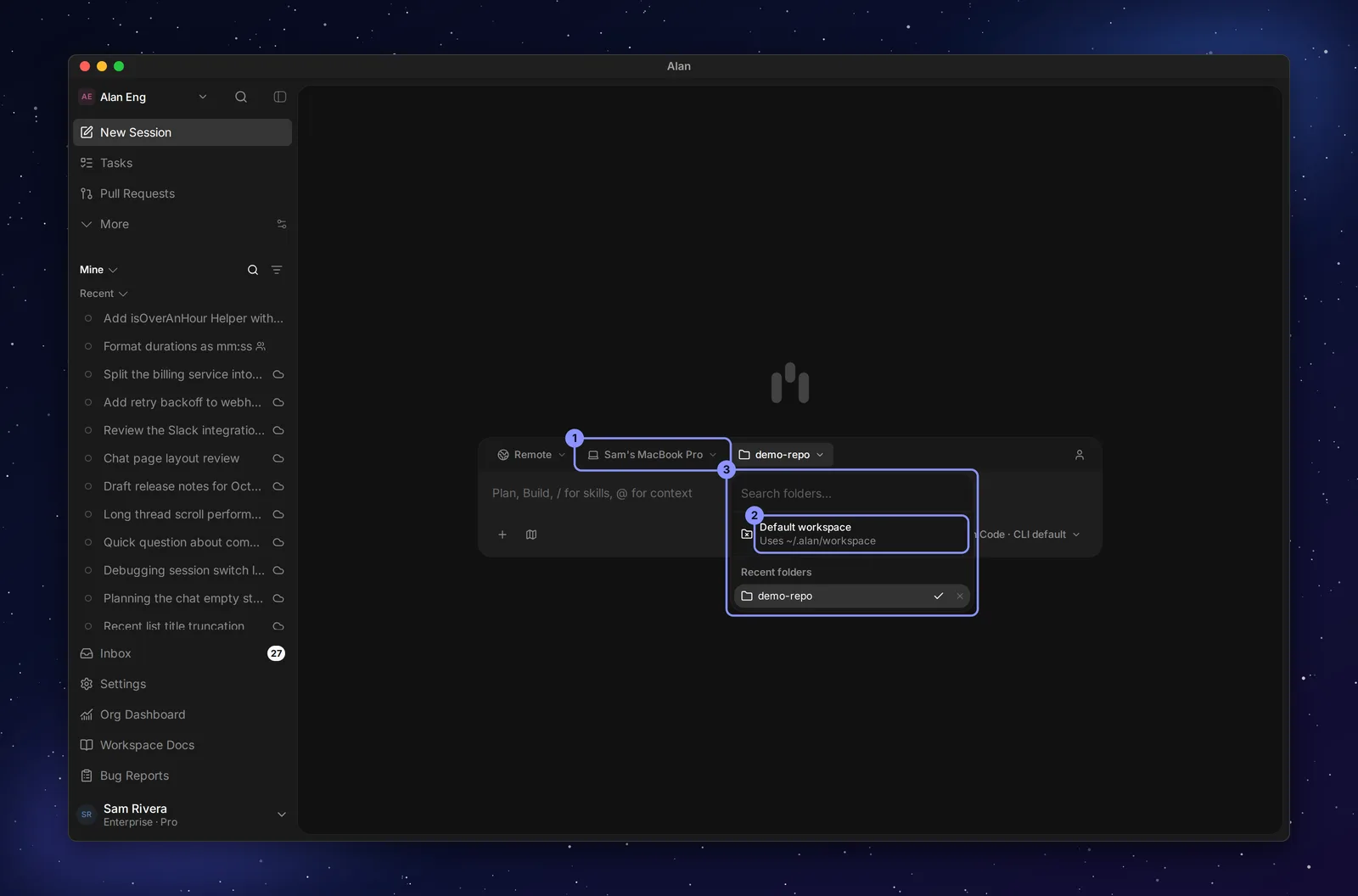
- Cloud only? Skip this. Cloud sessions clone the repository into an isolated sandbox.
- Running on your computer? Pick a folder under Recent folders, search for an existing checkout, or use Default workspace (
~/.alan/workspace) for scratch work. Full setup: Local execution.
"Workspace" can mean two things. Your Alan workspace is the organization that holds your teams. A local workspace is a folder on a computer where an agent checks out code.