Subtasks and status
Break work into verifiable pieces and keep status meaningful.
Subtasks make progress visible without splitting every small action into a separate task. Use them when a task has multiple steps that can be checked independently.
Add subtasks
- While creating a task: in Agent mode, Alan suggests subtasks when your description says how to split the work. In manual mode, use Add subtasks.
- On an existing task: open Task Overview and choose + next to Subtasks. The header shows progress, for example Subtasks 0/2.
- From an agent: Orchestrator and PM Agent can create and update subtasks while they plan. See Agent profiles.
Each subtask has its own status, so you can mark pieces done as they land.
Good subtasks
Give each subtask a clear result, for example:
- Add a password reset link to sign-in.
- Add the reset request form.
- Test the link and form.
Avoid vague subtasks:
- Improve docs.
- Make better.
- Check everything.
Statuses
Every team starts with six statuses in four groups. The group decides where a task shows up, for example in Active or Backlog on the Tasks page.
| Group | Default statuses | Meaning |
|---|---|---|
| Not started | Backlog, Todo | Work that hasn't begun yet. Backlog is required. |
| Active | In Progress, In Review | Work currently being done |
| Done | Done | Work that has been completed |
| Closed | Cancelled | Work that has been cancelled |
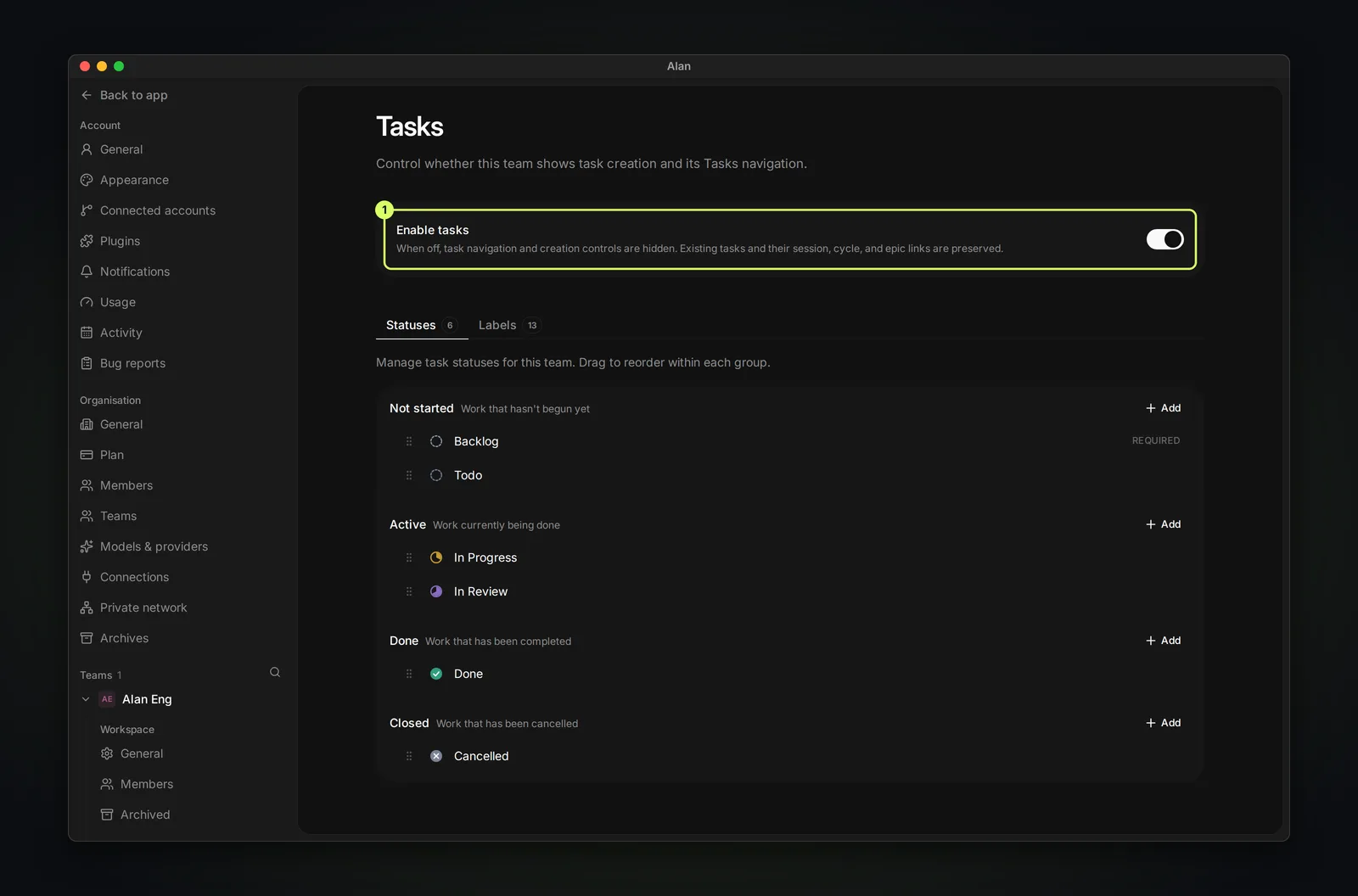
Teams can add their own statuses to any group and rename or recolor them in Settings → your team → Tasks → Statuses; labels are managed on the Labels tab. Your team's list may therefore differ from the defaults.
Keep status honest
Status should describe real progress, not intent. Move a task when the evidence matches: In Progress once a session is making changes, In Review once there is a pull request or a test report to check, Done when it has shipped.
Alan changes status automatically in one case only: when a task gets its first session, a task in a Not started status moves to the first Active status (In Progress by default). Opening, approving, or merging a pull request doesn't change status, so move the task to In Review and Done yourself, or ask the agent to. If no status fits, leave the task where it is and add a comment. See Task statuses for the full reference.