Create a task
Create a task with a clear outcome, owner, and details for an agent or teammate.
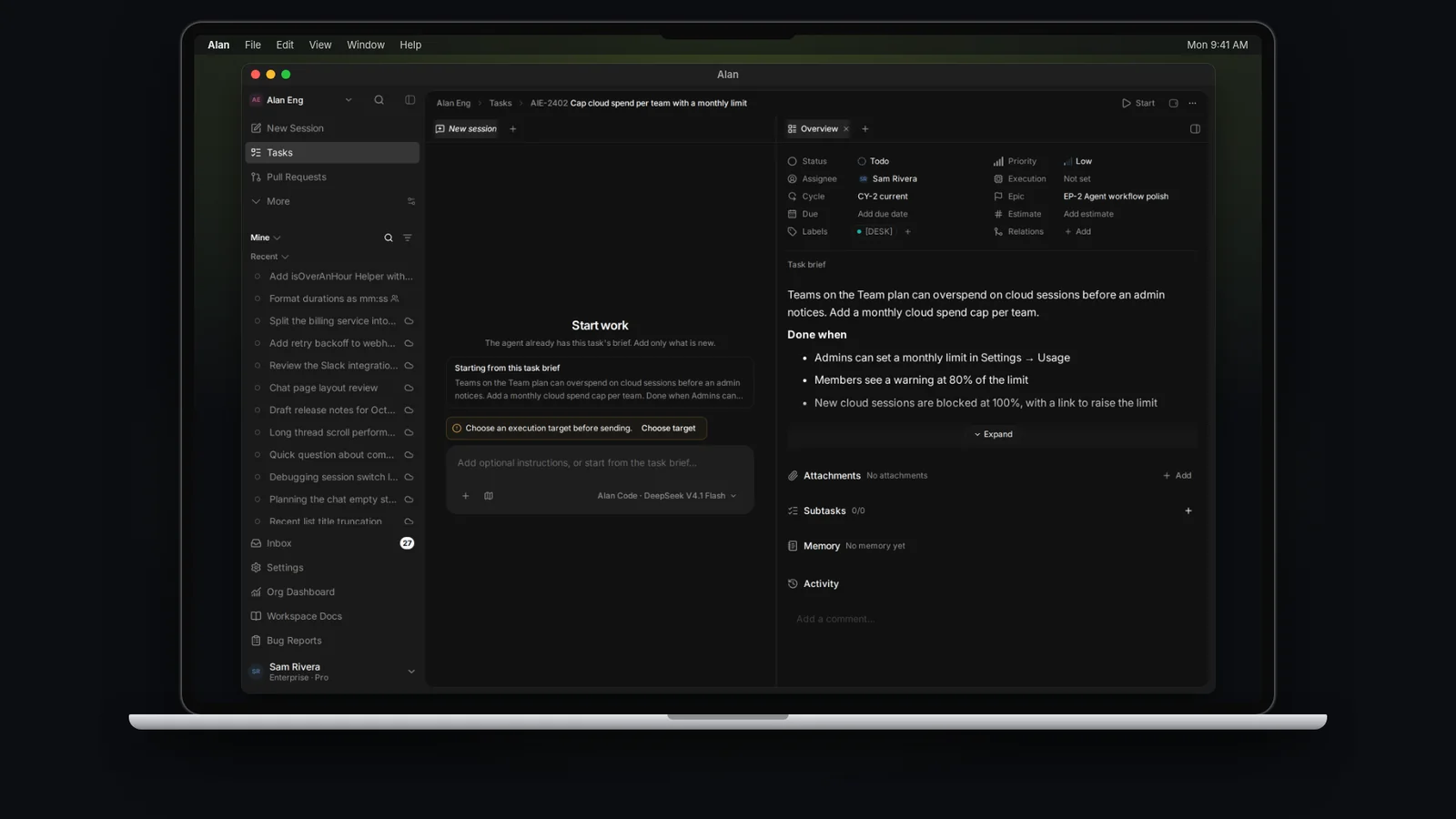
A task should be small enough to execute and specific enough to verify. The best task titles describe the outcome, not the activity.
Tasks are off for new teams. If you don't see Tasks in the sidebar, any team member can turn them on in Settings → your team → Tasks. See the Quickstart.
Open the Tasks page
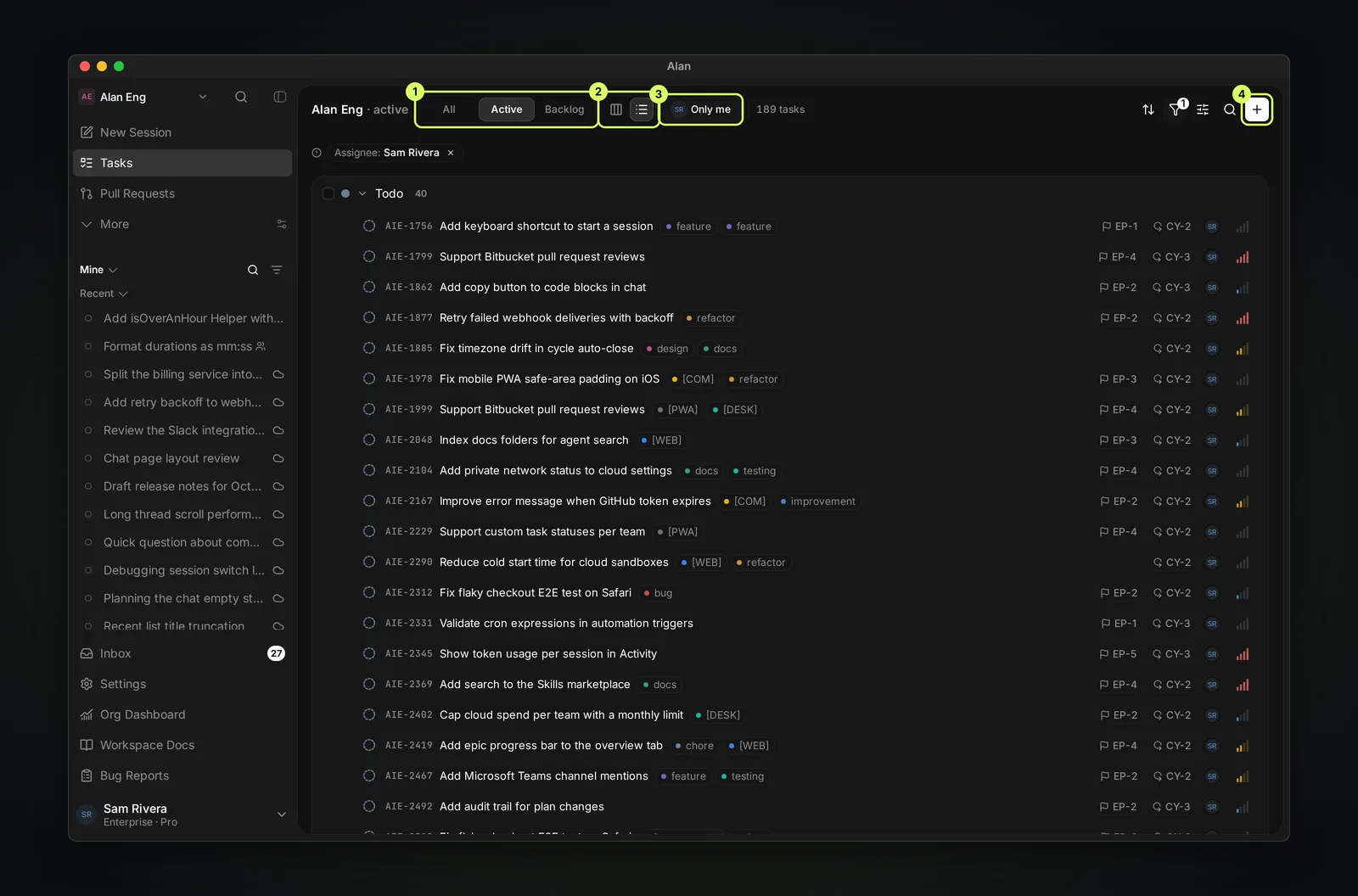
Tasks are grouped by status. Switch between All, Active, and Backlog, show them as a board or a list, and use Only me, sort, filters, display properties, and search to narrow the view. Choose New task (+) to create one.
Agent mode: describe it
The dialog opens in Agent mode. Describe what you want in one box, including details such as priority, assignee, labels, and how to split the work. As you type, Alan proposes a title, description, properties, and Suggested subtasks. Edit the proposal, choose Clear all to drop the subtasks, then choose Create task.
To create the task and start an agent session on it in one go, press ⌘↵ (Ctrl+Enter on Windows and Linux) in the description box instead. The task needs a usable execution target; otherwise the dialog says what's missing. The new task opens with the session already running.
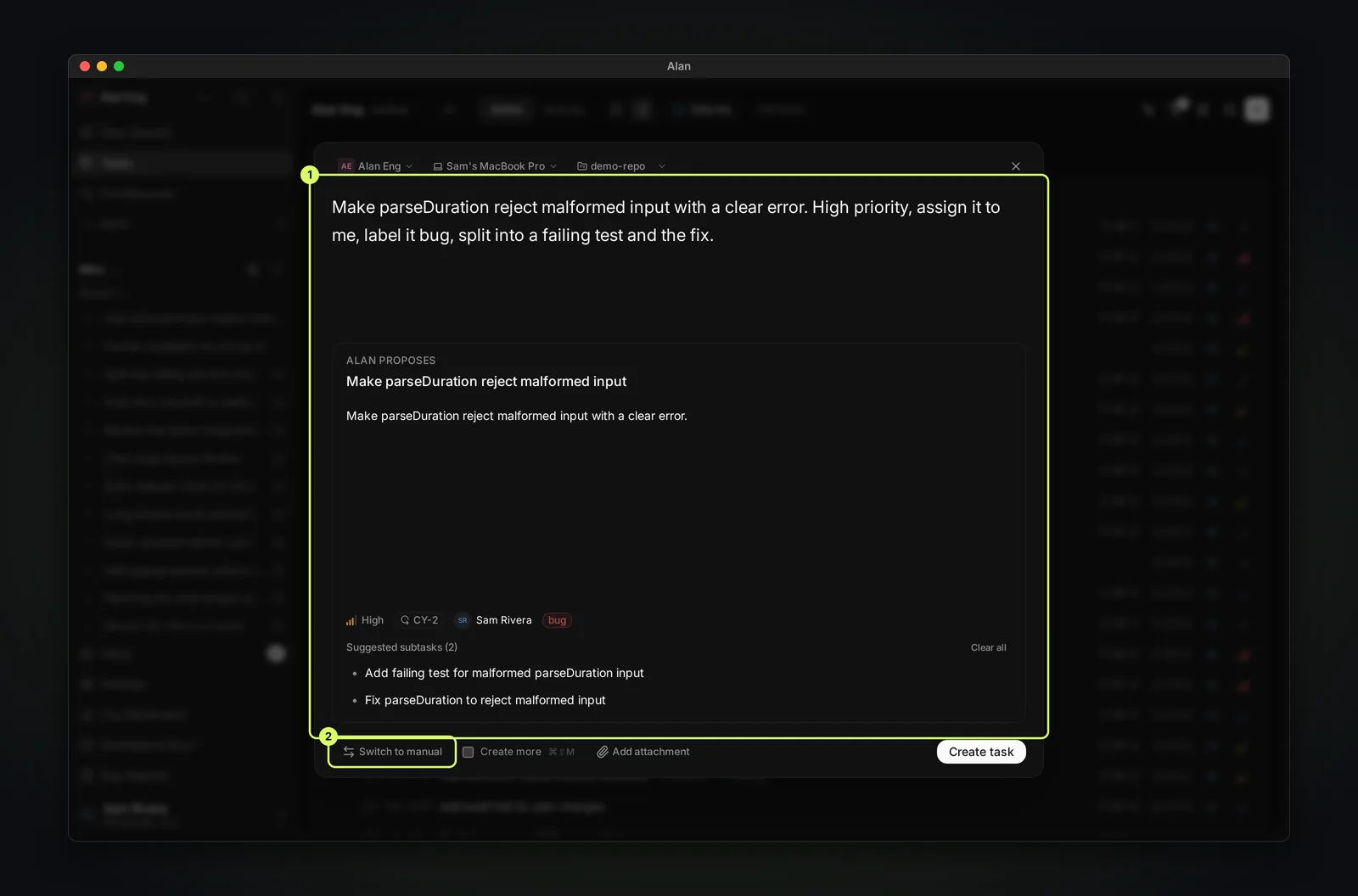
The header row of the dialog sets the team and where the task's sessions will run: a cloud environment or a connected computer and its folder.
Manual mode: fill in the fields
Choose Switch to manual to enter a Task title, a description (type / for commands), and Add subtasks, then set status, priority, due date, estimate, assignee, cycle, epic, and labels from the chips. Switch to Agent goes back.
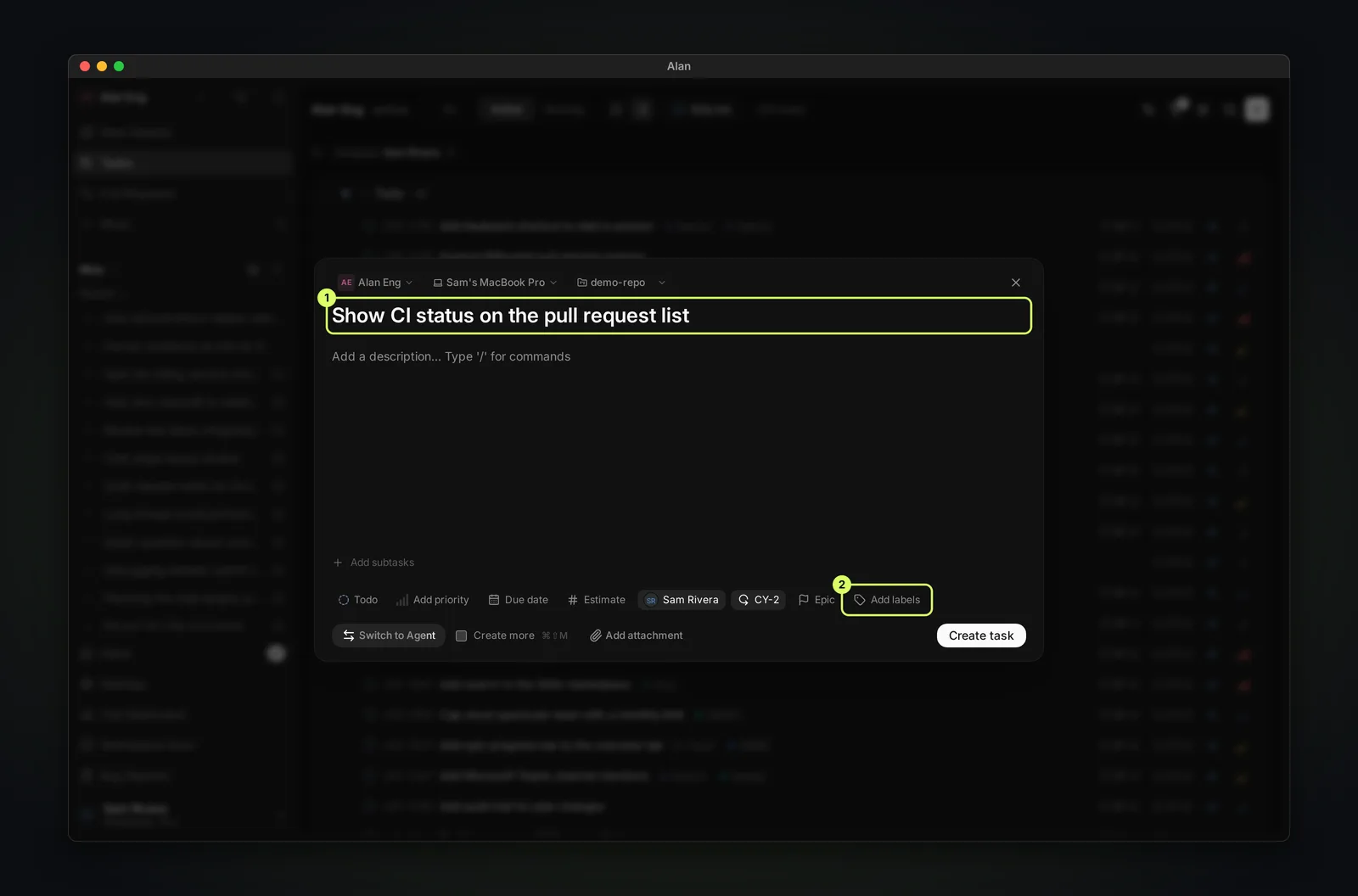
Both modes have Create more (⌘⇧M) to keep the dialog open for the next task, and Add attachment. After creating, the Task created notice offers Open.
Good task shape
Use this structure:
- Title: outcome in one line.
- Description: context, constraints, and acceptance criteria.
- Priority: urgency and impact.
- Assignee: default owner.
- Labels: area or type.
- Links: PRs, docs, incidents, designs, or customer context.
Example task
Title: Add a password reset link to the sign-in page.
Description: People who forget their password need a way to request a reset email from the sign-in page.
Acceptance criteria:
- The sign-in page has a password reset link.
- The link opens a form that accepts an email address.
- After submission, the page explains what to do next.
Describe the result you need. Include relevant links and constraints, and avoid vague criteria such as "looks good."