Cycles
Plan, execute, and close time-boxed work with automatic scope tracking and rollover.
A cycle groups tasks for a set period, such as two weeks. Use it to plan what the team will work on next, track progress, and decide what happens to unfinished work. An epic groups tasks by goal; a cycle groups them by time.
Cycles are off for new teams. Any team member can turn them on in Settings → your team → Cycles with Enable cycles. Turning them off hides the Cycles and Backlog pages but keeps existing cycle assignments.
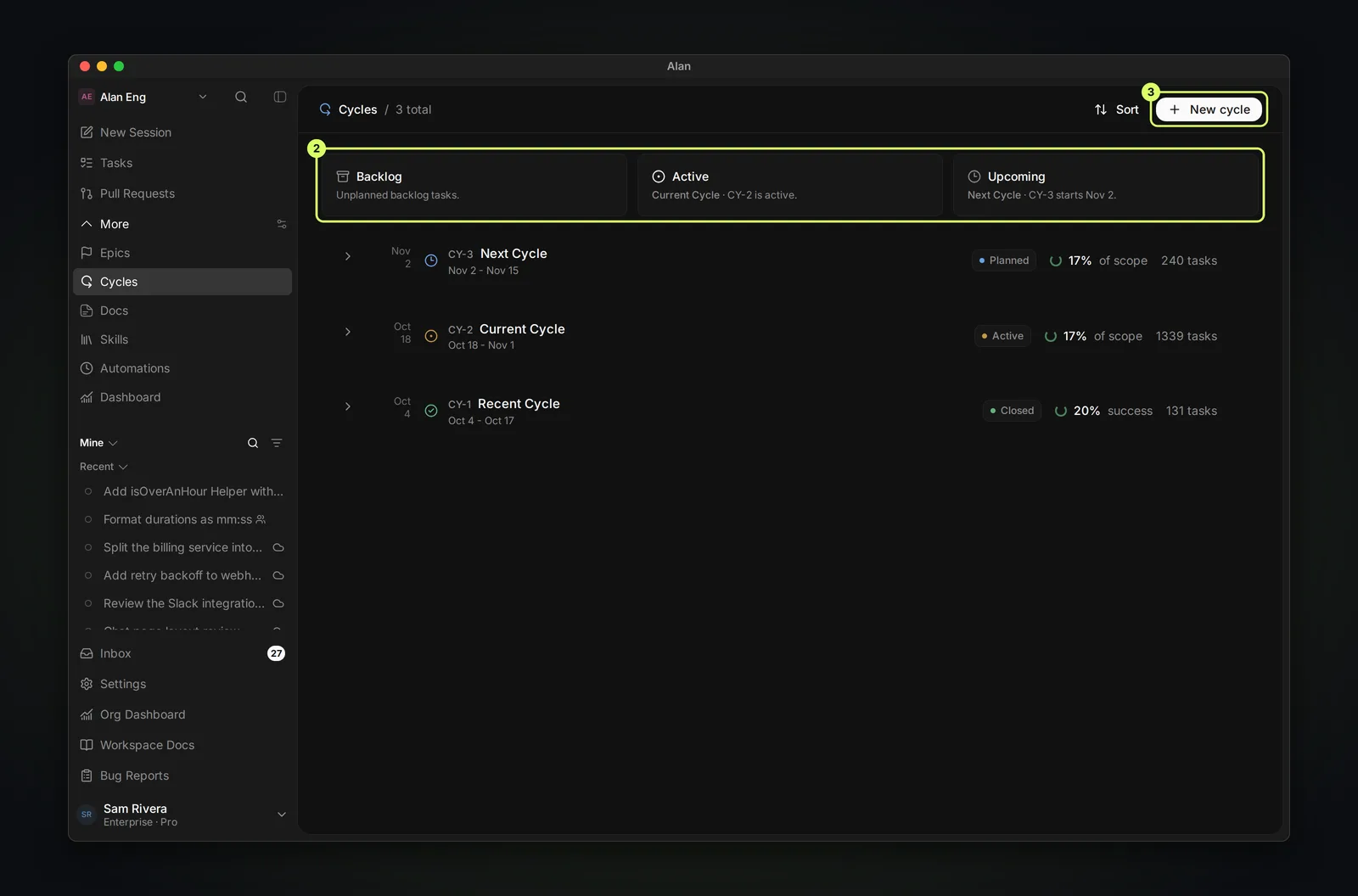
See it in action
How cycle status works
Alan calculates status from the cycle's dates, whether it has been closed, and the team's auto-close setting:
| Status | When |
|---|---|
| Upcoming | Has not started yet |
| Active | Started and not past the end date |
| Past due | End date passed and auto-close is off |
| Completed | Closed by hand, or ended while Auto-close expired cycles is on |
Cycle settings
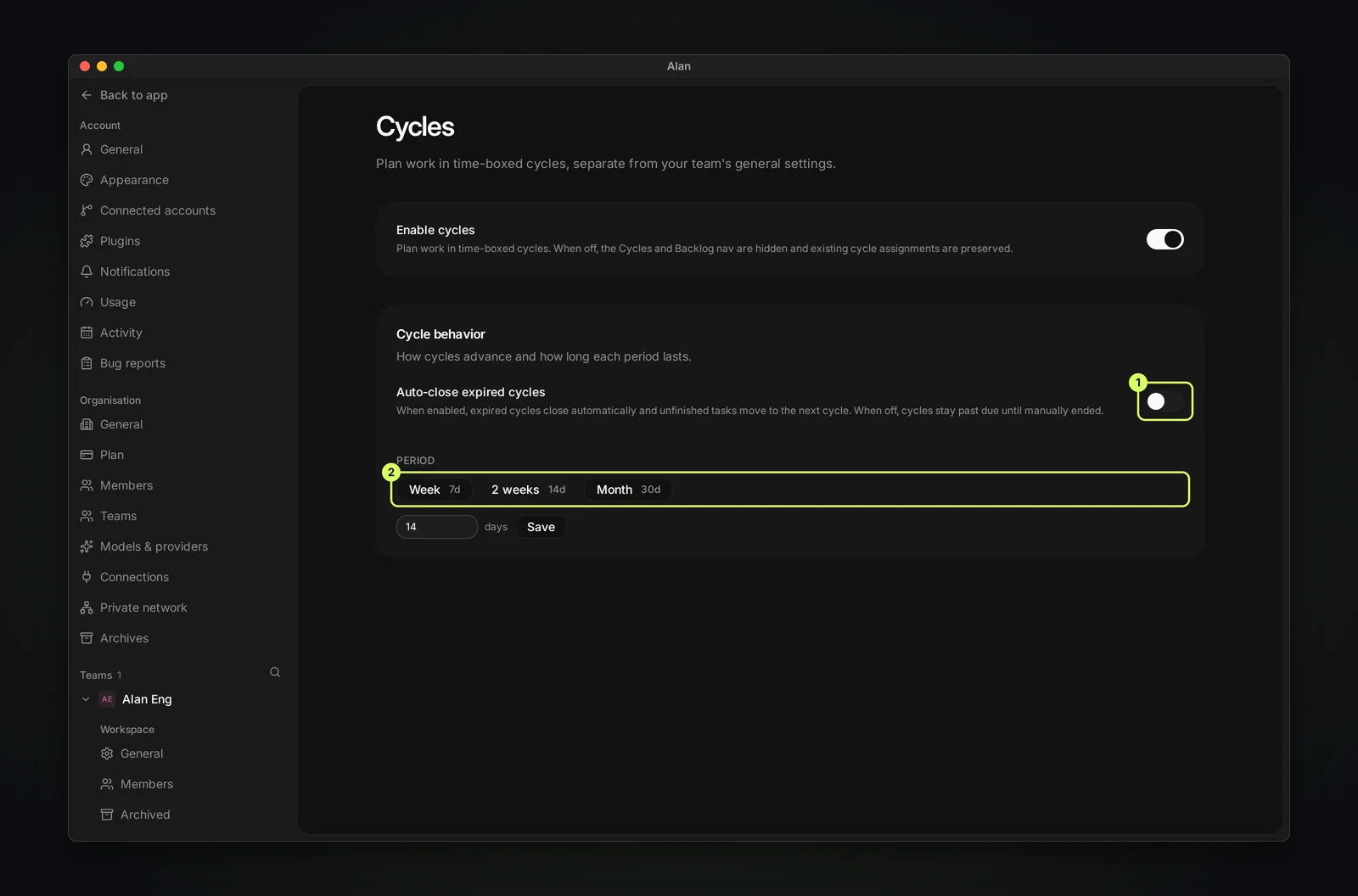
- Auto-close expired cycles: when on, Alan closes a cycle after its end date, creates the next cycle if there isn't one yet, and moves unfinished tasks into it. It checks every few minutes. When off, an expired cycle stays
past_dueuntil someone closes it, which is useful when you want a person to review spillover. - Period: how long each cycle lasts: Week (7 days), 2 weeks (14, the default), Month (30), or a custom number of days. Automatically created cycles use this length.
Cycle vs. epic
They're independent, and a task can sit in both. The cycle says when you're trying to land the task; the epic says what larger outcome it serves. Neither is nested under the other.
Assigning a task to a cycle does not pull it out of its epic. Use the epic for the durable goal and the cycle for the current push — a single task commonly carries both.
The cycle lifecycle
Plan
Review candidate tasks and epics. Pull in only work that's actually expected to move — keep raw backlog out until it's ready. Confirm each task has an owner and a clear outcome.
Start
Starting the cycle stamps its start time and makes it active. Do this when the scope is stable enough to commit.
Run
Work the tasks from the cycle detail page. When something changes, update the task or epic — not chat. The cycle's progress recomputes from task status on every load.
End
Closing a cycle forces a decision on unfinished work: move each task to the next cycle, return it to the backlog, or review tasks individually. The end flow can create and start the next cycle in one step.
You can reopen a closed cycle if its end date has not passed. Alan then calculates its status from its dates and start time.
Scope and rollover are tracked for you
A cycle doesn't just hold a task list — it records how the scope changed:
- Why tasks entered — planned in, created inside the cycle, carried from the previous one, or pulled from the backlog, an epic, or another cycle.
- Why tasks exited — completed, cancelled, carried forward, returned to the backlog, moved, or removed.
- Rollover — how many tasks rolled over, whether that was manual or automatic, and which cycle they landed in.
Progress rollups
Every cycle view carries computed counts (subtasks excluded):
- Total tasks in the cycle.
- Completed and started, based on task status.
- Rolled-over count and the target cycle they moved to.
Progress percentage and elapsed-time percentage sit side by side on the cycle summary, so you can see whether completion is keeping pace with the clock.
What to check before closing
- Finished tasks have artifacts or PR links.
- Blocked tasks carry a blocker reason.
- Follow-up work is captured as tasks.
- Unfinished scope is moved deliberately (rolled over or returned), not left ambiguous.
Deleting a cycle is not the same as ending it. On delete, its tasks lose the cycle link and — if they aren't in an epic — fall back to the backlog. End a cycle to preserve its history; delete only to discard one created by mistake.
You create cycles yourself with New cycle. With Auto-close expired cycles on, Alan also creates the next cycle when the current one ends, using the team's period.