Whiteboard
A collaborative canvas for diagrams, flows, and sketches, alongside your documents.
Whiteboards are drawing canvases in the same Docs area as documents. Use them for architecture sketches, flows, and quick visual thinking. They show up in the Whiteboards filter tab next to your documents.
Create a whiteboard
Open Docs
Go to Docs in the team sidebar and switch to the Whiteboards tab, or stay on All.
New whiteboard
Choose Add new → New whiteboard. It opens titled Untitled whiteboard; rename it from the header. While it loads you'll see "Connecting to whiteboard...".
The canvas
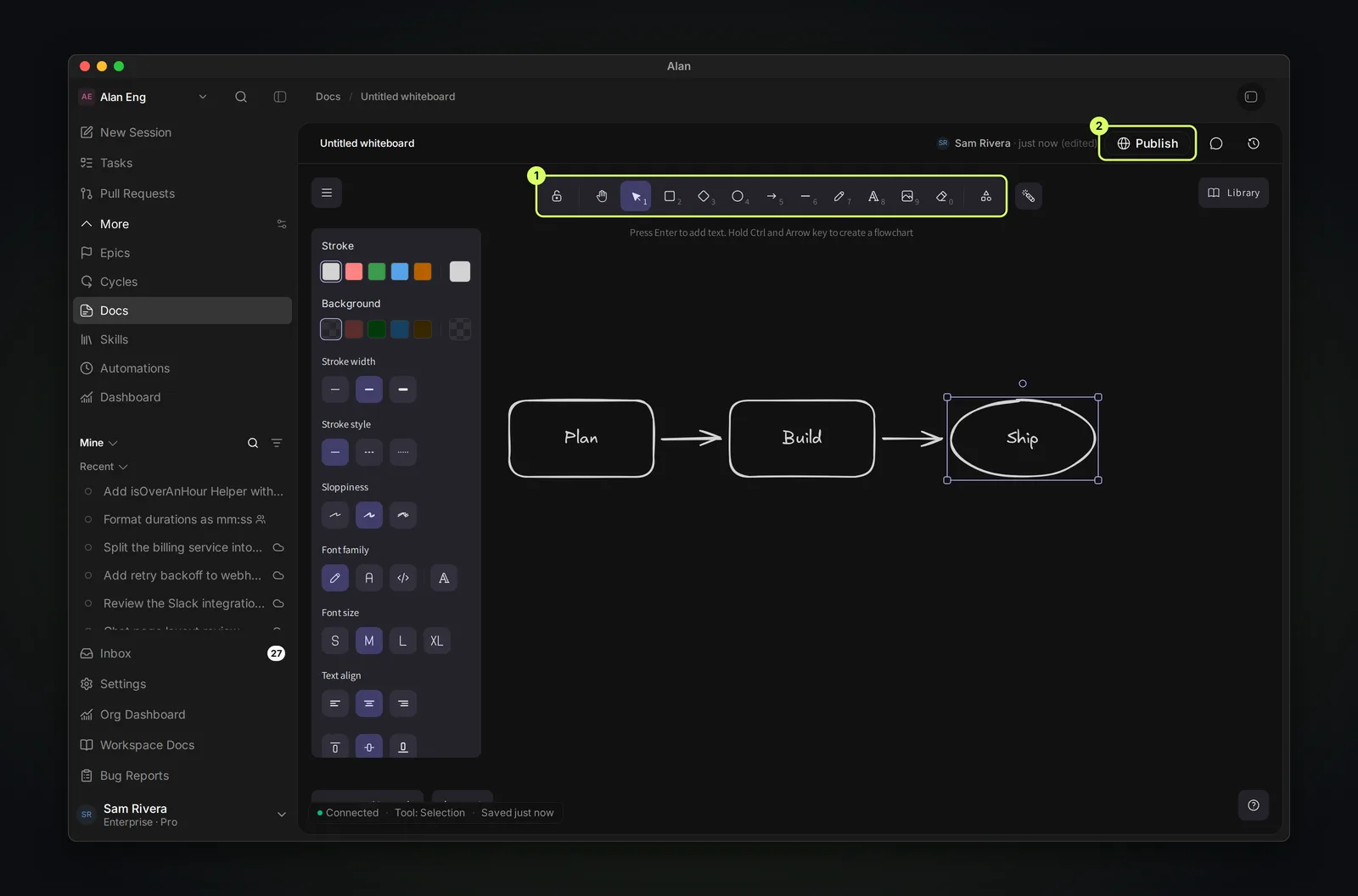
The whiteboard is a real drawing canvas. You can add:
- Shapes: rectangle, diamond, ellipse.
- Connectors — lines and arrows.
- Text and freehand (pen) drawing.
- Images.
- Plus selection, eraser, and hand (pan) tools, with more under More tools.
Whiteboards also have Comments and can be published to the web with Publish, like documents.
Real-time collaboration
Whiteboards are collaborative. Everyone editing sees each other's pointers, selections, and avatars live on the canvas. Changes sync in real time.
Version history
A whiteboard keeps Version history like a document — restore an earlier version from the header.
On phones a whiteboard opens read-only by design, so you can view but not edit it on a small screen. Edit whiteboards on desktop.
Whiteboard vs document
- A whiteboard is a canvas — shapes, arrows, and sketches. A document is rich text with mentions and comments.
- Whiteboards don't support sub-pages,
@mentions, or slash commands. - Both live under Docs, both are team-standalone (not tied to a task), and both keep version history.