Documents
Standalone team pages — PRDs, specs, and wikis — with a collaborative editor.
Documents are standalone pages that live in a team, not on a task. Use them for knowledge that outlives any single piece of work: PRDs, specs, wikis, and long-lived reference material. Find them under Docs in the team sidebar.
Document vs artifact: a document is standalone team knowledge; an artifact is output tied to a task and conversation. If the content belongs to a task, create an artifact instead — see Documents and artifacts.
Create a document
Open Docs
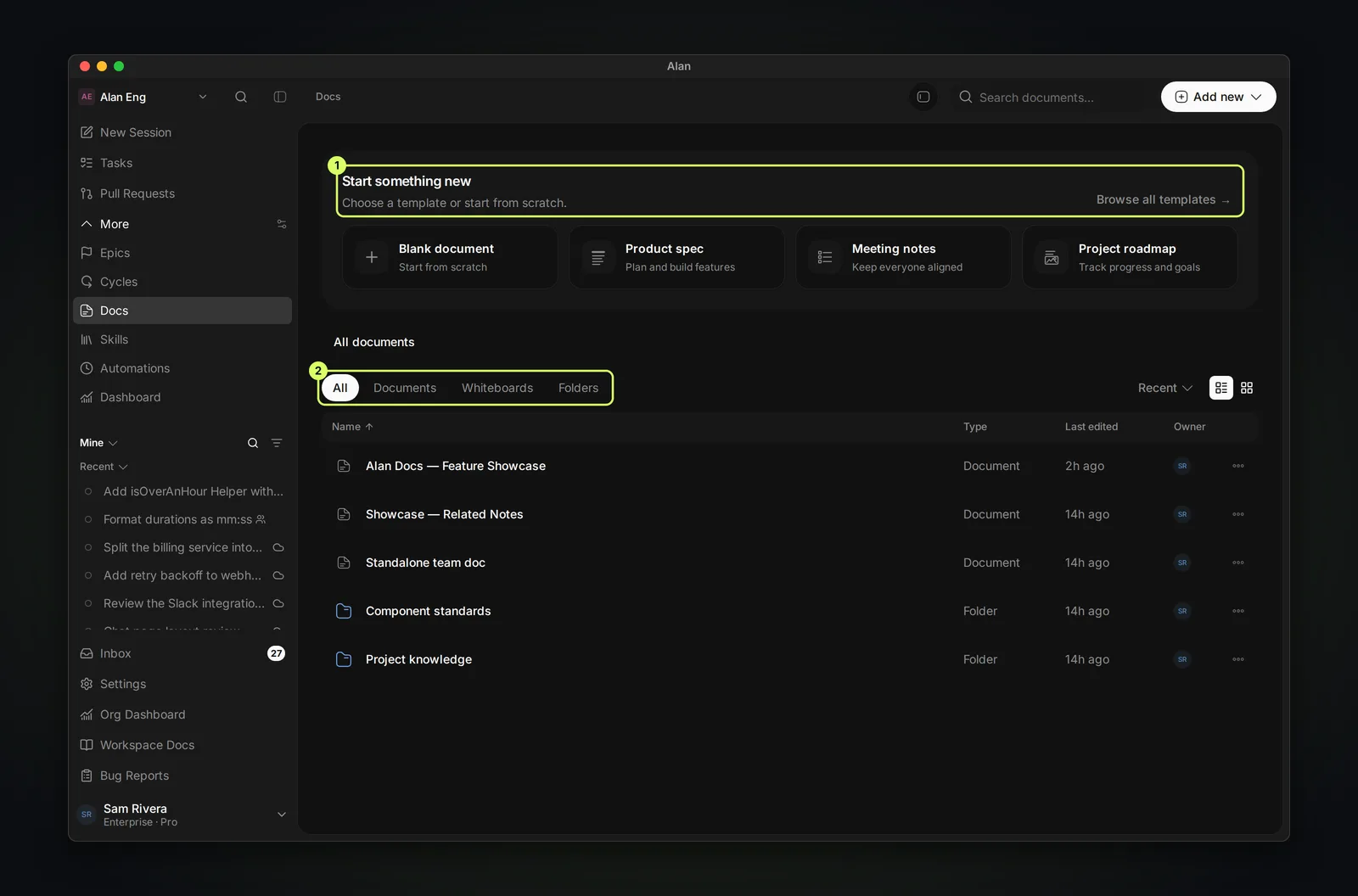
Go to Docs in the sidebar (under More unless you pinned it). All documents lists everything, with All, Documents, Whiteboards, and Folders tabs, list or grid view, and search.
Start something new
Pick a template under Start something new: Blank document, Product spec, Meeting notes, or Project roadmap, or choose Browse all templates. You can also use Add new for New document, New whiteboard, or New folder.
Write
Set the title and start writing. Type / for block commands and @ to mention another document, task, subtask, person, artifact, or whiteboard.
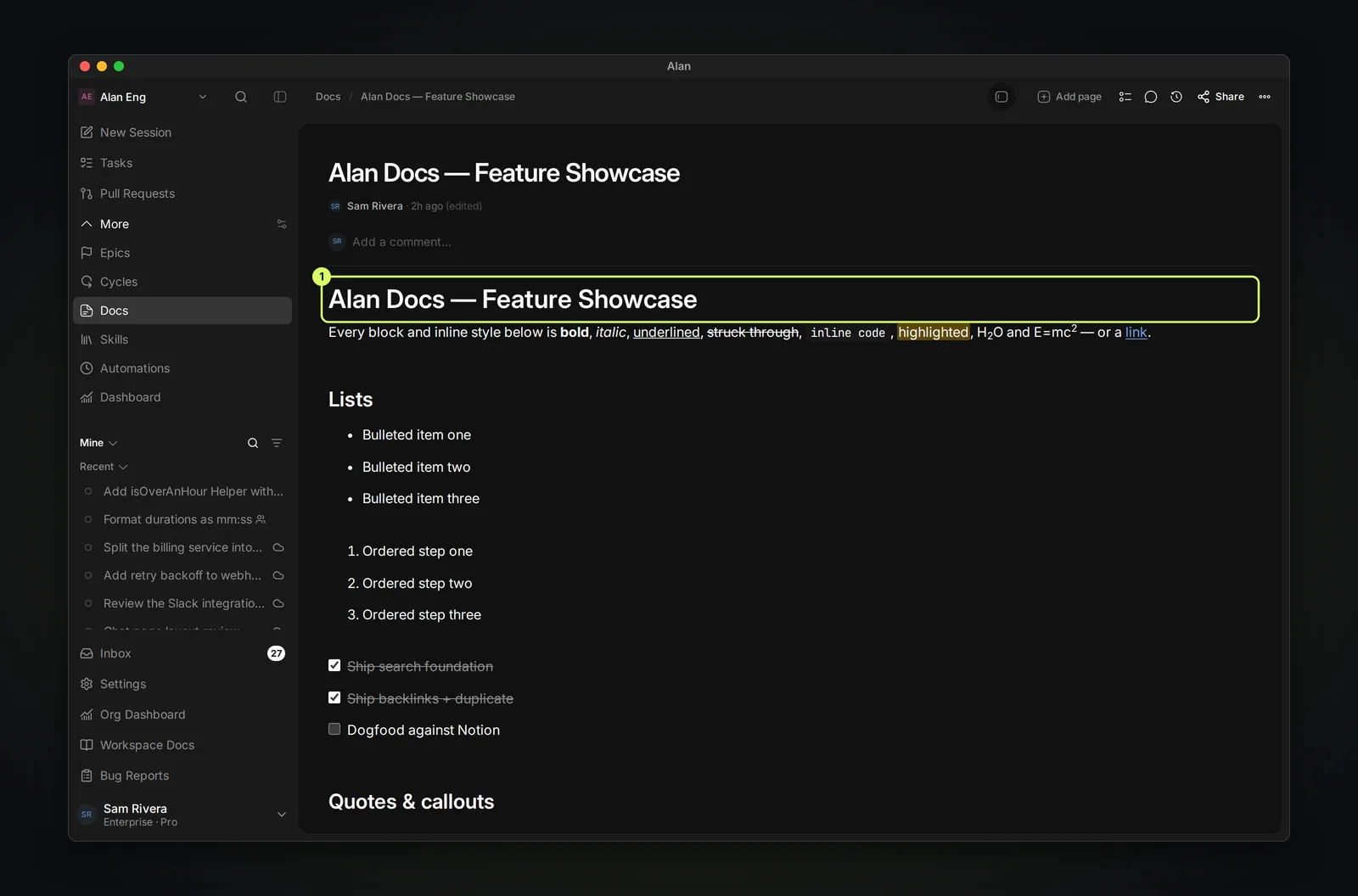
The editor
Documents use a collaborative rich-text editor:
- Real-time collaboration. Multiple people edit at once; you see collaborators' cursors and selections live.
- Mentions (
@). Link documents, tasks, subtasks, people, artifacts, and whiteboards inline. - Slash commands (
/). Insert headings, lists, and other blocks. - Autosave. The header shows Saving… then Saved — there's no manual save.
Comments
Select text to leave a comment. Comments support threaded replies, emoji reactions, and resolve / unresolve. The header shows a Comments button (or the open-comment count). You can deep-link straight to a comment.
Organize
- Folders group related documents; folders can nest. An empty one reads "This folder is empty".
- Pages: use Add page in a document's header to nest sub-pages, with breadcrumb navigation.
Publish and share
- Share opens the sharing options. Publish to web creates a public, read-only link (
/share/<token>) that you can copy. Older/share/docs/<id>links redirect to it while the document is published. Unpublish turns the link off. - A document is private to the team until you publish it.
Publishing makes a document readable by anyone with the link. Confirm there's nothing sensitive before you publish.
Version history and archive
- Version history tracks changes with author and timestamp; restore any earlier version.
- Archive removes a document from the active list. Find it with the archived filter and choose Restore to bring it back, or Delete permanently to remove it.
Export
Export a document to PDF, Markdown (.md), or HTML (.html) from the document menu.