Start a session
Choose where the agent runs, pick an agent and model, describe the work, and follow it live.
A session is one conversation with a coding agent. The agent runs on an execution target: a cloud computer or a computer you connected. Depending on its profile and mode, it can inspect or edit files, run commands, and report back in the conversation. Start one from New Session for standalone work, or from a task's Start work panel when the work should stay with a task. For the full task loop, from first session to Done, see Complete a task with an agent.
The composer
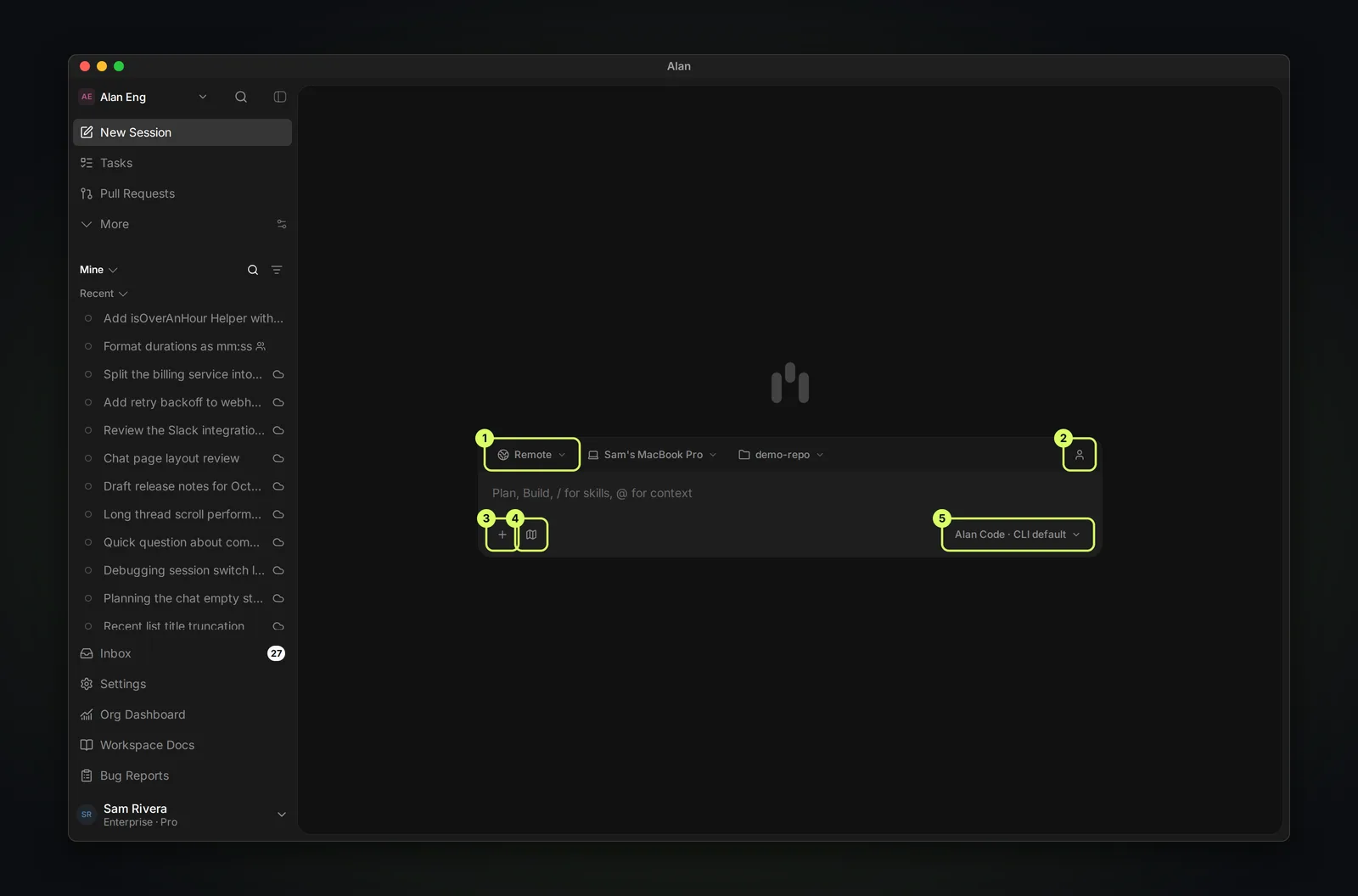
| # | Control | What it sets |
|---|---|---|
| 1 | Execution target | Where the agent runs. See Choose where it runs. |
| 2 | Session | Individual (only you see it) or Team (teammates see it in their session list). |
| 3 | + | Attach Files, or choose the agent profile. |
| 4 | Mode | Agent works directly. Plan (the map icon; the composer gets a dashed outline) is read-only: the agent inspects the code and writes a plan without changing files, saving it as an artifact when it can. |
| 5 | Agent and model | The coding agent and model that do the work. See Coding agents and models. |
In the message box, type / to choose a skill and @ to add context such as files or Alan records.
Plan, then build
When an agent submits a plan, a Plan ready for review card appears. If the plan was saved as an artifact, Open plan opens it. Accept Plan switches back to Agent mode and tells the agent to implement it; Reject Plan leaves it unbuilt so you can reply with changes.
Team sessions depend on your plan. If team sharing isn't included, the control stays on Individual and reads "Team sharing is not included in this plan".
Choose where it runs
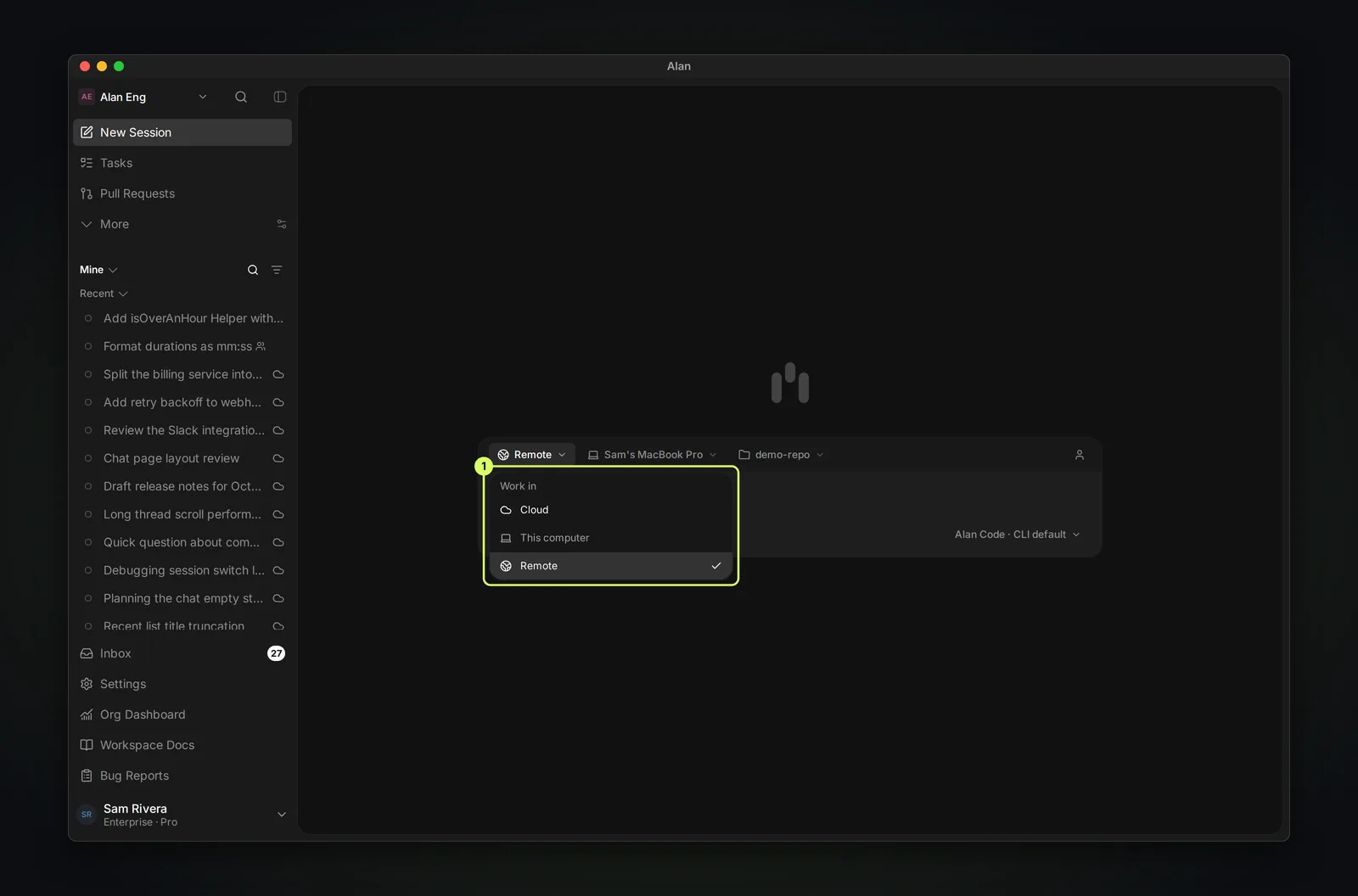
- Cloud: a managed cloud computer. If the environment has no image yet, choose Set up cloud environment. If a selected repository is missing from the image, choose Set up selected repositories. See Cloud setup.
- This computer: the computer running the Alan desktop app. It is unavailable in the browser.
- Remote: a computer or VM you connected to Alan. Choosing it opens the list of connected machines; a green dot means the machine is online. Then pick a Folder: a recent project, Default workspace (
~/.alan/workspace), or search for another folder. See Local execution.
If you send without a usable target, the composer shows Choose an execution target before sending.
Your first solo session
Choose This computer in the desktop app, then select your local project folder and an available agent and model. You can start locally without setting up a cloud environment. GitHub is optional for this first session.
If you just connected GitHub, choose the repository's local checkout as the folder. The GitHub connection gives access to the repository, but does not select or clone a local working folder for you.
Write a good first message
Include the goal, the scope, the evidence you want, and any limits on commits, pull requests, or deploys.
Add an isOverAnHour helper that returns true for durations longer than an hour, with a test.
Keep changes to math.js and math.test.js, run the tests, and don't commit.
From understanding to a change
Start by asking the agent to understand your project:
Explain what this project does, how to run it, and where the main features live.
Read the project instructions first. Don't change files.
For a change, switch to Plan mode and give a concrete problem, expected behavior, and constraints:
Plan a fix for this problem: [what happens now].
Expected behavior: [what should happen instead].
Explain the likely files to change and how you will verify the result.
Read the plan, ask follow-up questions in the same session, and switch to Agent mode when you are ready:
Implement the plan we agreed on. Keep the change within the described scope.
Run the relevant checks and explain what changed and any remaining gaps.
Don't commit or push yet; I want to inspect the diff first.
Use @ to add relevant context or + → Files to attach a screenshot or example. Include reproduction steps and error text for bugs. You do not need to know file names: ask the agent to find the relevant code.
After reviewing the diff and check results, you can ask for a follow-up fix. If GitHub is connected and the local checkout can be pushed, you can continue with:
Create a branch for these changes, commit only this session's work, push it,
and open a pull request explaining the change and validation. Don't merge it.
Continue with Pull requests to inspect the PR, or connect GitHub first if you want that workflow. You can also keep working locally without publishing anything.
Press Enter to send. A new session takes its title from your message, and it appears in the sidebar.
Follow the work
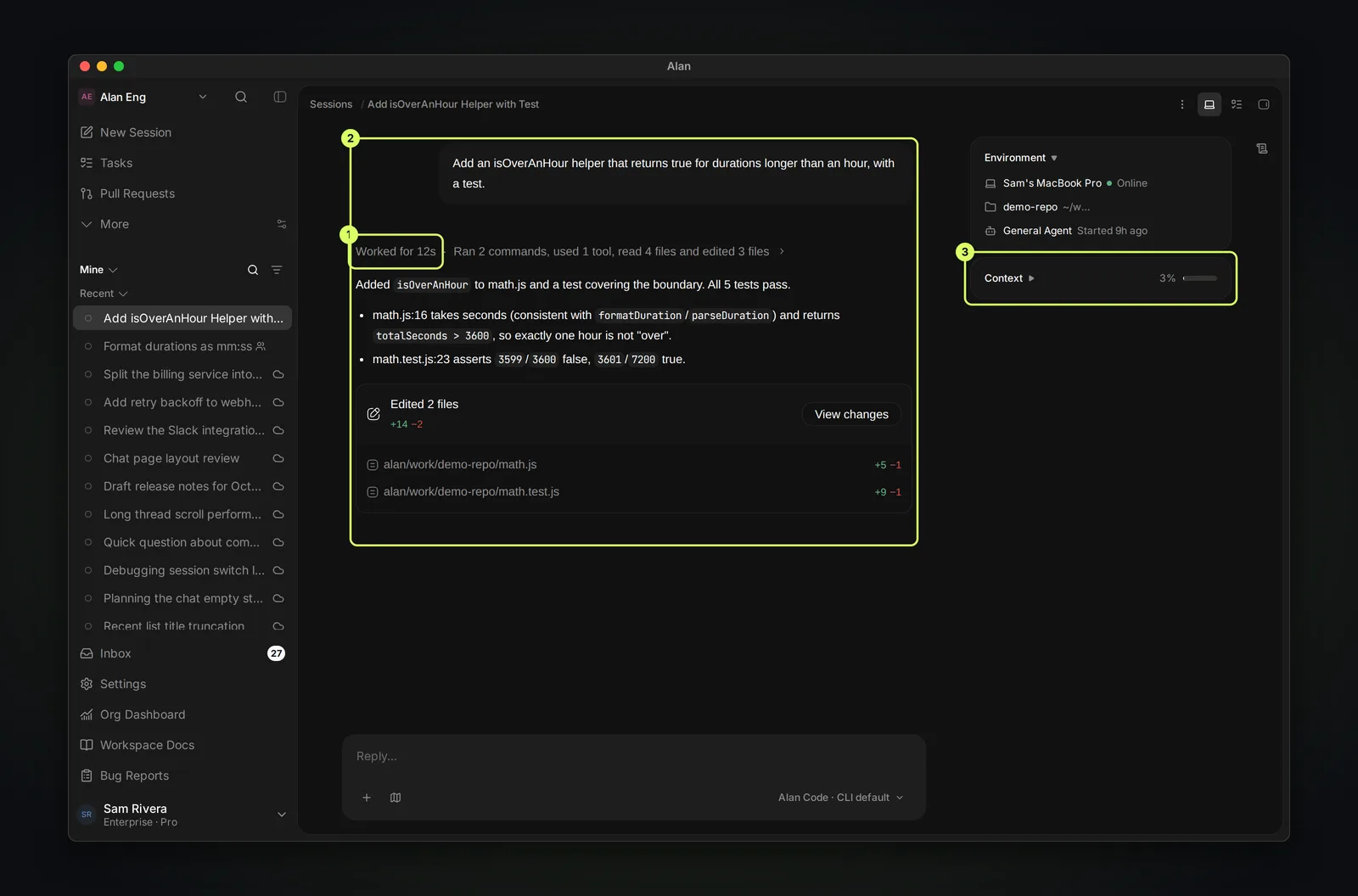
While the agent works, the transcript updates live. When a turn finishes you see:
- A summary such as Worked for 10s · Ran 2 commands, read 3 files and edited 2 files. Select it to expand every step.
- The agent's reply, with code blocks and file references.
- Tool steps for commands and file edits reported by the coding agent. For the working diff on a task, open its Changes panel; for standalone local work, review the checkout with your editor or Git.
The side panel shows the machine and its status, the agent profile and when it started, the working folder, Context usage, and Outputs such as artifacts the session created. Reply in the same composer to continue: ask for fixes, more tests, or a pull request.
Find sessions later
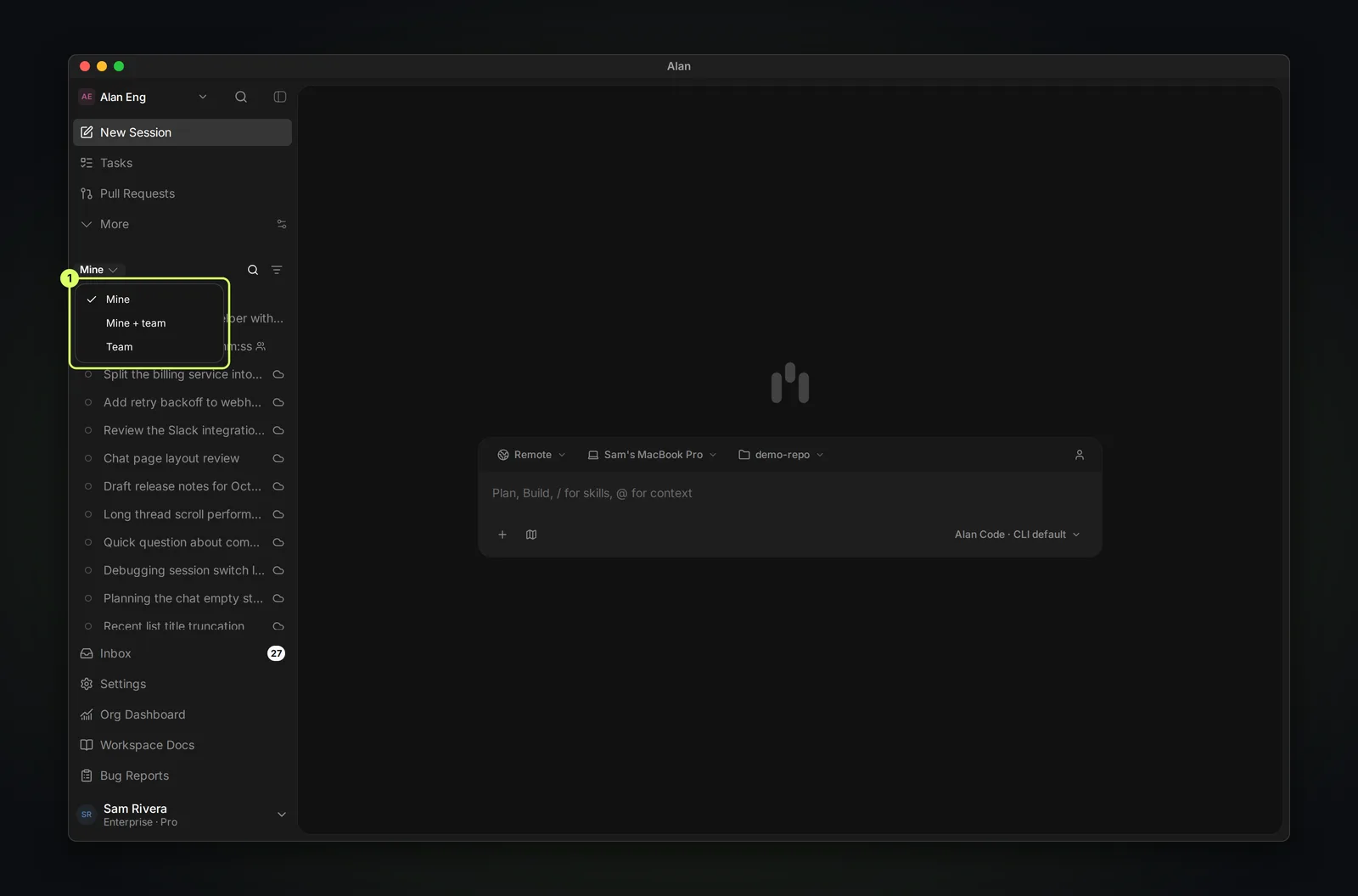
The sidebar lists recent sessions. Use the scope menu to show Mine, Mine + team, or Team sessions, and the search button to find one by title. Hover a session to Pin or Archive it.